Squarespace offers all the designing tools that help you to create a professional UX portfolio. As a designer, your portfolio serves as a first impression to recruiters and hiring managers.
Your portfolio not only showcases your work experience but also shows your design skill set and project highlights.
In this article, you will be guided on how to build UX portfolio on Squarespace.
Having a professional portfolio website is important, especially for freelancers and permanent job seekers.
If you didn’t mention the details properly in the portfolio, it might be possible that your application can be moved forward or ignored based on a quick glance.
Whenever you try to submit a job application online, there is an option provided to request a link to your UX portfolios.
So that means your potential clients want to see your portfolio before hiring you for a job. Follow this step-by-step guide on how to build UX portfolio on Squarespace.
Go to the main menu and navigate to the “Pages” section in Squarespace. These pages have to be added.
Use the “+” button to add new pages and choose a type of page (for example, “Blank Page” or “Gallery”).
You can easily customize your UX portfolio with Squarespace templates. There is drag-and-drop functionality provided, which means you can edit your template without any coding knowledge.
Here’s how you can customize each key section.
Choose your high-resolution images, wireframes, and screenshots of projects.
To add single images, click on the section where you want to add an image and select the image block.
You can use an image block, which is great if you want to highlight individual images.
You can directly upload images from your computer or cloud services like Dropbox or Google Drive.
About Page: Go to add sections to choose a layout like Text,” “Image,” and “About Me.”
Use the drag-and-drop feature to add text and images, and arrange them to look clean so anyone can easily read your about page.
Portfolio Page: Create a grid or list layout for project entries. You can show them as thumbnails or detailed images.
For every type of project, add images and a project description, and showcase your process and the tool that has been used by you.
Add social media links to the contact page. If you have a physical office location, you can embed a map.
To create a contact form, use the form block and add location, email address, and phone number.
Optimize for SEO: Use keywords in your project titles and descriptions. This helps people find your portfolio when they search online.
Keywords are useful for project titles and descriptions. They help people find your portfolio online.
Navigation: When a client visits your site and tries to see some projects that they want to know about.
But if clients cannot find a project because of having many projects, add a “Search Bar.” This helps clients find what they’re looking for.
Mobile Optimization: Preview, test, and run the Squarespace template to ensure it looks good on mobile.
Kristin Jones is the perfect template for showcasing your portfolio or personal brand. Whether you are a photographer, designer, or artist, this template offers a smooth experience for users.
You will get a fully responsive design, which means your site will look just amazing on mobile devices.
The fonts, button styles, and heading sizes can easily be customized to suit your brand.
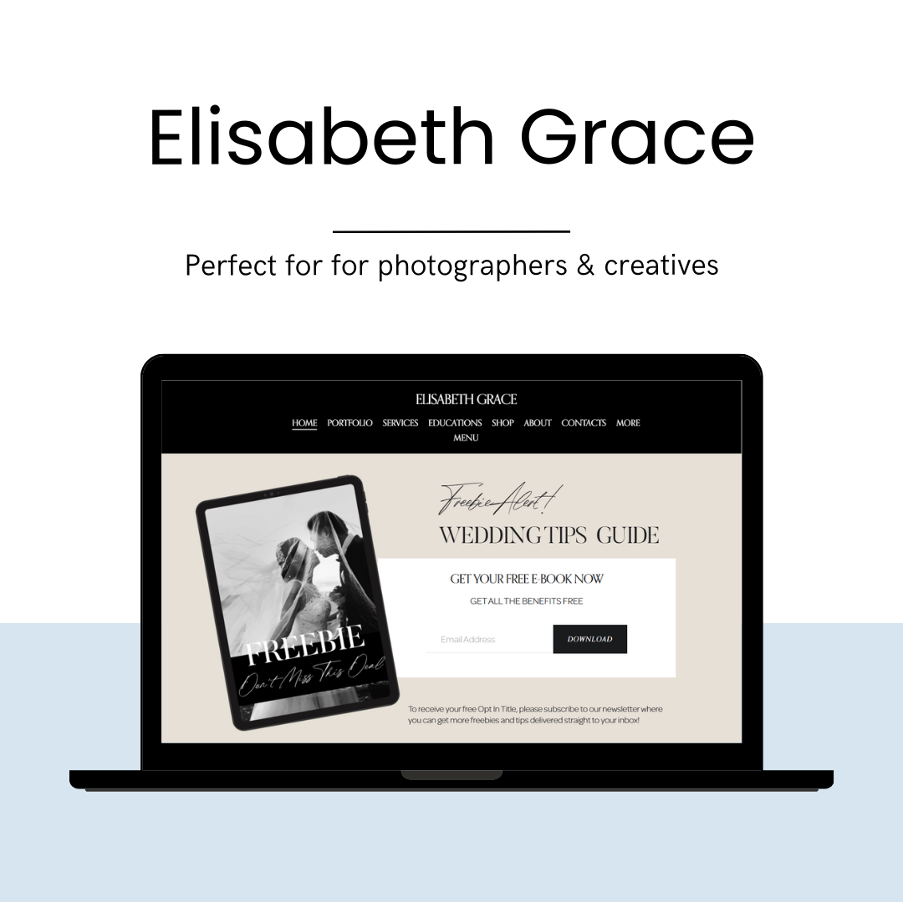
Elisabeth Grace is a chic, sophisticated, and bold template designed for photographers, designers, artists, and creatives.
If you are looking for a sophisticated and bold template, then this template is the perfect way to showcase your services and portfolio.
Squarespace offers built-in eCommerce functionality; you can sell guides, presets, stock photos, or anything else you want.
Here are Some Tips on How to Build a UX portfolio on Squarespace
Ensure Your Portfolio Is Mobile-Friendly: Squarespace templates are responsive, but always test your portfolio on mobile to ensure that your design looks great.
Show Your Skills and Tools: When you create your portfolio, make sure to highlight the tools and skills you use. Add a section dedicated to your skill set that showcases tools that you worked on, like Figma, Sketch, or Adobe XD. This helps potential clients to see what tools you have experience with.
Highlight Your Best Case Studies: Recruiters and clients go through your best case studies so they can know about your problem-solving skills. It explains how you approach a project from start to finish.
We hope this article has helped you understand how to build UX portfolio on Squarespace, so make your portfolio by following these steps.
If you’re still wondering, building a UX portfolio on Squarespace is the right move. Well, it’s safe and easy to make.
Every step is crucial, from choosing the right template to publishing your portfolio so it stands out.
Squarespace provides users with a robust website-building tool that helps them produce spectacular websites without difficulty. Using Squarespace templates users get access to the Media Library tool which functions as their central space for file management including images videos and documents. The capability to manage and access media library Squarespace stands as an essential skill for both novice and advanced users since it enhances both visual presentation and functional capabilities on their websites.
Squarespace implements the Media Library as a central storage point that holds every file type including videos and images along with documents. The Squarespace Media Library provides users with an efficient system to handle their website media files so users can easily retrieve images and videos across website pages.
A person can access Squarespace Media Library by performing these steps.
Users need to access Squarespace.com with their login information.
Log into your account then make the selection between different websites if you operate multiple sites with the same account.
Start by accessing the Content menu and choosing Files from the options.
You can reach the Media Library by either using the “Image Block” or “Video Block” buttons during the page editing process.
Using the “Upload File” function enables users to directly place new media items within the library.
There are multiple methods to upload files to the access media library squarespace which include direct upload from the Media Library.
To begin uploading files select “Upload” before selecting your desired files from your computer.
Drag and drop files directly into the upload section.
You can save the files inside the Media Library to access them easily when needed.
Users accessing page editing functions should first select between image or video blocks.
Click the “Upload Image” button to follow with the “Upload Video” option.
Squarespace templates provide an interface to select files from your computer storage so you can upload them.
Your uploaded files will be saved automatically in the Media Library.
The Gallery Block option comes up when users edit page content.
Click “Add Images.”
Users can upload many files simultaneously and these files will be saved to the Media Library.
The Media Library provides tools for effective management of all uploaded files.
File names containing relevant details help achieve better management of media content.
The system provides groups for arranging files alongside arranged images according to their existing classification system.
From the Website section navigate to Content then Files.
Use the confirmation process to make the file deletion permanent.
You can easily substitute existing files by uploading new items which share identical file names.
Additional updates to the file through Squarespace templates will appear on every page that uses it.
The Squarespace interface does not allow users to modify filenames after uploading files through their system.
The existing file needs to be removed first to upload the new file with a different name.
After media file upload you can start using them across your website sections.
The “Image Blocks” tool enables you to place images within pages.
In the pop-up window, you can find “Upload Image” followed by a button to select your file from the Media Library.
Select “Site Styles” from the “Design” section to proceed.
Select the background area that needs an image insertion.
Users can access the access media library Squarespace templates to select an image after clicking “Choose Image”.
Video Blocks allows you to embed videos directly into your page structure.
The application supports two methods to include videos: upload your video content directly or link to a video hosted on YouTube or Vimeo.
Your site receives an embedded video through an automatic process when you use Squarespace.
Your website will have optimal performance and fast loading times when you implement these optimization steps for website speed and user experience.
You should apply compression to your images by using TinyPNG or JPEG Optimizer beforehand for upload processes.
Professional performance requires images to maintain dimensions between 1200-2500 pixels.
WebP format in Squarespace templates enables the display of high-resolution images with reduced file size.
The Squarespace templates platform has an automatic image lazy loading feature that enhances page speed.
The platform YouTube or Vimeo should serve embedded videos instead of allowing users to send big video files.
All video files should undergo compression before being uploaded into a Squarespace templates platform.
Users working with the access media library Squarespace will probably face certain operational problems. A list of solutions exists to tackle standard platform issues.
Check that the file format matches JPEG PNG GIF or WebP.
The page needs a refresh or cache clearing to display current updates.
Check your internet connection.
Make file size smaller than Squarespace’s maximum if the upload exceeds its restrictions.
The media upload can proceed successfully by using an incognito window or another web browser.
Check that the chosen video format works with the system.
Verify the public accessibility of external videos before using their embedded features.
Without a doubt, you can download pictures from your Squarespace themes webpage, yet the cycle relies on where the photographs are dealt with. Squarespace doesn’t offer a characteristic choice to straightforwardly download pictures from the library, yet there are workarounds.
On the off chance that the picture is shown on a page, you can download it really:
Examine the page where the picture is shown.
Pick the locale on your PC and save the record.
Anyway, this strategy could pack the picture or change the record plan.
On the off chance that you moved a picture to a recording interface (e.g., in a button or text block), you can recover the chief report:
Find the button or text block where you moved the picture as a report.
Click the download partner.
The picture will be downloaded in its original quality.
If a picture is set as a foundation or can’t be straightforwardly saved:
Open the page in Google Chrome or Firefox.
Right-click any place and select “Investigate” (Chrome) or “Assess Part” (Firefox).
Examine the Parts tab and track down the picture URL in the image or foundation picture property.
Open the picture URL in another tab and save it beginning there.
If your photographs are inside a Showcase Block, you want to:
Go to the Exhibit Block in change mode.
Open the standard picture by tapping on it.
Right-click and select “Save Picture As.”
Basic Notes
Loss of Picture Quality: Assuming that you download pictures, they might be compacted or resized.
No Fast Library Access: Dissimilar to stages like WordPress, Squarespace themes don’t give a downloadable media library.
Elective Framework: on the off chance that you want a full blueprint of pictures, consider downloading a help of your website page or recovering them from your unique source records.
The Moderate Portfolio configuration is perfect for picture takers, well-informed authorities, and coordinators focusing on featuring their work flawlessly and richly. The arrangement spins around top-notch visuals with an immediate course menu, guaranteeing that guests stay pulled in with your work.
Full-screen show with smooth advances
Structure-based portfolio plan for clear analyzing
Adaptable abstract styles and grouping plans
Solidified blog district for updates and snippets of data
Sign in to your Squarespace account.
Open the Site Manager and research the page where you need to add media.
Click on a picture block or show section.
Select Trade Picture or Inspect Library to get to moved pictures.
You can besides oversee and coordinate reports by going to Settings > Records.
The cutting-edge Business Landing page configuration is ideally suited for new associations, affiliations, and business visionaries searching for a trained professional and basic web-based presence. It highlights strong typography, a key wellspring of inspiration buttons, and unsurprising trade-offs with advancing mechanical congregations.
Legend segment with video or picture foundation
Adaptable wellspring of inspiration buttons
Site improvement amicable arrangement
Virtual entertainment and pamphlet mixes
Open your Squarespace themes Dashboard.
Click on Adjust Site and go to the piece where you need to add pictures or media.
Click on a picture placeholder or part that awards media moves.
Pick Examine Library to pick a picture from your continuous media records or move another.
Regulate and coordinate your reports by going to Settings > Records for more straightforward access.
Users cannot rename their uploaded files in Squarespace themes since this feature remains unavailable. Upload files first before you rename them because the only option to rename files requires downloading first followed by renaming locally and re-uploading the files.
Squarespace limits the file sizes for uploads according to different file types.
Images: Up to 20 MB
Video uploads directly from the site have a 300 MB size limit but embedded content through YouTube or Vimeo does not follow this restriction.
Audio files: Up to 160 MB
Different file types such as PDFs Word files and more can have maximum dimensions of 20 MB.
You can place multiple files for upload by either picking multiple files from your system or moving them into the Media Library by drag and drop.
Files removed from the Media Library become irretrievable since the system does not allow any recovery. Upload an additional version of the same file if you possess it elsewhere on your computing system.
The platform performs automatic optimization of uploaded images to enhance site speed. The image quality might face some minor degradation during the optimization process however it achieves significant speed boosts.
Yes, Squarespace supports GIFs. Web-oriented optimization must be applied to images to prevent performance issues with page loading.
Squarespace themes do not provide an option to upload SVG files as part of its existing system capabilities. The platform requires SVG files to be transformed into either PNG or JPG for the upload process.
The interface lacks a direct method to substitute images. To update an image:
Mark the previous image for deletion through the Media Library.
The new version requires uploading with an identical file name.
Add this file to your website at the desired location.
The access media library Squarespace includes full integration with Unsplash and Getty Images so users can directly access premium stock images for their website.
Squarespace does not include dedicated file permission settings within its functionality. Private files restricted through password protection will function on password-protected pages.
Users cannot generate video thumbnails within the system. Users need to insert cover images by hand during the process of embedding videos.
Through its access media library Squarespace users obtain an essential tool to manage their images together with videos and all other media files successfully. The ability to handle media file management through access, upload, organization, and optimization processes enables better website performance while improving visual appearance. Your content stays fresh and relevant for visitors through regular maintenance of your media library updates.
Squarespace themes users can achieve maximum Media Library potential through these guidelines to develop visually remarkable websites that captivate their intended audience.
Every time you some one starting a website , face a dilemma. Which template to choose given wix vs weebly vs google sites vs squarespace prices.
Website builders’ pricing structures, especially Wix, Squarespace, Weebly, and Google Sites, form the basis for most user comparisons. Different users will find the various features and pricing elements provided by each platform to be attractive options. The following article presents a price comparison between Squarespace themes and templates and the platforms of Wix, Weebly, and Google Sites.
Selecting the right website builder requires examining various platforms together with their monetary policies. Also their features potentially match with individual targets. Pricing for Wix and Squarespace themes and Weebly and Google Sites stands as one of the essential determining elements for website builders. An evaluation of these platforms shows which platform provides maximum value to suit your needs.
Available pricing plans from Wix make their services accessible to users at various budget levels. Users can access free pricing options, but upgraded plans give access to more extensive features. Wix provides three different plans with costs starting at $14 per month and extending up to $49 per month for the VIP plan.

The website development cost plans for Wix, Squarespace themes, Weebly, and Google Sites remain accessible during initial setup phases. Wix provides further capabilities by upgrading between its different plans after your initial needs expand.
Users seeking sophisticated professional websites should opt for Squarespace themes because it delivers a generated website-building experience. Select Wix personal plans start at $16 per month, but the advanced commerce features reach prices up to $54 per month.
Differing starts at higher prices characterize Squarespace themes, but users get advanced design capabilities together with built-in powerful e-commerce tools.
Weebly provides a straightforward platform and gives users multiple pricing options. It includes their free plan and three paid plans starting from $6 per month up to $26 per month for performance functions.
Weebly provides cheaper starting prices than Squarespace or Wix, yet users will usually not get access to advanced customization abilities.
Users can enjoy Google Sites at no expense since it provides a completely free experience with no paid tiers. The free use of Google Sites has design limitations when users need advanced features that Wix and Squarespace provide.
People who need low-cost websites should consider Google Sites because it offers free service while being budget-friendly for its features.
Users can create professional websites through the attractive templates, which Wix and Squarespace make available to their users. However, Squarespace themes and Wix themes each offer different advantages.

Wix themes deliver absolute customization capabilities that result in them becoming a useful choice for anyone who wishes to fully express their creative ideas. The drag-and-drop feature of Wix provides beginners and experts with the same user experience because it requires no coding knowledge. Wix provides 500+ design themes appropriate for creating blogs and websites for businesses and portfolios and establishing online stores. The platform provides multiple style options across 500 templates that correspond to diverse website needs.

Users who value design freedom choose Wix themes as their platform. It is because these themes enable impressive capability for building appealing websites with practical functionality.
Visual design experts highly regard the sophisticated appearance of the templates, which Squarespace delivers. Squarespace themes attract creatives and photographers and small businesses that need professional contemporary aesthetics. Users who value appearance above all else usually choose Squarespace templates. It is because these templates excel at delivering high-quality visual displays despite having lower customization options than Wix themes. User-friendliness combines with visual impact as standard design features of these templates.
When we compared Wix vs Weebly vs Google Sites vs Squarespace prices. The price of Squarespace is higher than Wix, Weebly, and Google Sites. But it is a dependable option for people who value professional aesthetics without extensive manual design work.
People can modify Wix themes extensively, yet Squarespace templates deliver a more polished visual appeal. The Wix platform provides users with extensive design options, but Squarespace maintains uniformity across all its templates. Squarespace stands ahead of Wix in terms of design features, which makes it preferable for customers who focus on design quality. Users who need complete design freedom through Wix will get access to greater customization capabilities.

The advanced features that different platforms provide play an important role when determining which service to use because of their effects on your budget.
The features noted above contribute to making Wix a leading choice based on Wix vs Squarespace vs Weebly vs Google Sites pricing while delivering maximum customization capabilities.
The quality of user interaction stands as the main element for determining platform selection. The website builders present different levels of user-friendly controls and adaptability in their features.
Wix provides new users an intuitive experience because of its handy drag-and-drop editor. The flexible architecture of Wix gives both new designers and experts a simple way to control their website appearance. Wix consists of user-friendly elements that welcome untrained individuals yet contains professional-grade instruments designed to serve advanced users building customized web pages.

The user experience at Wix enables everyone from inexperienced to experienced users to design professional websites suited to their specifications. Wix supplies all the necessary instruments for users who want to create either basic blogs or complex e-commerce sites.
The user-friendly nature of Squarespace templates involves longer adaptation time than Wix requires for its straightforward interface. The user experience on Squarespace focused on sophisticated elegance for users who want elegant designs. Squarespace stands out as an exceptional platform for producing professional websites, though its designed nature poses minor difficulties to new users.
Squarespace presents a professional user experience and automatic design solutions for users who intend to create visually impressive sites without excessive work. Its refined aesthetic makes it a preferred choice for creatives and small businesses.
The interface at Weebly follows a drag-and-drop method that makes it similar to Wix. People who require rapid, simple setup will find Weebly ideal for their needs. The platform caters to new users and users who need rapid website launches using a streamlined approach to customization. Weebly serves users wanting a simple website launch because it gives a straightforward path for basic design needs despite lacking sophisticated features found in Wix and Squarespace.

User-friendly features represent Weebly’s main design goal alongside offering convenience to its users. Such a platform suits people requiring fast website setup because it eliminates unnecessary complex features while allowing quick deployment. Weebly provides a suitable all-around choice for people running small businesses and personal pages alongside online stores who desire basic functionality without technical hassles.
The most basic tool among Google Sites tools is both the most fundamental and the least suitable for feature-rich development. Google Sites serves effectively for basic projects together with internal websites but fails to meet the requirements of commercial ventures and portfolio websites. Users seeking straightforward websites with no complex features should consider the platform because it provides an easy-to-use interface through its minimalistic design.
Google Sites serves personal basic projects together with internal work needs through its free, simple interface. The platform lacks the features needed by businesses that develop complex websites or portfolio pages.
Your pricing choice between Wix and Weebly and Google Sites and Squarespace must match your financial capabilities. While continuing toward your goals with suitable features. People who need customizable options should select Wix as their platform. Squarespace provides the best solution for users who need a professional website appearance together with premium content quality. A limited budget will not restrict your website development if you choose Weebly. Users who need no-cost website development choose Google Sites for their basic requirements.
The choice between Wix vs Weebly vs Google Sites vs Squarespace prices should settle through cost comparison according to your website requirements and future business directions.
Users can use Squarespace for building websites with its user-friendly platform. The main functionality of this platform includes a section template customization feature. The process of developing your own Squarespace sections template functions as an excellent design enhancement measure for your website. This discussion demonstrates the path to build Squarespace section templates, which enhances both design, and operational value of websites.
A Squarespace Sections Template represents a predefined format, which users can reuse for different pages of their website.You can use pre-designed layouts known as section templates for multiple web pages on your Squarespace website. These templates assist in designing a large number of professional-looking pages in a speedy manner. Commenters can use saved section templates to avoid redesigning multiple times the same components they need to repeat. Squarespace Sections template help designers maintain uniformity across their site pages regardless of whether they build blogs or products or landing pages.
Each Squarespace section template contains different content blocks, which users can customize according to their requirements. You can add elements like:
Your website obtains substantial design and functional advantages from Squarespace sections template, which optimize user experience. Squarespace sections templates help both new and professional designers through an improved workflow, which produces more efficient website design. These are the fundamental advantages of working with Squarespace section templates during your design development phase.

All website pages adopt a uniform appearance because Squarespace templates maintain consistent design elements throughout your pages. Your brand identity finds its best expression through consistent application of elements while delivering a smooth user experience. Squarespace section templates help you sustain unified design elements, which include both typography choices and colour schemes together with the layout format.
Having custom-designed Squarespace section templates decreases your total work duration significantly. Your completed section reaches template status for subsequent use after saving it. The design elements, together with the content structure that you create, become reusable whenever you need them to build more pages.

Squarespace Sections templates in possess high flexibility, which enables you to adapt them according to your website developments. You can accommodate your changing needs by modifying content blocks, layouts, and visual elements while maintaining the original design consistency.
Update all your Squarespace section templates throughout the website efficiently using Squarespace themes. The modifications in template information will reflect instantly in every section that contains the applied template. Such a feature greatly decreases management time for websites with numerous pages using common visual elements.
A section template on Squarespace that achieved proper design produces better user experiences. Your section templates enable the creation of functional pages with attractive appeal, which enhances users’ interactions with your site.
All Squarespace templates as well as section templates come pre-built with mobile-responsive features.It guarantees your site will display well across various devices. Responsive design features in Squarespace section templates automatically adapt to screens of all dimensions for a smooth user experience between desktops, smartphones, and tablets.
You will benefit more from Squarespace sections templates, when your website keeps growing. You can develop your website further by adding multiple sections that use the same basic design structure. After you expand your website by adding new material, you can use existing templates to create matching new sections without delay.
You gain full control to plan and customize how sections appear on Squarespace through section templates. You can pick from multiple content blocks and then move them to preferred positions. It makes specific visual changes to match your requirements perfectly.
You can develop better SEO results through a focused website design structure. Squarespace section templates permit you to build content-heavy areas that online search engines positively rank. Your website will appear higher in search results when you design a repeated format that adds keywords to the proper areas.
Small companies and business owners find Squarespace section templates help them build websites at a lower cost. You can design outstanding professional websites using pre-built template modifications at a more affordable price.

To make Squarespace section templates, you need fundamental knowledge of Squarespace layout tools. Follow this process to develop your template.
Select Squarespace templates based on the website design you want to achieve. You can find many Squarespace templates made for particular types of websites. You can find one template that suits your brand vision and objectives.
After picking your template, you need to begin adding new sections. In the page editor, click the plus button to make a new section appear. Select from different page setup choices that the system offers without limitations.
One can start modifying the new section after adding it. You should build your section design with the text, image, button, and form elements that Squarespace offers. It is also adjust both the section background and its spacing areas according to your design requirements.
After you finish making changes in the section design, click Save Template.
Check the section design and store your template for future use. Using this option lets you add the section to different parts of your website. To store this design for future use you should select “Save as Template” in the section settings.
It is simple to use saved Squarespace sections templates again. Navigate to the editing area where you want to add the template after selecting the section you want to work with. Click the “Insert Template” menu option and pick your saved section template from the displayed choices. Your page will obtain the saved layout elements from your design.
You can update a Squarespace sections template by going to the chosen section and then clicking the settings icon. Use this opportunity to add fresh content blocks while refining the design. When you save your changes, the template updates all web pages where you used it.

Designing an optimal Squarespace sections template requires adherence to particular design principles. Here are some tips:
Keep your section templates basic and easy to understand. Follow a basic and straightforward design approach that helps visitors move through the site effortlessly.
Check that your Squarespace section template displays well across all screen types, including desktop and mobile. Monitor your section designs on mobile devices because Squarespace enables mobile optimization.
Your Squarespace sections should follow the visual standards of your brand. Apply your brand’s official colours, text design, and logo throughout your website pages.
You need to build each section template with how users will interact with it. Design your template features to help users enjoy easy access to the content.
Check your Squarespace section template performance on different internet browsers to verify compatibility. Browser compatibility needs examining since different templates display identically in one browser while showing visual differences in another.
Although Squarespace templates manage visual design layout, Squarespace themes supply full website style properties. Your theme selection reinforces page consistency when you apply it to all parts of your website.
Squarespace themes selection depends on how you want your brand to look and feel. You should select a Squarespace theme that matches the content you want to create.
After selecting your Squarespace themes you should enhance them to suit your Squarespace sections templates. You must tailor how the theme appears by modifying its colour preferences, typography, and visualization characteristics to keep all sections perfectly harmonized.

Since Squarespace section templates help you create content more quickly, they can face specific problems during use. This article gives you solutions to fix your problems and make your sections appear as expected.
The section template on your Squarespace page fails to appear as expected because you may have adjusted alignment settings that do not match the selected template. You can resolve this problem by following these directions.
An easy solution is available when your Squarespace section template fails to display on intended pages.
Many users experience problems with background design aspects when a Squarespace section template fails to display correctly. When your section background does not show correctly, you need to check its settings.
The steps provided here will help you fix problems with Squarespace section layouts so you can build a smooth user experience across your entire website.
Crafting Squarespace sections templates lets you simplify website creation and develop consistent pages. You can design a template that suits your requirements and use it throughout your Squarespace site development. Design your templates according to professional design rules and mobile compatibility standards. Using the perfect Squarespace themes and templates together with your Squarespace sections templates creates a polished website design.
Users can make remarkable websites through Squarespace themes which stands as a leading website platform featuring an intuitive interface. All users can use Squarespace tools to build online portfolios along with e-commerce stores and blogging sites through its intuitive design features. The platform includes features for improved user experience but users can still benefit from workflow optimization through specific platform enhancements. Squarespace object Chrome extension provide susers with the most effective way to improve their website-building workflow.
Google Chrome browser enables users to add Squarespace object chrome extension which enhances browser operation through their small software programs. Squarespace themes users benefit from extensions that simplify tasks regarding both content management and design and Search Engine Optimization needs. The following article provides details about key Squarespace-compatible Chrome extensions alongside their features that can optimize your website operation.
Squarespace users understand that website content constitutes the foundation while requiring well-written written text. Grammarly stands as the most prevalent Squarespace object Chrome extension that helps users enhance their content quality. The tool provides instant grammar and spelling alerts during typing which supports users to generate high-quality professional content.
The text undergoes thorough polishing through Grammarly until you are ready to publish it for all platforms including blog posts, product descriptions, and page content. This integration offers hassle-free performance because it operates within Squarespace’s built-in content creation area thus enabling customers to dedicate their focus to creating powerful content while reducing proofreading time.
The Pinterest Save Button extension helps Squarespace users who need social media to generate traffic because it enables visitors to save content. The easy-to-use Pinterest Save button enables website visitors to select and pin images from your site to their boards which creates more possibilities for social sharing and organic site visitors.
A button on your Squarespace themes website enables quick sharing of your content with visitors who can enlarge their audience reach through a single click. Web platforms that heavily rely on pictures like portfolios together with lifestyle blogs and e-commerce stores with premium product images will obtain maximum advantages from this tool.
Your Squarespace themes website requires effective SEO practices because they allow your site to enhance its presence in search engine results at Google. The SEO Meta in 1 Click extension presents users with a user-friendly interface to view and update titles descriptions and keyword meta tags of their website.
Squarespace themes users now get simple backend-free accessibility to modify their SEO settings through this browser extension. Proper search engine optimization occurs through this tool which enhances search engine ranking potential on Google.
Web design fundamentally depends on the selection of colors. Your Squarespace template updates and CSS website modifications require the correct selection of colors as their foundation. Users of the Squarespace object chrome extension ColorZilla gain the ability to detect colors on webpages while also adjusting colors and matching selected hues.
Squarespace users gain access to ColorZilla which enables them to locate suitable color schemes for their websites easily. This extension provides the complete set of necessary tools to help users either match competitor schemes or build their unique color combinations for developing visually harmonious websites.
Web design heavily depends on typography since it constitutes an essential design aspect. Many Squarespace users need to identify website fonts since they want to either recreate specific designs or align with brand themes. You can use WhatFont as a Squarespace object Chrome extension to determine the fonts being utilized on any website page.
WhatFont serves Squarespace users by revealing suitable website fonts which helps them achieve uniformity in their site typography. Website designers should have this tool because it enables them to study designs they like and endeavor between their font designs.
The management of Squarespace themes websites demands proper protection of your passwords. LastPass serves as one of the best Squarespace object Chrome extension because it protects your passwords while providing automatic filling to eliminate password-related memory issues.
LastPass enables Squarespace users to establish secure security management for their website login details. LastPass automatically inserts your password during Squarespace templates login which accelerates the process and protects your account from weak passwords that you may reuse.
Communication effectiveness becomes essential when running a Squarespace website, particularly for groups or clients. The Squarespace object chrome extension Loom enables users to create video tutorials and product demonstrations and design walkthrough recordings with ease. The tool serves as an excellent solution to demonstrate Squarespace operation, handle system problems, and share project concepts with co-workers.
Loom serves users of Squarespace templates with its efficient solution for sharing visual instruction material. With Loom users can easily demonstrate their screen and add contextual explanations to guide others in design feedback or website modification tasks.
Advanced Squarespace users can reach advanced website customization with the Web Developer extension. Web Developer serves as a toolkit that supports web developers by offering capabilities for examining webpage HTML CSS and JavaScript for debugging purposes and document alteration.
The coding knowledge of Squarespace users makes Web Developers a superior tool during website customization through design manipulation. Web Developer lets users apply instant interface changes and conduct real-time debugging of Squarespace templates content while refraining from making permanent modifications to their sites.
The Squarespace user base finds Pocket necessary because this tool helps preserve their design ideas while providing article-storing capabilities. The extension provides a single repository where users can store webpages videos and images for later retrieval.
Pocket enables users to build inspiration by saving internet resources that cover design trends e-commerce concepts and blog content discovery. The single-location organization enables efficient planning and brainstorming activities for Squarespace templates website development.
Site performance analysis through SEO requires more than just meta tags and keywords because it should focus on complete website evaluation. Industrial-strength SEO tool Sitebulb provides complete website examination so users can discover problems while enhancing their search engine rankings.
Sitebulb delivers thorough SEO insights about website performance to Squarespace templates platform users along with suggestions for website improvement. Through the extension, the system detects multiple problems that include broken links alongside duplicate content and alt text absence each responsible for lowering search engine rankings.
The template caters to people or businesses providing Squarespace object chrome extension. It provides a contemporary design featuring a main homepage that displays your best extensions through visually striking images complemented by user feedback. The template offers dedicated spaces to display extension characteristics as well as step-by-step installation instructions together with pricing information. The design suits Squarespace extension owners who want basic yet classy visuals with smooth website navigation.
The Squarespace template Tech Toolkit caters to technical professionals who need to showcase both Chrome Extensions along their related tools to their users. The template presents extension details by organizing functions alongside their advantages through well-structured webpage design. This Squarespace template stands out for users who want to deliver valuable tutorials together with tips and extensive guides that support their Chrome Extensions promotion effort.
Both MozBar and SEOquake extensions enable Squarespace users to examine key SEO factors of their site pages. Users can get important page data from these extensions through analysis of titles and descriptions and density statistics.
Through Buffer or Hootsuite users can schedule social media posts while linking Squarespace website or blog content to their social media profiles.
Most Squarespace security aspects remain unaffected by extensions that users install. Thorough caution needs to be exercised when installing third-party extensions because malicious extensions might create security vulnerabilities in your browser system. Extensions should be obtained from established trusted platform providers.
Shopping becomes more valuable through Chrome extensions because they provide customers with discounts and deal opportunities through Honey and Rakuten. The management of your Squarespace eCommerce store through Shopify’s Plugin for Chrome remains limited but standard browser extensions can improve site performance in general ways.
The Chrome extensions from Google Analytics and Hotjar enable Squarespace users to monitor their website traffic together with user behavior and conversion rates. Squarespace users can enhance their analytics through built-in feature integration with the plugins’ data.
Squarespace users obtain great value from Chrome extensions because they help them optimize their workflow along with website functionality and daily operational tasks. Website creation becomes more efficient because various extensions enable users to write without errors and also strengthen SEO and design elements. Your Squarespace performance will improve through tool integration which results in time efficiency and productivity gains and produces an enhanced user experience in your website.
Many users ask, “Why both Square and Squarespace?” This question arises because the two platforms are strategically connected. Square provides essential communication tools and business management features, all in one program. As a result, users can handle website development, communication, and branding tasks without switching between apps.
Furthermore, the integration of payment solutions in both platforms makes sense. It allows businesses to maintain smooth and uninterrupted transactions, ensuring a steady cash flow.Therefore, understanding “Why Both Square and Squarespace?” is vital for improving online store efficiency and reliability. The benefits include efficient branding tools, template design, marketing features, and e-commerce capabilities.
These tools help businesses create a strong online presence with attractive and recognizable designs. In summary, the answer to “Why Both Square and Squarespace?” is simple: the integration of both platforms creates a seamless environment. This boosts efficiency, enhances branding, and offers secure payment processing—making it an ideal solution for entrepreneurs looking to thrive in the online marketplace.
Before exploring the synergy between Square and Squarespace, it’s important to understand what each platform entails and how they function individually. Why both Square and Squarespace? Square is a comprehensive point-of-sale (POS) system that allows businesses to process payments, track sales, manage inventory, and handle customer interactions. It’s designed to provide seamless financial management, both online and in-person, for small and medium-sized businesses. Squarespace, on the other hand, is a website building and hosting platform.
It enables users to create professional-looking websites with ease. With customizable templates, e-commerce tools, and powerful content management features, Squarespace helps businesses establish a strong online presence. Why both Square and Squarespace? Squarespace also offers a range of marketing tools, helping businesses increase visibility and grow their online presence.
By understanding how each platform functions individually, we can better see how their integration creates a powerful synergy that enhances business operations. Why both Square and Squarespace? When combined, these platforms offer convenience and efficiency, streamlining processes and helping businesses thrive in a competitive marketplace.
The services offered by Square and Squarespace go beyond website creation and e-commerce. Why both Square and Squarespace? These platforms not only help with building websites and selling online but also provide essential tools for managing payments. Square ensures secure debit and credit transactions for both physical and virtual businesses, supporting smooth financial operations whether in-store or online. Additionally, Square offers inventory management tools, allowing businesses to efficiently track and control stock across physical stores and online platforms.
Why both Square and Squarespace? By integrating inventory management with e-commerce capabilities, businesses streamline operations into one unified system.
Square also supports invoice generation, simplifying billing and payment processes. Moreover, Square provides payroll services, easing employee compensation and tax management, which helps streamline back-office operations. These comprehensive features demonstrate why both Square and Squarespace? Together, they offer businesses the tools to optimize financial, operational, and workforce management, all within one solution.
Squarespace is an intuitive online platform that helps users create professional websites easily, even without coding knowledge. It offers a wide variety of customizable templates, allowing users to choose and personalize the perfect design for their site. These templates are highly flexible, making it simple to create both visually appealing and functional websites.
In addition to website building, Squarespace provides several tools to expand and market services. Its robust e-commerce features enable businesses to sell products online, from physical goods to digital downloads, boosting their reach and revenue potential. By integrating inventory management, payment gateways, and marketing tools, Squarespace helps businesses manage operations smoothly and grow their online presence.
Whether you’re a small business or an established enterprise, Squarespace provides a comprehensive solution to enhance your website’s functionality and visibility. With all the necessary tools in one platform, businesses can focus on growth while Squarespace handles the technical aspects.
These benefits arise when organizations strengthen their partnership between Square and Squarespace, especially for those managing both online and physical stores.
This was crucial because it enabled Squarespace to accept flexible payments from both online and physical stores.
Now, payment options are more convenient for clients, especially those who use MasterCard, Apple Pay, or Google Pay.
The integration is based on the fact that, every time there is a synchronization of the inventory of square and Squarespace there is a correspondent.
Thus, the following is how the firms may be able to identify their stocks through the various methods of stock sales;
It allows clients to order goods online for store pickup, and the client ordering function is specifically called ‘Click and Mortar.’
Authorized clients can award such bonuses by posting specific promotional articles on Square.
The currently functioning POSs and the Squarespace online store, as a whole, are unostentatious but rather elegant.
The related customers are made available in the shelves of all the orders and payment has an analog which is an administrative panel.
It is highly advisable for the owners of the retail stores, any kind of the service company, or restaurant and café.
Thus, it could be argued that every single product within the stock of any business organisation is the trading place of the business venture and one over Internet trading place.
This is very helpful to any venture that has the capacity to offer the client alternatives in relation to how he will be making his payment.
In this sense, clients can view Squarespace as a type of web creator they can purchase, while Square serves as a service for processing payments to customers.
Thus, it is possible to state an impressive general conclusion about the necessity of using the invoicing software as a tool for improving the condition of the billing process.
The last available payment channel for orders on the Squarespace webpage, in relation to the available payment methods, is Square Point of Sale.
It can also open several menus and hold orders related to stock issues.
Because it may be applied in the development of a version of Squarespace in the following ways:
There is another advantage that can also be made using geographical data of each consumer in the Square system which is payment of taxes as per the geographical data used in the system. However, in as much as the users may be in other regions performing any action, Squarespace meets all the full taxations.
Those are the basic points of the email marketing that the buyers can see on Squarespace. Firstly, it is in a position to benefit the clients in the sense that the company can be able to formulate plans that can enable its clients to repetitively purchase their goods.
Of these some of them are adaptable templates. Through which business may associate their image to RHS platform as indicated below. This is possible because Square’s checkout services give customers multiple opportunities to adjust certain attributes. Making shopping more convenient at that particular time.
This can be expected since Squarespace offers the service of adding and connecting to social sites.
As such, one can make purchases in Square through the attending available retail outlets, mobiles, and online services; the kind of customers visiting these stores are also different.
Based on the information collected from customers during payment, Square ensures it is their duty to safeguard the customers’ belongings.
It also helps in determining the customers whose catalog ought to be out of those kind of transactions.
If there is no such indication on the site, it appears that visitors are not deprived of anything. At the very least, they have the chance to scroll through the pages of the site.
The Combination of Square and Squarespace Enables Business Expansion
This puts business outfits in win-win position to be in a position to effectively address their development process and expansion needs as well.
As business automation processes are facilitated by third-party applications.
Konopsky & Dashevsky also note that the adoption of Square also means that the organization can effectively manage all those many stores from different parts of the organization.
Squarespace enables location-based content customization.
The Yoga & Wellness template is perfect for wellness practitioners, yoga instructors, and fitness centers. It offers a serene, visually calming design with easily customizable sections for class schedules, services, and client testimonials. This template ensures a tranquil and professional online presence for those in the wellness industry. View Yoga & Wellness Template.
Tailored for marketing professionals, the Marketing Agency template offers a clean, bold design with a clear structure to showcase your services, case studies, and client successes. Its strategic layout encourages client interaction, with easy navigation and strong call-to-action buttons that drive business growth. View Marketing Agency Template.
However, it is understood that this means one can accept payments both online and offline, even if the website is not on Squarespace, exclusive of this app.
However, it was this integration with Square which was complementary rather than on top of the Squarespace charges and although Square has its own charges for selling .
Squarespace also possess capacities that allow the clients to purchase the products through web commerce through Squarespace commerce and physically through the Point of Sale through Square.
However, inventory information must be identified on both interfaces that the two establishments operate on: Square and Squarespace.
The payment, made at a set interval, is not flexible.
This paper will specifically review and discuss only the place of Square since other payment processors to Squarespace exist.
Hence, looking at the measures towards security in the transaction of the Square and Squarespace, the level of protection as implemented is?
The system permits tracking of customer purchase activity through the combination of Square and Squarespace.
Some of the risks of the firms in adopting and engaging in the operations of Square and Squarespace includes;
While there is a relationship between the two systems, both platforms are professional and standardized, enabling effective interfacing.
In conclusion, while some issues may arise with the integration of Square and Squarespace, the strengths of both platforms outweigh these challenges. Why both Square and Squarespace? The answer is simple—together, they offer a seamless way to manage e-commerce and payment processing efficiently. Though occasional hurdles may occur, the benefits far surpass any minor setbacks. Why both Square and Squarespace? Because, combined, they provide a cohesive, efficient solution for managing business operations across platforms, ultimately enhancing the user experience and optimizing workflow.
This paper argues that businesses can design an effective operating system using Square and Squarespace. Why both Square and Squarespace? These solutions improve efficiency by simplifying transactions. Furthermore, they offer a convenient way to manage inventory in both online shops and physical stores, benefiting both business owners and consumers. Their integration works well for businesses like restaurants and petrol stations, streamlining operations.
So, why both Square and Squarespace? Together, they enhance operations and customer relations by managing sales, stock, and customer interactions all in one place. Ultimately, why both Square and Squarespace? The answer is about creating a more efficient workplace, no matter the industry. Both platforms function interdependently and independently to maximize profits. With tools for payment processing, inventory management, and customer interaction, this solution improves company operations and simplifies business management.
Perhaps you don’t know … . Some of the best damn easy to use website building tools I have ever come across. Squarespace has some really nice looking themes. Even so, it’s on everyone’s minds: Is it possible to set up one’s own Shop too with new Squarespace integration? If you are installing these and incorporating into your site. Using these ecommerce pieces, we will have a blog on that or installing these with Squarespace with these.
Before diving into their integration possibilities, let’s understand the two platforms:
All of it supports each other, and it should be possible to rally it up. After all, Does Squarespace have a build in Shopify integration? Though not inherently built-in, both platforms complement each other in a way that you can combine the best of each. With some effort and technical know-how.T
None of them, out of the box, can be integrated into Squarespace. In Squarespace, there isn’t anything you can do with sales right away. They are not something that’s going to set up in a manner that just pops right up out of the box with a Shopify plugin. So, it leads us to the question: Does Squarespace have a build-in Shopify integration? The answer is no, not directly. This does not, however, mean that you cannot integrate a few of the Shopify features on a Squarespace site. But, as with most things, you must do so sparingly. Does Squarespace have a build-in Shopify integration? While it’s not a straightforward process, this is possible with workarounds that allow you to incorporate Shopify elements on your Squarespace site. Keep in mind, however, that this requires some effort and technical know-how.
That could not be more Squarespace now. Although, like this site you can import it into Shopify or another such app. Here are the steps:
Why not something as simple as Buy buttons with buy products on some Buy page of our site? These are real just Buttons when people hit these Buttons, when people hit any of these Buttons, whatever they hit, they Redirecle you to your shopistore, you’re using your Sqwirespace to the Shopify Product pages so they can see the pages in the Shopify Product, in the shop’s space.
With or without you in some version of Shopify!
If you have placed a buy button in your head over something or a collection.
Copy the embed code.
Remember the position of which you are, for example when you get to the Squarespace page you want the button to point to — you need to get back to the page you want the button to be edited on —the area where you are going to ‘paste the button,’ You should see where you want the button to go at this point.
Also just remember never to enter the code in the Code Block section last.
For instance, you already have an existing Shopify store and all you would want is to have a way, at least, to display (Call to action or CTA) your Squarespace site, for instance, to your actual real e-store, through which you are now ready to start selling products from.
However there are activities which need both of two but there are activities that do not need both of two. This means they can perform actions together like some will perform through Zapier or even Integromat and then perform a task like…Squarespace! But there is however, these that it is with something about of tech hair based, something that’s quite cheaper.
Using Shopify alongside Squarespace can provide a range of benefits:
Although integrating Shopify with Squarespace is possible, it comes with some challenges:
However, if you’re looking at Squarespace site for instance and then you shop first for Squarespace own e-commerce (features like) tools you should look here because Shopify has so much built into their system.
Squarespace offers:
Product Listings: This is because they can easily insert the image description and price on products.
So do not switch if your shop is a small medium sized store and for any reason Shopify’s e commerce tools aren’t for you.
Consider using Shopify if:
If you simply can’t exist without a strong shipping or tax tool, you do.
Likely you’ll need to go to a third party app for accounting and marketing tools, however your store can add integrations, or if your store doesn’t allow adding apps on the integrations tab then you can’t add that integration either.
The good news is that you’re going to be running your business using Shopify’s Point of Sale (POS) for stores.
If Shopify doesn’t meet your needs, consider these alternatives:
When Should You Use Shopify for Your Squarespace Site?
To determine whether Shopify integration is worth it, ask yourself the following:
The second question I have is I don’t actually need that type of e commerce stuff that’s what Squarespace doesn’t have.
Finally. My loggo for Site seems to restricting if I lift myself to just one Site at a time.
If I decide to go for delivery on Shopify, what extra edge do I have to add on my end?
So, I’ve never stopped wondering why Shopify wouldn’t be life-changing for your business online, right?
The Nutritionist template is specifically crafted for health coaches, dietitians, and wellness professionals. Its clean and approachable design focuses on showcasing services, testimonials, and informative content, making it perfect for building trust and growing your client base.
View Nutritionist Template
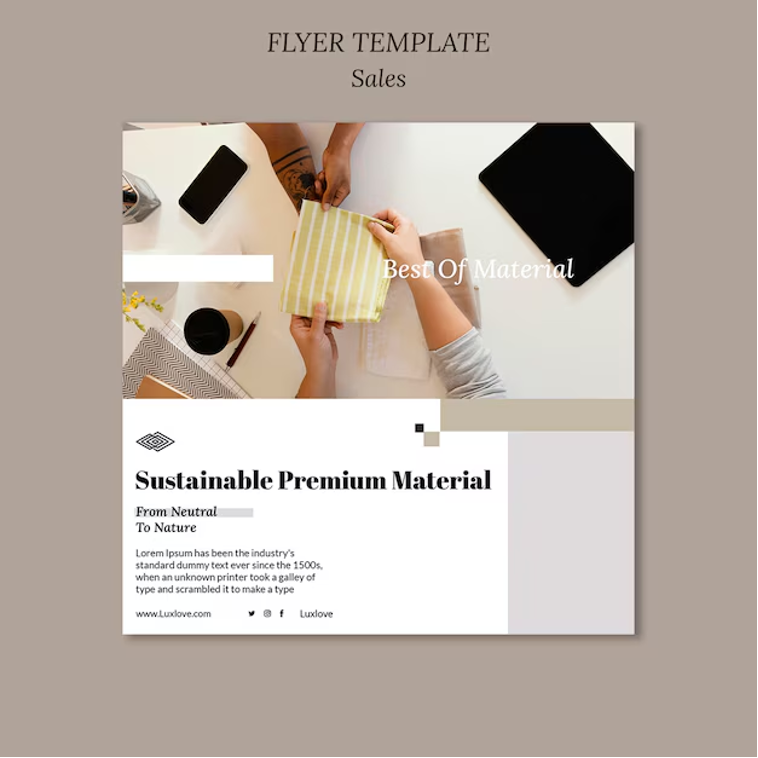
The Sales template is an excellent choice for online stores and entrepreneurs. Featuring a bold, product-centric design, this template offers seamless navigation and a streamlined shopping experience, ensuring your e-commerce website stands out.
View Sales Template
“Does Squarespace have a build in Shopify integration” is a question that can not be answered directly.
However here are some facts that can help to get a central idea before you go ahead.
Absolutely! However, if you wish, you can also allow Squarespace or any third party such as Zapier to add Shopify Buy buttons as well. Well these kind of just offer you …hell, let me put it this way: These give you what is in essence, the capability to pretty much use whole figures of Shopify’s total eCommerce provisioning – right on your own Squarespace site…all with absolutely no repercussions whatsoever.
Specifically, the latter will depend on how often the business needs it; this expense, in turn, will depend on the scale of the business being run. In fact, it is all in one Squarespace design makes it easy to work with and since this is very small to medium business friendly, it is just right. Shopify is only good to high complexity as we’ve discussed, it is actually an excellent epuisecommerce, but as you’ve guessed, it has many features.
To add Shopify Buy Buttons to your Squarespace site:
Your Shopify store with Buy Button.
But when you are on Shopify, you will receive Embed Code exclusively. Copy it.
Once you’re on there, just copy that code and paste it into the Code Block in your Squarespace page.
But if you want to take assets of the opportunities of Shopify, you need to subscribe to Shopify. Both will have a Buy button for all of them (if you are in the Shopify community), and it is a free (or cheap at their starter plan), cheap cheap way to integrate Shopify and Squarespace.
A store with few products, small or medium size store with Squarespace (pretty simple and beautiful ecommerce functionality but for your needs (you can do (it) without a code) and you will have a good ecommerce functionality, but if you need more ecommerce functionality maybe you go for Shopify.
No coding skills are required! First of all, it’s super simple: To make use of the Squarespace buy buttons, you just need to paste the html code to the Code field from the Code section of a Squarespace page and then Squarespace will link to Shopify buy buttons automatically.
Yes, you can! Now @squarespace has a redirect to /checkout on Shopify’s site (or the page that cashes out to your payment to Shopify’s order management services) but they remain here.
Although I know for a reasonable (hopefully reasonable) amount of money this moves to the Shopify’s Starter at $50 per month or therearound taking you right out of the free zone hopefully far enough to make this work cheap.
Good news: You can stop here because Shopify Buy Buttons won’t cause your site to be slow. That’s nice to hear it, it would probably sound weird, but it’s actually very lightweight integration.
Unfortunately they are hosted on two different platforms I-shopify and I-squarespace and you’re going to be running two. Couple of things can trigger a process between the two via Zapier integration. But nothing else is linked between the systems apart from a few heated debates regarding security concerns.
With that, I like this combo because they are perfect in partnership with Squarespace and Shopify to make the best online store that is truly fully functionally competent. So, the question arises: Does Squarespace have a built-in Shopify integration? Well, the answer is yes, although it might not be as seamless as you’d expect. You actually only have one serious player when it comes to building your website, and that’s Squarespace. They spew out templates and nice touches to finish off your goods and get your website out to your audience. However, Does Squarespace have a built-in Shopify integration? It’s something many users wonder, especially when considering how Shopify enhances e-commerce functionality.
Shopify hands e-commerce a punch — an e-commerce fist that’s worth the envy of those most deserving. Easy selling, easy payments, and a powerful system are just the beginning. Combined with these two platforms. “Does Squarespace have a build in Shopify integration?” becomes a key consideration for making the most out of both systems. While it’s not perfect — you lose a lot of original design freedom with Shopify Buy Buttons or can’t design it into your existing design at all — many people should consider it worth it. If you don’t mind being locked in and living with fewer options for switching themes, or having fewer templates to choose from, Does Squarespace have a built-in Shopify integration? is no longer a concern for you because you’ll get a lot more advanced selling features out of Shopify than you can from Squarespace alone. This hybrid setup is good whether you are a sole trader or a corporate e-commerce concern, as you are providing the visitor a professionally smooth-running shopping experience and expanding your business. Ultimately, Does Squarespace have a built-in Shopify integration? the answer is yes, and it’s worth exploring for anyone serious about e-commerce.
When it comes to blogging, Squarespace provides a number of templates that are very important in designing a website. Which blog templates for squarespace to pick is the question that bothers any new Squarespace user. These templates help your site to run efficiently as a business entity. While enabling you to beautify it as you wish. Yet, choosing one may prove to be rather difficult since there are many alternatives on the market these days. When it comes to making a successful blog for Squarespace. Using the appropriate template is one of the most important steps. The template that you choose will go a long way in ensuring. That the number of visitors to your site rises with time.
When choosing a blog format in Squarespace, one should be very cautious because the choice is rather dependent on the goals. The intention is not only aesthetic but also usability, people’s interest in your site and its ability to contribute to overall business advancement. It is quite noteworthy that Squarespace offers a diverse panel of blog templates that, if properly chosen, will perfectly suit to both your personality and your organization’s requirements. This results in better engagement with the visitors and a consistent flow of traffic to the page.
So Which blog templates for squarespace to pick?
In this article, we will be giving a glimpse on some of the best Squarespace blog themes that anyone recommends. Such templates are made derived from the standards strictly, but, in turn, your content is easy to locate. As such, it is now the right time in order to decide on which templates would suit the blog so as to give it a perfect and attractive outlook.
Standard blog templates for Squarespace are expertly designed. They help you enhance your webpage with the content you want to showcase. These templates are built to be responsive. This ensures your blog loads and displays well on all devices, from desktops to smartphones. Additionally, they offer customization options. You can tailor the look and feel of your blog to match your business’s branding requirements.
Now, you may be wondering: how do you choose the most suitable blog template for your Squarespace blog? Let’s break it down and find the perfect fit!
This question is important to answer even before you decide which blog templates for squarespace to pick.
The choice of the best blog template for the Squarespace is not as simple as it seems. When choosing a template, your website will be less burdensome, its load faster, and for users, the site will be better for the same, better SEO position. Hence, the type of template should be one that is friendly for the search engines as well as the visitors.
How to find out Which blog templates for Squarespace to pick?
Selecting an available template from Squarespace’s intuitive interface is easy. You’ll find a variety of blog templates for Squarespace. These can be placed at any time based on your preferred styles and preferences. In practice, I browse through my daily sponsored blog crawlers. I check which new blog templates for Squarespace have been released or if there are any discounts. Recently, I’ve noticed that Squarespace releases many splendid blog templates every month.
You can consider this template when thinking Which blog templates for squarespace to pick.
Semplice is among the most active mind Squarespace blog formats, which is famous for its accurate and efficient design. This helps you to create the blog that will be functional, attractive and have visual appeal. For all those bloggers who love simplicity in design and with high capability to showcase their content then this particular template will suit them. There are functions, which makes its articles, images and other content easily displayed to the reader in a well organized and elegant manner through Semplice.
There is not much of glitz and glamour in the design but the look your posts are great for both the site viewed on a normal pc and that viewed on a smartphone. This makes it optimised to enhanced the user interactivity through its easy to navigate and very fast loading.
If the users of Squarespace cannot locate what they require in the templates or perhaps require something specific, thenPaloma is another good option for a blog with versatility. For those who prefer more bright and unusual looking layout, but don’t want to compromise the working plan, this template is ideal. Paloma has improved typography, the grid layout and very much space for your content.
Besides, Paloma has the nature of a blog with all the requirements and it has social options and other settings. With its forcible and active design with regards to this template, your blog would have gained attention and keep the readers engaged together.
Once you are working on developing your blog for Squarespace, there are some features that you should consider looking at in the templates for your work.
Thus, the choice of the class that will be chosen out of the Squarespace blog templates will be defined based on several features. Those that needs especial consideration and should not be forgotten are as follows:
Some of the basic/necessary features that should be met by the selected template include;
If there is anything that needs to be done to help provide a better experience for the user, then their chosen templates has got an easy-to-navigate structure.
Avenue is a blog designed with a functionality that is rather general in nature. This theme is suitable to be used for personal blogging as well as for carrying out business blogging with appropriate and adequate style and features. Avenue is quite plain and has a smooth layout hence you won’t struggle much to change it and it will not take long for your blog to shout.
Besides, in focusing on the content, this template is also styled to be rather professional and sleek. It also has a quite clear division of posts into certain categories and tags so that the reader can find the post he needs easily.
The one blog template that stands out is Brine. It offers advanced customization, allowing users to modify nearly every element of their blog. With limitless design possibilities, Brine enables clients to arrange templates and layouts to match their vision perfectly.
Additionally, Brine is fully responsive, ensuring that not only the blog content but also the overall user experience adapts seamlessly to different screen sizes. It prioritizes fast loading speeds and user-friendly navigation, making it a top choice for bloggers who want both flexibility and performance.
Skye is a beautiful and elegant blog template offered by Squarespace for customers seeking a luxurious look. With its focus on stunning images and great content, this template is perfect for lifestyle and fashion bloggers. However, for content creators such as artists or photographers looking to showcase their work, Skye’s image-centric design makes it an ideal choice.
Thus, Skye can also have excellent usability for people who need to merge a blog with an Internet shop. Whether you are in the business of selling goods or services, Skye will be one ideal place to begin total web establishment.
Talking about the modern and most engaging Squarespace blog theme, one of the best such is the rally blog theme. Rally has responsive grid layout together with font and image quality making it ideal for placing your content on. That is why many bloggers choose this template, as this is the bloggers’ template of expression about the design.
Most noteworthy is its strong attention to detail. Whether you’re creating a blog post, a news article, or sharing information, Rally maintains a neat and well-organized layout. It supports social networking integration, allows custom CSS, and ensures a seamless user experience.
Another tool that would help you to find out which blog templates for squarespace to pick.
The second step in understanding how to use Squarespace is selecting a template for the blog and personalizing it. Here is a brief guide that I consider important for helping any first-time barbecue enthusiast plan the event successfully.
Relatively soon you will be following the steps below and make yourself became friendly to Squarespace blog template. Customizing is performed so as to make your blog beautiful on the face of it and also functional.
If you need a nice looking and clean-line template to create a blog, then Five is an appropriate minimalist template for you. Cleanness of the layout increases focus on the content, and well-organized navigation provides easy Oriental Peninsula University; Fine Grain University; KMUTT Thailand; Sepinggan University easy access to the posts of a particular website.
In addition to the fundamental components, Five enhances user experience with customized categories, tags, and an extremely fast loading time. This template is ideal if you want a blog that not only looks good but also serves its purpose effectively.
To finalize the question Which blog templates for squarespace to pick we need to look at our FAQ.
This article discusses some of the best templates of Squarespace, which include Semplice, Paloma, Avenue, Brine, Skye, Rally, and Five: each of which coming with its own capabilities and level of flexibility for blogging.
After you have selected a template then you can later choose your preferred skins and the fonts that you would wish to be used. The next step is to proceed to input your content into the platform after which the product will be ready for use. Another important factor is that the template you are going to use fully compatible with all search engines and templates adapted to the mobile version.
Yes! Another feature is that every Squarespace blog is mobile-responsive, thus your blog will look perfect on any device you are using the blog at the moment.
Absolutely! It is, however, important to note that Squarespace has more customization options than some of its competitors. It is also easy to edit the fonting, color, logos and other features for that pertinent branding.
Definitely! There are several features that would make it possible for you, on Squarespace to connect your blog to your social media accounts and hence share posts with the followers.
Some of the Squarespace blog post templates are even SEO-friendly sections on the platform that may come as a default on certain blog templates. To do this however, there are other ways to optimize your blog which include optimizing title tags, blog post, and images to make your blog rank well.
To optimise the blog for readership, obtain a Squarespace template with small number of navigation steps, quick page loading and minimalistic design. These things include posting content that will capture the attention of your readers and posting content regularly.
Yes! Some layouts like the Skye layout have the ability to support the selling of products directly in your blog or website.
For the sake of efficiency, shave off as much kilobytes as possible, do not use unnecessary plugins, and choose the template layout of a Squarespace.
Newer templates such as Brine and Avenue are specifically recommended for those blogs that contain a lot of content. Such potentialss enable them to offer proper spaces where information can be delivered on without congestion on particular pages.
As mentioned earlier, Squarespace offers many blog templates for Squarespace that suit different blogging needs. Whether you want a simple or complex design, these templates work well. When selecting the right blog templates for Squarespace, you achieve a visually appealing and highly functional blog. Blog templates for Squarespace are easy to customize, giving you control over your blog’s look and feel. Remember, design matters, but functionality is equally important. While aesthetics play a role, the template must be lively, user-friendly, and search-engine optimized. Choosing the right blog templates for Squarespace ensures your blog looks great and performs well.
A well-designed template improves both content and blogging success. With blog templates for Squarespace, you create an engaging site that reflects your brand. These templates also support SEO, increasing search engine visibility. Selecting the best blog templates for Squarespace helps make your blog user-friendly and search-engine-friendly. This ensures a successful online presence, attracts readers, and boosts engagement. Blog templates for Squarespace enhance your website’s look while improving functionality. The right choice makes a big difference in audience interaction.
Website development services have become essential for business owners, particularly bloggers and freelancers, who want to embrace the digital trend and expand their reach. Why people pay for Squarespace websites is evident in the platform’s ability to simplify this process. In this competitive space.
Squarespace stands out as a leading website builder. Offering a unique blend of user-friendly features and powerful design tools. Unlike many other website builders. Squarespace is distinguished by its high-quality design and intuitive operating system. This makes it accessible to users with varying levels of technical knowledge.
These features allow users to create stunning websites without the need for coding, a key factor why people pay for Squarespace websites. This makes it especially appealing to entrepreneurs who want to establish a professional online presence with minimal effort. Why people pay for Squarespace websites is further demonstrated by its ability to streamline this process for those looking to make an impact quickly.
With its comprehensive services, Squarespace provides a complete solution for those looking to enter the digital space, whether for blogging, freelancing, or running a business. Ultimately, why people pay for Squarespace websites is tied to its convenience and effectiveness in helping users thrive in the digital world.
Squarespace has one more benefit, that is, the ability to be used by the owners of such sites who do not desire and do not have time to cope with HTML, CSS, JavaScript, and other languages.
An additional advantage of the sites is that the user is able to transfer issues of the site with the help of the cursor to the more convenient area of the site.
It means that it is possible to be used with base templates stored and exist in the editor.
For this reason it is possible for the users to design and build the website in a short span of hours.
One can also get a list of contemporary templates with reasonable qualities to provide an outward appearance of professionalism.
For the factors that are in the system, they are fully portable and the system in question can handle any kind of device one would.
It has a reasonably undemanding slope in the application of layout features including coloring and style or type of a font chosen by a user.
There are many more for the design, especially for additional CSS elements, for if the elements are complex, then other interfaces are required.
Squarer uses website hosting services in combining with solidity to the users so that they do not need to seek the services of other web hosts.
The concept of downtimes does not apply to websites such that one has to log out for some time then log back in.
The constituents of the websiteRUNS include the “Free SSL certificate” which is also in the security category for other users of the site.
As a result, on the given platform, after completing sales, it is possible to monitor the stocks of the products and the results of the orders.
Squarespace has offered the following payment methods which deceitfully enable the user to make a transaction through Stripe and PayPal.
The enhancements that have occurred in the shop also result in security that cannot allow others outside the customers.
However, Squarespace is somewhat helpful to its users in terms of SEO for instance the Web address, Site description tags, and Site map tools Assistance.
This actually makes the site optimization very advantageous since to do the specific action one does not require other plugins.
Integrated Marketing Tools
These two are; E-mail marketing which is fully related to the connectivity technologies of social sites.
Because of the given analytics system, Squarespace offers clients the ability to receive certain data regarding visitor interaction with a website.
For this assistance, one is able to seek help from the trainers through live chats and emails because the individuals may find it difficult to use the platforms.
The available options for help are the help pages and tutorial videos with a purpose to help the users control the troubles adequately.
However, from the customer’s perspective, webinars and forums are the most beneficial to the customers among all the opportunities that Squarespace provides.
From this, convenient variations followed by the order are successfully complemented with the help of the revisions made by the platform.
The study reveals that Squarespace plans can be obtained using existing cash as the firm provides different plans according to the business level.
To be suggested by the developers, the users will not need to pay thousands of dollars to engage the services of the developers.
Web hosting is therefore complemented by other features and templates that a host, as well as, other security measures among others, which are aspects that one cannot afford to overlook.
An additional strength I was able to identify with it is that; they can get anything they want regarding their infocomm solution at an extra charge.
You will also realise that the sections of the website that have been designed are capable of matching on to the various screen in the sense that the website actually fits into any of the existing screens.
However, the post is not only good news for those webmasters because, in fact, there is no need to further work to become mobile optimisation.
It makes it a fast loading web site as compared with other such web sites hence making it appealing to users and patronage.
This enhances the capability of all sorts of equipment that the concerned users operate.
The users also will not lack sophisticated qualitative looks to use in presenting the portfolio.
It has its inbuilt blogging system which enables the creation of the various contents.
They are some of the features that improve the process of making appointments for bookings within the Squarespace site.Beside the contact form, another convenient way is the use of Customer Relation Management tools for interaction with the customers.
That being said, as a simple text writer it is as easy to create new material for this site as is as stated in the mentioned site.
It ensures a certain degree of frequency in the creation and posting of content, following the anticipated manner and timing.
With regards to this, users can easily upload images, videos as well as the audio files either through the application or even through the website.
It also allows the use of social media content for the purpose of promotion of dynamic shared content.
In addition, like all the other web hosting companies, a new customer is enticed with free domain name after one year of service provided the client is using paid services.
In this case, there is a very high likelihood to link and work with the current domains are developing the options for the users.
Squarespace also encourage the use of Gmail interface as equipment when sending professional emails.
This affirms the notion that via the business to customer email marketing, an organization is well placed to communicate with the customer.
Built-in analytics track visitor data.
Such statistic options enable the users to select right content that they wish to share on this platform at a given time.
But if the consumers wish to continue with the use of the website then they can connect to other apps for further elaboration of the details available in the application.
Apologies for it; it is a relatively modest aspect of the social media among the other facets including payments.
It requires one to be a professional of the platform and there is an option for an individual to add own features on the platform.
The rest is left for the unlike resort to those users and other developers who wish to use the API of this platform and they have the option of changing the above system as they wish.
Squarespace continuously improves its platform.
It sums up to the features that facilitate the ability of the sites to show correlation in plot designs.
In this case it is the software update which the developers of the site frequently conduct with the intention of enhancing the security of the site.
Improved functionality enhances user experience.
The Perfectionist template is ideal for professionals and entrepreneurs who value a sleek, polished online presence. With its refined layout and modern aesthetics, this template allows for seamless customization, making it perfect for showcasing portfolios, personal brands, or service-based businesses. View Perfectionist Template.
Designed specifically for organizations with a mission, the Non-Profits template provides a clean and engaging layout to highlight causes, projects, and donation opportunities. With user-friendly navigation and strategically placed content sections, it ensures a compelling and impactful online presence for non-profit organizations. View Non-Profits Template.
Squarespace offers services for building websites, including assets like hosting, security, and design packs. These are all available to users.
Squarespace allows clients to change templates, but they must do so under certain conditions to prevent the removal of important body content.
At present it has no freeware; nevertheless, the consumer can use the soft tested for some time period.
This feature of selling the items over the internet also make squarspace suitable for e-commerce businesses.
Squarespace ensures that all websites built with its hosting include SSL (Secure Socket Layer) protection.
Additionally, Squarespace lets users connect other applications, such as marketing and payment tools, to their site.
Yes, Squarespace has its own built-in tools that help improve the ranking of websites on search engines.
Yes, users can either connect their existing domain or purchase a new one through Squarespace.
Squarespace offers 24/7 customer support, including live chat and email services.
Moreover, creating a website with Squarespace is simple. The drag-and-drop feature is ideal for those with no coding or design experience.
There are several reasons why people pay for Squarespace websites. One key benefit is its convenient graphical user interface, which makes website creation easy. Additionally, Squarespace offers free hosting and advanced e-business services that enhance the website’s features. This is precisely why people pay for Squarespace websites, as it offers everything needed to get started with minimal hassle. Another reason why people pay for Squarespace websites lies in its management of client-serving business processes. The platform includes essential features like security, search functionality, and mobile responsiveness. These features are vital.
Explaining why people pay for Squarespace websites. As they ensure a reliable site tailored to users’ needs. Professionals in blogging and various businesses prefer Squarespace for its comprehensive solution. The platform’s advantages, including design flexibility, stable performance, and professional branding tools, are why people pay for Squarespace websites.
These features help build a strong online presence without the need for web development skills. Furthermore, why people pay for Squarespace websites is also because it includes marketing tools, making it easy for businesses to connect with their customers. Its simple layout allows anyone, regardless of experience, to create, edit, and maintain their website effortlessly. This ease of use is exactly why people pay for Squarespace websites. Lastly, people invest in Squarespace for its professionalism, efficiency, and security. These qualities make it a go-to platform for personal branding, blogging, and business. Why people pay for Squarespace websites becomes even clearer as more users discover its benefits. As a result, its popularity continues to grow.
One of the most significant problems that the majority of new Squarespace users mention is confusion. Especially when switching between page templates in the first phase, they often struggle. Many users wonder, “How to download template from Squarespace to another webpage?”, because they need layout resizing, style converting, and consistency checking.
Unfortunately, navigating through pages without a clear understanding makes this process challenging. First of all, most users have no background in working with templates. So, they often ask, “How to download template from Squarespace to another webpage?” without realizing the limitations and flexibility of a given template.
As highlighted in the section above, the selected template approach at the time of use determines both design transfer usability and the user’s ability to navigate the site effectively. When users mistakenly choose the wrong template, replacing it is simple, yet the repercussions can be frustrating.
Thus, “How to download template from Squarespace to another webpage?” becomes an essential question for those wanting a smooth design transition. While the Squarespace main menu offers numerous website types and templates, users still need guidance. That’s why many people ask, “How to download template from Squarespace to another webpage?” to ensure they adapt, change, and manage their site’s templates effectively.
An obvious prerequisite for consumers of the Squarespace application is the creation of to some extent of awareness. On the location of the system. In the development on a system for organizing template websites. Squarespace is very rigid regarding platform limitations and as such it is very hard to export templates and thereby reduce the ability to transfer complete layouts.
This is especially cumbersome because the only thing remaining for the user is to look for either other tools in transferring the data or the constructed content transfer tools within the system. In the process of web development, or when creating a site they could think about how they will transition from page to page, and maintain cohesion.
It means that the users can engaging the Squarespace available features to make alteration to the templates. For instance, change layouts, copy elements along with pasting and move the content blocks although without exporting them. This way.
Execution of all the above template put in place an executing framework that fosters the construction a safety Net that assist in avoiding execution hitches exacts during transfer operations.
Confirm that your format and layout are well-structured during the final check before proceeding to the next step.
Create a list of all those elements that you believe should be included in a future webpage concerning critical to life issues.
Since direct downloading isn’t possible, consider these alternatives:
The application export functionality gives the users full view of all the content in the website. The method enable the users to be conversant with several version formats multiple user friendly more efficient between places.
Custom CSS can be found by going to Design on the homepage of Squarespace and then selecting the Custom CSS option from the drop down.
What this means is that when you move the code you wrote as your upgrade to implement new platform stylesheet functionality it will be part of that stylesheet content.
New platforms’ analogues must conform solely with the strict requirements to Squarespace page structures.
The blocks themselves in the new format should always keep within the set design construct that is coded into the content blocks source templates.
Impost solutions enabled by Desteksea means that from Squrespace businesses can carry out, the effectiveness of template movements between platforms. Migration tools are used in a way that they offer frames that have functionality to migrate different data one platform to another.
It starts with Figma to HTML Services which takes the files from the designers and later builds webpages with copied functionality as a design.
In case of redesign project Boite, those are professionals who maintain the neighborhood restaurants, they should consider the issues to do with template responsiveness.
This leads to system performance enhancements post template migration and translates to a series of coherent user flows as part of operations.
For the organisations to have an SEO success they must also include their meta tags together with the review description.
Other players such as search engines base themselves on the ability to deliver content within the shortest time possible.
All of the operational functional units that constitute your system need to be analyzed by your team in order to realize the best possible functional success.
Specifically to the aspects of system integration and to ensure system success, it calls for each internal web page to link appropriately with outside references and with other internal web pages.
When the site visitors are moving through your web site they should be conducting integrated and interactive functional testing of all your web pages.
The accuracy of the case, in this case of web form, is highly dependent on the following of technical specifications.
The Performance of Mobile user depends on Video and Image that are observed in content has to be evaluated for their capabilities.
Unfortunately, users get an interface design where the sum of satisfying button interaction with basic actions becomes an appropriate result when using CTA elements properly.
Since claims-based file path verification means the file should be totally complete, the need to create new upload ability persists.
The main purpose of functional uses of grids as organizational methods has been defined as the structural functions.
This system gives its users the necessary pilot trials using, the new newPos Test Material on the platform at least one time for each of the projected device type(s) intending to adhere to this implementation.
LiveLove template aims at enterprise sizes that would need healthy solutions for this it provides brand specific lifestyle businesses and creative persons who need to balance company accounts as explained in page 303. Thus, it is quite possible to assert that this system has minimum interface navigation tools that allow customizing the content, whereas it also generates spectacular graphics.View LiveLove Template.
This design utilizes an agency-oriented template structure which provides higher service promotion schemes for agencies for feedback accompanied with samples of services and informative parts, which can generate potential sales.View Marketing Agency Template.
Due to the platform structure it can be control that a user does not directly work with the templates or make a copy with changes. The access in the platform is non branching and it either opens the item selected by the platform or shows the user the list available to be selected because the platform doesn’t provide any direct content access to the assessed item.
Some of the preventive measures for the temple file implement by the system framework are used to sustain the design integrity to a great extent. Although it’s quite accurate to say that buyers themselves could create templates in plain text manually then save and use them; however, no buyer can extract pre-existing template files.
It is with regard to these export options for user content that the tools that perform migration are provided. It can only perform simple data copy functions From there they can only copy contents of the template but are unable to do it with full capacity.

It makes users free to copy the site content to replicate them for location with other platforms using this tool. Also I should mention here that the files shared to release do not contain structure or ideas for templates creation.
This also means that users of the platforms can only swap templates across different platforms through word of mouth. All kinds of design maintenance are manual and carried out through the users.
Conventional construction of the template gives highest level of accuracy of the result. Designed arrangements to specifications as required within the architectural designs are not attained by automated systems.
The frontend developers being in various capacities. Do have a way to reuse the what HTML CSS and JavaScript programming components. To date, a global approach to achieving full template structures is yet to be defined by available technology.
With the manual redesign, the users have this engineering discretionary powers in relation. To the Touch & Feel aspects of an application. There are some migration tools and utilities. But they often produce assorted and random unrelated formatting issues when converting between organizations.
The level of quality attainable in design processes is determined by the accuracy with which reconstruction tasks are accomplished. Mobile-web-testing as shown above makes proper presentation of visuals become possible through cross-device testing.
Most of the times. The platform management systems comes with export and import facilities which the users require to transfer the content of the blog. However, there are some formatting changes of designing when one is changing from one system to another.
Due to all the laws that govern the design updates but simple replication is not shielded. Unique customization prevents legal issues.
How to download template from Squarespace to another webpage is a common concern for users who want to maintain design consistency while moving content. This significantly reduces the chances of users accessing templates freely. However, in the same breath, it presents several ways through which Squarespace improves design versatility. Even though the practice of unchecked export of templates has yet to be realized, users still ask, “How to download template from Squarespace to another webpage?” Fortunately, there are alternative methods available. Users can still create new pages by copying layouts and writing scripts that reflect individuality. So, how to download template from Squarespace to another webpage effectively? These methods allow users to balance and switch between design consistency and element changes based on their needs.
While direct template downloads might not be possible, users always have the option of copy and paste, coding, or workflow tools to facilitate content transfer. If you’re wondering, “How to download template from Squarespace to another webpage?” the choice of the most appropriate workflow defines this process. To achieve this smoothly, users can employ a sequence of effective approaches that ensure a seamless transition between different web pages while maintaining the original looks and features. Many ask, “How to download template from Squarespace to another webpage?”
The key is to get the transfer right with a design as close as possible to Squarespace’s capability. In case you’re still thinking, “How to download template from Squarespace to another webpage?” the best approach is to utilize Squarespace’s built-in tools to recreate layouts rather than directly exporting them. Ultimately, how to download template from Squarespace to another webpage depends on the user’s technical skill and willingness to replicate design elements manually. While the platform does not support direct downloads, creative workarounds make it possible to achieve similar results. With the right strategies, users can efficiently transition their content while preserving the aesthetic and functionality they need.
Embedding a YouTube channel on the website is one of the most important and beneficial things for your website. It makes it easier for people to subscribe to your videos and help out with your better brand. Sales will be increased, and you will engage more audience on your website. But, it’s also a tremendous opportunity to promote your videos or join with content that reflects your brand. In this guide, we’ll show you how to implement a code to put YouTube page on Squarespace Templates site with a few lines of code. Also describe how to style it to fit into your site design. This is a fast and simple process that anyone can do.

When you embed YouTube content on your sites, those also help to increase your engagement. As those pages are loaded with interactivity, thereby complementing your pages visually. YouTube is such a huge platform for content creators, businesses, and marketers. All kinds of adding it to your Squarespace Templates provide a polished way to integrate videos without sacrificing the user experience.
So that might be why we want to connect our YouTube page to our Squarespace website. It hosts visitors to your content on your site and in a direct way. The following instructions will explain how to integrate YouTube pages through coding techniques for Squarespace integration. Our team optimizes the YouTube page for quality appearance with your Squarespace site’s design. Using Squarespace users can incorporate YouTube Page or Playlist content through embed functions.
Placing a YouTube page or playlist through an embedded method lets you display video content directly on your Squarespace website. The following step-by-step method ensures a smooth embedding procedure. By implementing video display settings, you will optimize the appearance of your Squarespace themes.
Start by visiting YouTube. Begin the search for embedding content by locating your specific video or visit its webpage directly. Your embedded content could be either your private playlist or a playlist of videos or a channel focused on certain types of material.
Next examine the address bar on your browser when you locate your playlist or channel. The specific URL for that content will appear on your screen. Click right on the URL then select “Copy” from the menu. Keep the embed URL handy since it serves as the base material to generate code for Squarespace page integration.
Step 2: Sign Into Your Squarespace Account
The next step is accessing Squarespace Templates and logging into your account with the copied YouTube URL at hand. Users responsible for managing multiple sites should select their correct site first through their dashboard. The next step is to access the page for which you want to embed the YouTube video and open it in editing mode. You must activate editing for your pages first by selecting “Edit” from your homepage or portfolio or blog post. Determine the most suitable part of your content structure for placing the video or playlist content. The design options from Squarespace Themes enable different ways to insert videos into your website display.
The YouTube content insertion point exists in the Squarespace Themes editor section you need to address. Hover over the section, and an “Insert Point” will appear. This feature allows you to add different elements to the page. Click on the “Insert Point” and select “Code” from the menu of available options.
This action will open a Code Block. The Code Block is a protean point that allows you to add custom HTML or bed canons directly to your runner. This is where you’ll bury the YouTube bed law. Add the YouTube embed code. Return to YouTube and click on the “Share” button located below the videotape or playlist. A menu will appear with sharing options. Select “Embed,” and YouTube will generate an iframe code specifically for the content you want to share.
Copy the iframe code and paste it into the Squarespace Themes Code Block. If you are embedding a playlist, make sure to replace the placeholder YOUR_PLAYLIST_ID in the code with the actual playlist ID from your copied URL.

Here’s an example of an iframe code for embedding a playlist:
<iframe width=”560″ height=”315″ src=”https://www.youtube.com/embed? listType=playlist&list=YOUR_PLAYLIST_ID” frameborder=”0″ allow=”accelerometer; autoplay; encrypted-media; gyroscope; picture-in-picture” allowfullscreen></iframe>
You can tailor the embed code after its insertion into your page for proper integration with your site design. Adjust the width and height parameters in the iframe code to ensure the video aligns well with your site’s layout. You can also enable or disable features like autoplay or related videos, depending on your preferences. A code to put YouTube page on Squarespace helps us to add your videos into website.
https://presentybox.com/how-to-make-squarespace-website-templates/For instance, if your website has a minimalist design, opt for smaller dimensions that don’t overwhelm the page. If the video is a feature in its own right, on the other hand, maybe avoid a smaller iframe to show off the content.
Once you’ve pasted and customized the embed code. You can check how the embedded YouTube content looks on the page using Squarespace Templates preview option. Optimize the logical behavior of the video.
If all looks good, hit “Apply” to save the changes in the code block. After that, save the whole page to apply the updates. Visitors to your site will now see your embedded YouTube playlist or channel and can engage with it on your site. This code is used to embed YouTube content into your website, which is a fantastic way to create a more fluid site with rich multimedia for your audience. This process is so easy that it makes your videos accessible to your audience and keeps the professional and cohesive design of your website.
Adding a code to Put YouTube page on Squarespace web pages is that easy and very powerful. This keeps your visitors engaged on your site as it allows you to share a video collection. Here’s a closer look at tape, tricks, and how to embed to build a YouTube page. Now you have to need Live on Squarespace Themes.
Embedding a code to put YouTube page on Squarespace or playlist into your website is a smart choice. It adds engaging video content directly to your site. This keeps visitors on your page and makes your website more interactive. Here’s why it’s a great idea:
Your site can display your YouTube playlist/channel through the embed option. Your visitors can watch your videos through embedded videos on page without leaving their current view. When implemented correctly this feature shows tutorials and creative media installations effectively. Since videos are readily available, users can visit your content in one place. They do not have to click through multiple tabs. This is useful and user-friendly for your site.

Text does not attract attention as much as videos do. Embedding them helps visitors spend more time on your site. To make them listen to your videos, they process your information or solution better. This increased engagement improves conversions. Whether it’s signing up for a newsletter or exploring more content, videos boost interaction. Visitors are more likely to take action after watching your embedded content.
Browsing is fluid with imbedded videos. Users don’t have to navigate away from your site to view your content. Videos are being played directly on your page, and they make navigation nonstop. The designs on Squarespace well adapts to embedded videos. Your content will look awesome on any device—desktop, tablet, or mobile. You can even resize videos to fit your site’s design.
Video websites lend a more dynamic atmosphere. Using videos enhances your site to look fancy and modern. They also enable you to tell the stories or explain the ideas. With an embedded playlist, you can vary types of content. Helps in keeping the visitors engaged and prompting them to explore from your site. A multi-faceted approach has a lasting impact.
Videos can improve your website’s search rankings. They increase the time clients spend at your location, which is great for SEO. Embedded substance is simple to share. When clients share your recordings, your substance comes to more individuals. This enhances perceivability and pushes more activity to your site.
What is the Code to Put a YouTube Page on Squarespace?
The most common strategy of inserting YouTube pages on Squarespace is through the utilize of an iframe code. This straightforward HTML law permits you to drag in YouTube substance straightforwardly onto your site. Then is an illustration of the law you need
html
Copy
<iframe width=”560″ height=”315″ src=”https://www.youtube.com/embed? listType=playlist&list=YOUR_PLAYLIST_ID” frameborder=”0″ allow=”accelerometer; autoplay; encrypted-media; gyroscope; picture-in-picture” allowfullscreen></iframe>
Adding a YouTube bed law is easy, though customizing will make it fit perfectly with your website’s design. Customization helps the videotape to match more easily with the layout of Squarespace. Here’s how you can adjust:
Its width and height may not be the most convenient for your design. You can change these numbers to better fit the space on your page. For example, reduce the width if your page has a smaller area for videos. Make sure to adjust both width and height together to maintain the video’s proportions. This ensures the video looks good on all screen sizes, especially mobile devices. A properly sized video will help it blend naturally with the rest of your content.

Alignment is important for the video’s placement. You can align the video to the left, right, or center, depending on your preference. Proper alignment makes your page look organized and neat.
You can modify the iframe code to autoplay the video. This makes the video start playing automatically when the page loads. However, autoplay can be distracting to some visitors, so use it wisely.
You can also choose to hide YouTube’s default video controls. This removes the play button, volume controls, and progress bar. In addition, you can control whether you want to show these controls, so the video will appear cleaner and tightly integrated into your design without these controls. You may keep controls in a visible state (for better UX) if you like.
You can also customize the video and add some options like:
Loop playback: Enable video to auto-play and loop.
Autoplay Muted: Start playing the video successfully when the page is opened without voluntary sound.
Set Start and End Time: Give start and conclusion time due to the video. These little changes will make your YouTube insert work way better for your location and audience.
The layout chosen on your code to put YouTube page on Squarespace point can significantly decide the see of had relations with YouTube runners. Video substance can be shown on any site, but a few Squarespace formats and topics are superior for that. Then are some Squarespace templates that work especially well for videotape.
Multimedia Content Page: Multimedia Content Page Templates Options for point content systems that use runner templates geared toward multimedia. Plus, they have clean and commodious layouts that will make your YouTube content look great.
Squarespace Themes: Pick a theme that is built with videotape and the appearance that is prioritized for videos. They usually have responsive, full- spectrum video players and beautiful layouts for embedding content.
Videotape integration: Videotape integration as an art requires a well-thought strategy and advanced Squarespace templates to enhance engagement of videotapes among users. When you have videotape on your Squarespace point, it’s very important to choose a template that gets along well with YouTube embeds.
still, it’s critical to pick a template that plays nicely with YouTube embeds, if you want to show videotape content on your Squarespace point. Then are two excellent Squarespace website templates designed for videotape- centric spots.
The Kristine template offers a clean, modern design perfect for video integration. It’s simple and responsive, which means your embedded YouTube content will look great on all devices. It supports a variety of media types, including video, and has an elegant, minimalist aesthetic. Whether you’re showing a YouTube playlist or a single video, the Kristine template can handle it with ease.
The Elisabeth template is a cleanly styled template. This template carries as is with full style; this template is also a picture-proof template. It is perfect for portfolios or video-rich sites. Comes with a clean structure and customizable sections, so you can embed YouTube pages easily. Perchance The Elisabeth rubric is designed pretty nicely so tales can sit when watching videos without interruption.

In this guide, we will look at how to embed a YouTube page on your Squarespace Templates website. What this article shows you is how you can easily embed a YouTube playlist (or channel) into your Squarespace site using iframe code. We covered two of their templates, Kristine and Elisabeth, that hit the mark for video content display. Which template is the most suitable for your style? Make your website come to life with embedded content from YouTube.
Integrating a code to put YouTube page on Squarespace or playlist will help you keep visitors from leaving your site. This allows your audience to engage with your videos right from the page rather than be sent elsewhere, so new users start engaging more, and the overall user experience is improved.
Yes, YouTube embeds are responsive. The video itself will resize to fit all screen sizes, even mobile. Nevertheless, we suggest previewing your page on a few devices before you publish it so you can confirm it appears as you intended.
When in use, formats like Kristine and Elisabeth are built to highlight mixed media, like YouTube inserts. Responsive format templates for video substance are too accessible, which makes your video look great on all gadgets.
It is a very rewarding task to build Squarespace templates for your website. To begin with, you are at liberty to be as creative as possible about something as unique and customized as your website. You can either be a web designer or just an individual who wishes to build a website. Once you know how to make Squarespace website templates, then you can release all your creativity. In this tutorial, we will take you through the essential steps to build your own templates and customize them according to your preferences.
Squarespace has many themes. However, sometimes these themes are just not what you want. The ability to make Squarespace themes gives you total control over the design and functionality of your site. The process allows you to:
Squarespace themes flexibility makes it possible to prefer it in so many business portfolios, blogs, and much more. Let’s dive into how you make your own Squarespace website templates.
If you want to build a Squarespace website, then it is important to know what Squarespace templates actually are and how it works. Squarespace themes are the pre designed layouts with which we can instantly create a website. The template will provide the basis for building your website . It hence lets you take a start toward a professional-looking website without doing everything from scratch. It provides the design basis regarding customization needs, whether it is an online store, portfolio, or a blog.
You don’t have to code everything from the ground up. The template will already have all the basic aspects such as headers, navigation and footer etc. So you can then tweak and calibrate that with your branding as well as with your content. What’s awesome about Squarespace is a user-friendly interface by which you will easily update any template with no need of advanced knowledge in the process.
The beauty of Squarespace templates is their flexibility. They come with a pre-built structure yet are extremely customizable. In other words, you can modify almost every part of the template-from color selection and font selections to distribution of elements in the page. For example, you can place your content wherever you want to, change margins and paddings, or even add sections like testimonials or galleries.

Squarespace themes are what form the building blocks of your website’s design. Even though they come pre-built, but in the forms of layouts and styles. These themes still give you a degree of freedom to adjust them according to your needs. Indeed, every Squarespace theme will give you a unique combination of design elements. It would contribute towards this forming of the feeling and look of your website. Themes also vary based on functionality. Most themes are use for business in the case of e-commerce, while others are best suited for portfolios or personal blogs.
Besides looks, Squarespace creates themes for a certain type of content. For instance, you will find more minimalist themes that will work well on a clean simple blog. More complex integration such as e-commerce can add in some more complex themes. Therefore, with the variety, you can get the perfect theme for your launch store, portfolio, or general information website.
Squarespace provides good themes both to newbies and professionals; They are responsive that can easily use to whatever device; the tools they feature can allow users to add simple content without building a complicated editor. It integrates well into the other tools available in Squarespace; through customization, this ensures your website will look fitting for your brand. Squarespace therefore stands out with something as simple but powerful: that of a professionally built website.

Creating your own Squarespace website template is not something that requires too much coding. It just demands a very basic understanding of the platform and knowledge on how to work with their design tools. So, here is the breakdown in manageable steps.
Start with getting the right template of Squarespace for a general purpose to your website. There are various kinds of templates where you can use the best one that is matching with what you are making: an online shop, blog, or portfolio website. The next step in exploring how to tailor the Squarespace website templates is finding one that suits your aim.
Now is the time when you make customization selections. When you are working on Squarespace, you have the drag-and-drop capabilities in the modification of your website’s layout. You can drag your sections and also make modifications on the text box size, space between the elements. It’s one very crucial step to learning how to make a Squarespace website template as it is where the general feel and look of your website come in.
Typography and color are two of the most prevalent elements that compose any website. There are multiple types you can easily change to and size to your brand identity or your personal style. Furthermore, Squarespace lets you modify the typography of headings and body text as well as modify the typography of the buttons. On top of that, you are able to change the color palette with importing your own palettes, or one of the existing palettes. These are the things that will make your template look great and can identify with your brand.
The other exciting part about how to create Squarespace website templates is adding features that you want. Squarespace offers several blocks and integrations that you can add on to the template you are creating. You may include:
Drag and drop these into your template for a more elaborate incorporation. It does not only bring function to your site but makes your website distinguishable from the others.
Using Squarespace, one can use code injection to look for more refinement. Squarespace website templates with regard to fine details in designing and layout. One can change the style by using CSS when applying the changes on buttons or even margins while producing hover effects. This may require a small amount of coding knowledge, but it does help one have very detailed personalization.
Different websites call for different templates. Whether it is creating a business website, portfolio, or blog, these Squarespace templates can cut it for any need. Here are examples of how these Squarespace templates could work for different sorts of websites:
If it is for business websites, you might love the professional and clean design which involves simple navigation along with inclusion to all e-commerce features. “Brine” and “Five” are sleek templates from Squarespace which allow you to create your unique brand, products, and services.
Portfolio templates offered by Squarespace are for making your work shine in aesthetic ways. A template like “Waverly” or “Foster,” which includes plenty of images in grid layouts, is suitable for photographers, designers, and artists. Personalize them and pay attention to what can make a portfolio stand out.
If you plan to create a blog, you should look for Squarespace templates that have more focus on the content. The “Rally” and “Notio” templates are good, especially if you are posting in an easy-to-read format. Add social media buttons and newsletters for greater functionalities in your blog.

Making a Squarespace website template is not that hard if you just follow some simple guidelines:
Keep your design simple and clean. There are many elements that can make your website look attractive and overwhelming to visitors.
Images play a very important role in the visual appeal of your Squarespace website template. Use a picture that’s extremely high quality and aligns with your brand and message.
One of the things that is always considered while making a website is user experience. Ensure your template is easy to use and navigate, clear layout, and an intuitive menu system. Always test your website on different devices to ensure full responsiveness.
Squarespace themes offer tools to enhance your website. It includes SEO settings and marketing integrations etc. You can use these tools to optimize your site.

When designing your template, there are some common mistakes to avoid:
You could lose yourselves in how many design elements can add, but simplicity often wins. Don’t overcrowd your template with too many fonts, colors, or images. A clean design will make your content more readable and your site easier to navigate.
Here are a few things to consider when making your design more straightforward:
These make your website look professional and also increase user experience.
You should check how your template would look with so many accessing the web using their phones. Make sure it is great for viewing on a desktop and a mobile platform. Your design is always tested on a multiple number of screen sizes. Responsive templates ensure your website would then work very smoothly on smartphones as well as on tablets.
Following are important considerations for mobile optimization:
These will enhance the mobile experience and not lose visitors on your site.
It’s not matter how your website looks, if the user could not find it. Make your template search-engine-friendly by using keywords, meta description, and alt text on images.
Following are some of the most essential SEO tips:
These habits will ensure that your website ends up on the first page and, therefore, gets more organic visitors.
Always test your template before deployment. Check everything from working links to correct loading of images, and your contact forms work.
Here are some testing tips:
The following steps ensure that your site runs well for all users.
You may fixate on design but forget the content. Your content should create engagement and help fulfill your website’s objective.
Here are some tips on content strategy:
These will keep visitors engaged and improve the effectiveness of your website.
A slow-loading website is frustrating for visitors and can make them bounce. Optimizing images and using compression software helps reduce the load times.
Tips to speed up the Website:
By avoiding these common mistakes, you’ll create a better Squarespace website template that delivers a great user experience, performs well on search engines, and optimizes for all devices.
Conclusion: How to Make Squarespace Website Templates
Learning how to make Squarespace website templates means a way to create professional-looking websites. You can create the perfect website through the right choice of template, customization to one’s needs, and addition of key features. Keep your design simple, good, clean, use nice images, and focus on the experience of users. Using these tips, you will be able to create a Squarespace theme that meets all your needs.
When you learn how to make Squarespace website templates, now it is the time to create your own site.
The internet landscape has changed because various website construction solutions now provide distinctive benefits to users. This article examines the comparison between Wix and Weebly and Google Sites in 2025 while analyzing their distinctive features together with disadvantages. A complete review of Squarespace templates together with Squarespace themes is also included in this analysis.
Distinguishing characteristics separate Wix from Weebly and Google Sites from Squarespace. The important points require separate evaluation. I need to examine these critical points separately.
Wix users benefit from drag-and-drop design features that enable an easy user experience. Users can build their websites through the straightforward Wix interface because it does not require coding experience. Users of Wix enjoy an array of Squarespace themes that enable them to produce professional websites.
The Weebly website builder features a straightforward operation, although it restricts design customization abilities that Wix already provides. The platform provides user-friendly features to users; however, insufficient customization options and progressed features remain unavailable. The restricted level of design adaptability through Weebly does not suit everyone who wants to build special or complicated websites.
Google Sites is a great tool for new users to develop a website. But it provides minimal possibilities for website enhancements. The platform suits users who require straightforward website development because it offers user-friendly functionality for building websites quickly.

Any person can easily work with Squarespace because of its intuitive design. Here are three key reasons:
The internet platform Wix offers the most flexibility in terms of user experience alongside Weebly’s basic customization options, which follows as the next best choice. Relatively novice website creators will find Google Sites simplest to use. But its design capabilities fail to provide the necessary elements for making professional websites or sites offering extra features.
Wix provides users with complete design freedom through its rich editor capabilities, which qualifies it for the top position among website builders in market flexibility options. Each aspect of users’ sites is adjustable through Wix’s platform, including their site’s layout and fonts in addition to colours and images. Consumers of all skill levels can develop distinct websites using Wix because its interface offers a high degree of modification capabilities.
Wix has its adaptable features to design their websites without any restrictions.

Users get limited design flexibility from Weebly templates since design customization options remain restricted when compared to Wix. Users find the drag-and-drop editor on Weebly simple to use but the platform provides fewer design options for customizations. Squarespace provides decent theme selection to users though its templates limit flexibility more than what Wix allows.
Among the different options, Google Sites stands as the provider of the least customization ability. Users can only achieve basic modifications in Google Sites since it provides limited customizable design themes. Users seeking extensive customization prefer Wix or Weebly instead of Google Sites because this tool lacks an intuitive design editor alongside sophisticated customization options.
Squarespace offers great design flexibility. Here are three key features:
The design flexibility of Wix exceeds all other options. It is because users can access extensive customization tools that enable them to create distinctive personalized websites. The simplest option exists with Weebly because it lets owners of small businesses along with users who need basic design features. Google Sites functions poorly for custom designs and advanced functionalities, which makes it best for minimalistic websites without complex requirements.
Wix gives users access to a totally free plan, yet premium subscriptions are essential to delete ads from the interface, obtain custom domains, and integrate eCommerce capabilities. Wix organizes its prices into three distinct categories to match different user requirements.
Weebly distributes its pricing plan structure between a free variant with restrictions yet offers reasonable commercial options. It supports individual consumers and business enterprises.

Google Sites represents an attractive platform. It provides free use for developing personal projects as well as informational websites and internal business systems.
Squarespace delivers visually striking templates together with an intuitive user interface. It delivers outstanding templates to create professional-looking sites that attract organizations seeking aesthetically pleasing websites. The platform provides clients straightforward rate options for their service. Here are three key points:
Both Wix and Weebly present free plans while denying advanced functions unless you extend to paid plans. Wix offers premium plans that become expensive yet deliver feature-rich capabilities, which make them excellent for business eCommerce needs. Business websites can find ideal pricing options through Weebly because its plans suit small business needs at practical rates. Google Sites provides free service, yet it cannot deliver fundamental capabilities existing on other platforms, so basic users find it suitable.

Each service platform displays expert capabilities in different segments of operation. An investigation of Wix against Weebly against Google Sites features takes place from a functional framework perspective in 2025.
The main strength of Wix emerges from its ability to suit many different needs. Wix provides suitable tools for individuals who run businesses of any size as well as artists or maintain blogs. This platform provides many third-party integrations together with AI-powered features alongside a wide array of Squarespace templates, which users can customize for their needs.
The primary reason people choose Weebly is its straightforward nature. Small business operators can benefit from the platform since it features an eCommerce tool, which helps them operate online stores. Design customizability remains limited on Weebly since Squarespace themes and premium design templates from other platforms stand superior to Weebly’s options.
Google Sites provides users access to the most minimal interface. The platform provides minimal advanced device capabilities and lacks the capability for either eCommerce functions or Squarespace themes implementation. Users who need simple, information-based sites without elaborate design features will find Google Sites to be an excellent tool.
Squarespace presents multiple strong capabilities to users. The platform contains integrated SEO elements that assist in boosting website presence online. Building content becomes simple through blogging tools, which also enable social media integration to enhance exposure. The platform includes an analytics platform to check site performance while providing a secure system backed by SSL certificates.
Choosing website builders should prioritize the performance factor. We will examine the speed performance together with SEO capabilities in Wix, Weebly and Google Sites.
The performance speed of Wix becomes most beneficial when users apply Squarespace templates built for rapid loading. Wix provides users with its built-in SEO tool, which helps them optimize their websites. The website speed depends on the number of custom features and applications that website owners add to their pages.
Weebly delivers a fast user experience across different mobile platforms. The SEO capabilities of Wix exceed Weebly, but both tools provide a dependable foundation for SEO operation at a basic level. Responding websites can benefit from the ability to select between Squarespace themes options.
Since Google Sites lets users modify their websites to a lesser degree, it runs slower than its competitors, Wix and Weebly. Businesses aiming to achieve high search engine rankings through SEO cannot use Google Sites successfully. Google Sites serves as a fast solution to develop basic websites with minimal decoration.
Squarespace delivers outstanding system speed together with dependable server uptime. The websites designed on Squarespace operate at fast rates, which guarantees users will have a seamless experience. Its foundation includes specific traffic handling capabilities, which make it trustworthy for personal as well as commercial website needs.

Developers choose from templates and design features to settle website appearance and performance. Google Sites shares a similar performance level to Wix, Weebly and Squarespace regarding their template offerings.
Wix provides users with an extensive assortment of templates that cover various categories. The main attribute that draws users to Wix lies within its intuitive drag-and-drop editor for easy template customization. The premium theme quality of Squarespace templates matches Wix templates, yet Wix offers users greater customization abilities.
The theme options for Weebly’s Squarespace tend to be basic yet functional designs. Users benefit from a few template choices with Wix, but the chosen templates maintain a clean and suitable look for basic websites. Users who want sophisticated designs through Weebly will frequently find their choices restricted.
Sites by Google offers the most basic template collection. Its templates exist for informational sites or small projects and maintain basic simplicity. Users cannot find high-quality modern template choices similar to Squarespace that allow the creation of feature-rich websites.
Squarespace delivers an exceptional array of templates, which distinguishes it from other options. Users have access to many professional aesthetic templates that enable them to make visually attractive websites. Your website appearances remain perfect across both computer and mobile phone screen sizes because the templates function as responsive designs.
Users want online product selling ability as one of the most vital platform features. The functionality of eCommerce systems at Wix, Weebly, and Google Sites needs evaluation in this comparative overview.
The advanced eCommerce system on Wix enables users to sell physical products along with digital products. Wix enables you to utilize popular payment gateways through its design that matches Squarespace themes for building business-ready online stores easily.
Weebly users find the setup of an eCommerce website to be very simple. Wix eCommerce provides essential store features, including inventory tools and shopping carts, together with payment gateway integration. The Squarespace themes available for eCommerce surpass the ones offered by Weebly’s platform.
The eCommerce functionality is missing from the Google Sites platform. Users must connect their websites with third-party tools, but the process tends to be challenging and restrictive.
The ecommerce capabilities of Squarespace feature complete functionality for running online stores. Squarespace serves users through its suite of features that handle product management, payment processing, and inventory control. Your website features options to configure specific shipping methods as well as discount programs and sale monitoring capabilities. Online sales become simple through Squarespace because it supports popular payment platforms including PayPal and Stripe.
Your decision to choose a platform depends heavily on the level of support the platform provides to customers building their website. This evaluation presents the features of customer support systems in Wix, Weebly, and Google Sites.
Wix delivers continuous customer support services through three accessible communication options and an extensive knowledge base for self-help. Users can access community forums through which they receive extra assistance. You will receive exceptional support for the Squarespace templates, especially if you need guidance on how to use them.

Both email contact and live chat support options are available from Weebly for customers. Help articles, together with community forums and multiple support channels, work to assist you within Weebly. Wix offers more extensive support capabilities than Weebly.
The support available through Google Sites includes access to its help center only. Google Sites does not provide speedy support options such as live chat, so users face challenges when needing immediate help for their issues.
Squarespace provides excellent customer support. Users can contact customer support through live chat or reach them by email, along with accessing support through their help center. Also they can receive prompt assistance from the help team, who assist in solving their technical issues. One can find fast solutions through self-help materials available in both written and visual tutorial formats within the extensive help centre.
All four websites–Wix, Weebly, Google Sites, and Squarespace–demonstrate unique advantages alongside individual limits during comparison. Wix stands apart because it provides adaptability in design and numerous functions while also letting users choose from Squarespace templates. Users seeking a professional eCommerce-enabled website should find Wix to be their ideal choice.
Users targeting basic online retail operations choose Weebly to develop their stores because its interface provides an uncomplicated user experience. The platform allows users to choose Squarespace templates as a design solution.
Users seeking rapid website development for basic sites without intricate features should use Google Sites. The appropriate choice between Wix, Weebly, or Google Sites will depend on your particular requirements together with your level of technical ability. Wix provides users maximum freedom in design creation and powerful tools, which makes it an ideal platform selection for users. Minimalists using Weebly will be satisfied with the platform for straightforward projects. Users seeking minimalist websites can rely on Google Sites to construct their pages effectively.
The management of email lacks simplicity since non-existing email addresses on your domain sometimes receive messages. A Squarespace domain catchall provides the solution for handling email messages that lack appropriate addresses. The setup of catch-all email forwarding guarantees your domain will get every sent email thus providing a convenient system for processing unwanted messages.
The complete steps to establish Squarespace catch-all email forwarding will be demonstrated through this blog. Designed for small companies and web creators and freelancers this book demonstrates how domain catch-all functions optimize both Squarespace themes and Squarespace templates.
Creating a Squarespace domain catchall represents a user-friendly method to give your business a professional appearance. You can enable the capture of domain-based messages utilizing the feature even when senders use incorrect email addresses through this system. The system functions to capture all correspondence while maintaining orderly communication routes which benefits organizations when handling customer requests or crucial correspondences through this mechanism.
The catch-all email forwarding mechanism receives all incoming emails directed to any nonexistent address on your domain. These uncompleted email messages are redirected to a specific incoming mailbox instead of returning to their origin. Your catch-all address automatically receives emails that are sent to “info@example.com” when you own the domain “example.com” even though the recipient mailbox does not exist.

This business feature stops organizations from losing essential communication opportunities caused by minor email address mistakes. Web designers who handle various clients through different roles benefit from this solution because it enhances email organization with professional retaining elements.
Such feature becomes a perfect addition to websites that use Squarespace templates and Squarespace themes because it acts as a professional communication link throughout your branding elements.
The process of establishing email forwarding from a Squarespace domain functions smoothly. The domain settings in your Squarespace platform let you access email forwarding options. With its enabled state this feature ensures that different spellings or typos in domain-based email addresses still lead messages to your mailbox inbox. Domains can transmit messages smoothly while keeping operations simple through this method.
The email feature works for users of Squarespace templates or custom themes to guarantee the delivery of important email messages. Small business owners together with personal brand professionals benefit from this functionality because it strengthens their level of reliability and professional appearance. This feature reduces the possibility of missing important messages which allows you to sustain positive connections with clients besides customers and collaborators.
The addition of catch-all email forwarding enhances the overall value when used with your Squarespace theme or template design. When communication functions flawlessly with your website appearance you substantiate your brand’s reputation as a trustworthy one. Catch-all email forwarding enables your business to work effectively while delivering better customer experience to both clients and customers.
Catch-all email forwarding protects all communication opportunities by sending messages to incorrect or unavailable addresses to the correct destination.
The combined inbox service reduces the requirement to manage multiple accounts since it unifies all incoming emails in one place.
Then you boost your business reliability and professionalism by having all emails successfully delivered to their recipients.
Squarespace provides users with an advanced yet simple email system that works elegantly with their vast template selection to create an easy-to-use website solution.
Your team can concentrate on fast responses to critical messages because the Squarespace domain catchall manages all arriving emails into their proper destinations.
The budget-friendly advantage of budget-friendly business choice comes from linking your Squarespace domain to catchall email functionality which eliminates the need for additional expensive email management tools.

When businesses unite Squarespace themes with proper email management they build a professional brand perception which leaves customers with a positive impact.
A Squarespace template paired with this feature enables businesses to develop a cohesive website along with email presentation that produces a smooth and unified visual outcome.
The following conditions need to be met before establishing catch-all email forwarding on Squarespace
Your website remains compatible with Squarespace’s intuitive design because these requirements match all template and theme choices available on the platform.
Squarespace users can implement a catch-all email forwarding system following these precise instructions. Implement these instructions to activate a Squarespace domain catch-all email forwarding system.
Open your Squarespace account by visiting the website homepage and use the administrator login credentials to access your site.
Click Settings from the Home Menu under the administrator account.
Find and select Email Forwarding from the Email & SMS section under Settings.
Start by choosing Add Email Address to create new forwarding rules on the system.
Fill in the forwarding email address for all catch-all emails to go into this address. The main business inbox located at “hello@yourdomain.com” would serve perfectly as the receiving address.
The setup becomes complete after clicking Save.
You should verify the functionality by sending messages to a dummy address of your domain such as “test123@yourdomain.com”. Check that the forwarded emails reach your specified catch-all address.
Check the DNS settings of your domain and make sure your forwarding email address maintains an active status if you notice email forwarding failures.
The setup operates without interruption among all Squarespace templates and Squarespace themes to guarantee efficient email processes regardless of website content arrangement.

Tips for Managing Catch-All Email Forwarding Effectively
The following steps will guide you in optimizing a Squarespace domain catch-all after its initial setup:
Regular monitoring of your catch-all inbox enables you to identify unnecessary or spam emails for proper filtering.
Your email client including Gmail and Outlook should get filters to automatically categorize incoming mail according to subject headers and search terms or sender names.
The requirement to address urgent queries due to misdirected emails should be handled promptly as a practice.
These suggestions optimize catch-all email forwarding capabilities and they improve the operational efficiency of your Squarespace theme.
The Squarespace domain catchall function should be verified by reviewing your inbox at regular intervals to confirm it operates properly.
When your Squarespace theme or template requires you to use email filtering you should place important senders in the whitelist section.
When spam emails become excessive then modify your Squarespace domain catchall settings together with your email client spam settings to prevent spam.
Make sure to test your Squarespace domain catchall email setup by sending trial messages in order to verify its smooth operation.
The setup process for catch-all email forwarding is simple although you need this information to handle typical problems:
Check that the wildcard email address format matches `*@yourdomain.com` together with DNS settings. You must verify your domain records follow the proper configurations which point to Squarespace.
To manage excessive spam emails you should start using third-party services for spam filtering or integrate Google Workspace for superior filtering capabilities.
The use of labels or folders will aid users who share the catch-all inbox in understanding different message intentions.
Your chosen template and theme will not limit these solutions within Squarespace.

The inability to forward emails from your Squarespace domain catchall needs review of DNS settings which must support your active Squarespace template design. Your email management requires configuration adjustments at your mail service to achieve optimal results.
Your ability to personalize the Squarespace domain catchall faces restrictions since your theme currently provides set options. The limited functionality can be enhanced through the investigation of available third-party applications and email settings which support custom operations.
Intense message management through your Squarespace domain catchall becomes burdensome because the system maintains a strong connection to a particular Squarespace template. Add computerized rule systems and filtering methods that establish categories to match your workflow protocols and Squarespace design standards.
Enterprise organizations seeking complete email administration solutions should implement any of these professional management tools:
Businesses should integrate either Google Workspace or Zoho Mail into their framework to obtain improved filtering and organizational functionalities.
Accomplished users can create scripts which enable automatic email responses while directing questions to allotted departments and marking urgent emails.
The catch-all setup maintains full compatibility with Squarespace templates and Squarespace themes regardless of advanced configuration complexity.
You should use Mail bird or Thunderbird for unified email administration since these tools let you control different accounts better and make message exchanges more efficient.
The implementation of Email Analytics or Zoho Reports enables users to obtain performance analytics for email responses and send/receive messages that optimize operational efficiency.

Combining a Review of Email Forwarding Options in Squarespace Templates as Well as Themes
Standing email forwarding functionality exists in all Squarespace templates and themes but some templates include specific design options which enhance email integration more efficiently.
Email forwarding becomes more efficient through Hayden and Bedford themes that enable quick contact form processing with catch-all forwarding capabilities.
The Brine and Supply templates act as reliable safeguard for customer order inquiries through their built-in email forwarding feature.
Squarespace allows customization to allow users select their preferred business-supporting template and theme while taking advantage of catch-all email forwarding.
Your clients will receive topnotch creative portfolio presentation through the Tudor and Galapagos templates which maintain perfect catch-all email forwarding to catch every query.
The Avenue and Adirondack themes enable easy RSVP management and event inquiry response through their efficient email forwarding system.
Your Squarespace domain catchall service enables email delivery to a single inbox for all addresses written incorrectly on your domain thus avoiding communication failure.
Your requirements determine which Squarespace theme should be your choice. Tudor and Galapagos templates offer the best options for creative portfolio display but business event management works best with Avenue or Adirondack templates.
Absolutely! The Squarespace template platform includes solutions for diverse business requirements including e-commerce stores and professional portfolio management with built-in catchall email service capabilities.
All Squarespace themes have the capability to use catchall functionality through connecting to a Squarespace domain and delivering uniform email management across all templates.
Squarespace allows you to enable catchall email through domain configuration on your settings page. You can execute this procedure effortlessly when working with any Squarespace template for your website.
Using Squarespace domain catch-all email forwarding becomes essential because it lets your business access every communication opportunity. The feature enables you to optimize email management while keeping your business operations in sync with your website format no matter if you run a small business or freelance clients individually or oversee several clients.
Explore how different Squarespace templates along with Squarespace themes enhance your email workflow before you maximize this tool that will transform your operations. You should test your system setup to confirm smooth operation along with implementing our helpful techniques for mailbox management.
Learning about Squarespace domain catchall features will improve your email functionalities. Your Squarespace login begins the process of enhancing email management systems.
Squarespace enables you to unite your domain, website and email management tools which results in a coherent professional online platform. Squarespace brings all business operations together in one platform that simplifies management along with maintaining professional brand consistency.
Deciding between Squarespace as your website platform requires thorough knowledge of its payment details and functionality features. By understanding these basic details, you can better decide what platform is right for you. Among Squarespace rates systems, users find different plans that deliver varying combinations of features along with price points. Your selection of the ideal Squarespace plan depends on understanding its pricing structure.
This piece outlines the price structures of Squarespace alongside the different template options and the specific functionality provided per plan. The following part binds together a breakdown of pricing structures for each plan to demonstrate Squarespace’s financial aspects.
The main pricing plans of Squarespace are four: Personal, Business, Basic Commerce, and Advanced Commerce.Each pricing option gives you access to Squarespace templates along with Squarespace themes but includes unique benefit sets and payment amounts.
The selection of your ideal plan depends on what you want to achieve with your website. Website owners can find affordable pricing options from Squarespace to build personal blogs as well as online stores and portfolio pages. Each pricing plan’s particular features need closer inspection.
Among Squarespace’s available plans, the Personal Plan presents the lowest rate for users. Personal blogs, along with simple websites, thrive best with this plan because advanced online store tools are unavailable. Here’s a look at the features:
Users access both Squarespace templates and Squarespace themes through the platform.

Basic plan subscribers experience two primary restrictions because they lack the capability for e-commerce and must forego advanced marketing tools. The plan proves helpful for individuals and small projects, which need content showcase functions instead of product sales capacity.
The business plan makes an ideal solution for small business website construction and adding fundamental e-commerce functionality. The business plan contains everything available in the personal plan while offering advanced features suitable for online stores. Here’s a quick breakdown:
The business plan gives users full access to both Squarespace templates and Squarespace themes.
The business plan functions brilliantly for creative people and business founders who need to sell website-based products or services, though it supports fundamental e-commerce features.
Squarespace’s business plan suits users who demand personal and business functionalities while maintaining a step below complete e-commerce solutions.
The basic commerce plan is an excellent choice for anyone who wants to build a serious online store. Such payments do not have transaction fees while adding specialized e-commerce features for business owners.
The business plan offers users Squarespace templates as well as Squarespace themes versioning.
The Basic Commerce Plan helps you develop a professional online store while providing business-specific e-commerce functions, including custom checkout and enhanced statistical reports. Fees-free ecommerce makes this plan more suitable for companies wanting to reach greater levels of growth.
Entrepreneurs seeking a plain product-selling experience without additional transaction fees should choose the Basic Commerce Plan.

Online stores seeking maximum scalability in e-commerce tools should select the Advanced Commerce Plan due to its advanced capabilities. The plan exists to provide businesses advanced capabilities alongside end-to-end customization options and power.
The Advanced Commerce Package allows full access to Squarespace templates to build sites with Squarespace themes.
All e-commerce tools from the Basic plan, plus:
Businesses using the Basic Commerce Plan who want more advanced systems to run large online stores will find the Advanced Commerce Plan a perfect solution. To deliver exceptional shopping experiences and boost your sales, this plan suits your needs perfectly.
Squarespace shows different website package prices that work for all user needs. The platform provides options to match all website-building needs across personal sites, small companies, and large e-commerce stores.
Users seeking basic websites at an economic price can choose the Personal Plan while small business owners can begin online sales through the Business Plan. The Basic Commerce Plan and Advanced Commerce Plan come with advanced e-commerce tools for companies that need better online selling features.
The Advanced Commerce Plan maintains a perfect fit for big organizations and users who require complex e-commerce functionality. Advanced Commerce stands as the most pricey plan available at present.

After reviewing the individual plans with their features we will examine Squarespace rates across all options. The price breakdown combined with plan features enables users to select an appropriate option correctly based on their website requirements. Knowing how Squarespace rates breaks down its price elements enables you to get maximum value from the platform alongside features that match your objectives.
All Squarespace subscription tiers include Squarespace template and theme designs for users to utilize. These pre-made design formats enable users to turn professional websites rapidly while making simple changes. The Squarespace templates ease website creation work for newbies thanks to their intuitive setup. Every design template responds perfectly to both desktop and mobile screens. As mobile usage grows, you need a website that works well on every device because our users expect this feature.
Squarespace provides numerous web themes that match the needs of photography stores, e-commerce businesses, online blogs, art collections, and many other industries. The different website themes work with specific website types through built-in features such as gallery display and product presentation. The templates accompany each plan, but their detailed customization features depend on the level you pick. We will explore how Squarespace templates and themes add design power and features to your website at each pricing level.
No matter what Squarespace plan you pick, your templates let you adjust basic website elements. Users may personalize basic design details, including colour choices, font styles, images, and layout, without needing programming skills. Beginners can easily build a website that mirrors their personal identity or brand thanks to Squarespace’s essential design modification tools.
For example, you can select a template from the template library, and within the editor, you can adjust things like:
Although these tools help create unique sites they have specific limitations when you want advanced options or special design features.
When you move to a premium Squarespace package, it lets you access intricate customization abilities. Through the Business Plan features, users gain the power to design, besides creating tailored logos and seamless social media connections. You can refine complex designs by adding unique CSS rules on higher Squarespace plans because it extends drag-and-drop builder features.

Our Basic Commerce Plan and Advanced Commerce Plan let you make advanced website enhancements. You can build premium product display formats with third-party additions and apply platform API controls to customize your setup. Aren’t business plans essential because they help you develop a distinct and branded online shopping environment the way you want it.
The Basic Commerce and Advanced Commerce plans include superior options to handle e-commerce site customization on product pages. This includes:
The advanced design options assist in crafting a smooth online shopping process, which all companies in e-commerce benefit from.

Basic Commerce and Advanced Commerce users need Squarespace templates to design the way their stores look and work. Online store design works like a magnet to transform website visitors into paying consumers. The e-commerce-specific templates created to accommodate an online shopping experience with features such as:
Set your products in designed displays that look good.
Display your most popular products and latest arrivals on the internet homepage.
Your platform needs to work well so customers can get their discount benefits.
Stores selling products need these templates because they already include key elements like easy product browsing plus simplified payment actions designed for online stores. Squarespace builds template options to deliver a smooth shopping journey to users.
Brands directly affect what customers think of your business. Creating a brand identity becomes easier through Squarespace’s advanced plan options, which support template and theme changes. Squarespace helps businesses add their logo designs while changing colour options to match their brand rules and picking text styles representing their firm’s identity.
Through custom code, you can modify every aspect of your site using the Advanced Commerce Plan. Those who need exact design overrides for their online presence will find this option perfect. Users of the advanced plan can use advanced design features to create original visuals beyond what basic plans offer.
In summary, templates and themes play a very large role in determining your website’s design and functionality. Each plan includes access to the pre-designed templates and themes; however, it is the advanced plans that come with the most customized options for an extremely unique site. Whether you are building a personal blog, portfolio, or high-volume e-commerce site, Squarespace templates allow you to know everything that you need for the building of a professional site.
Understanding Squarespace rates is important when choosing the right plan for your website. From personal blogs to large e-commerce stores, Squarespace offers flexible pricing options that cater to different needs. The Squarespace themes and templates available in all plans. The templates help ensure that your site is professional, but the features at each rate vary. As your business or personal site grows, consider upgrading to a plan that offers more customization, e-commerce tools, and professional marketing features.
For Squarespace plans, the specific objectives and the budget will make the difference between which one of them you pick. With these prices and their features, it will be value for money or the right one to subscribe with.
The procedure to download Squarespace templates is what you need to learn today. This guide simplifies template downloading for all users. The templates on Squarespace stand out as sleek designs while featuring intuitive user parameters and cross-functional accessibility. Learning to download Squarespace templates benefits all web designers from novices to professionals since they help enhance website aesthetics. This guide unfolds your path towards Squarespace theme downloading while revealing crucial knowledge about the process.
First, understand what Squarespace templates are before learning how to download them. Templates on Squarespace are your base platform to create your website. The system gives you an initial format design, which you can then design according to your needs. With more than 30 templates, Squarespace gives ample flexibility in meeting the needs of a very wide sector of businesses, from business portfolios to personal blogs.The templates of Squarespace are user-friendly, and most of them contain entirely customizable choices for changing up the layout, font, colour, and more.
Squarespace templates are responsive, meaning they adapt automatically to any device, ensuring your website will look great on both your desktop computer and mobile devices. Moreover, the built-in tools of design in Squarespace make it easy to add multimedia elements like images, videos, and galleries.
You should choose from available templates according to specific needs and goals. With Squarespace, you can switch templates whenever you want, so you can actually try and test out which will best serve your brand. That’s it; once you have chosen your template, it is very easy to customize even for a beginner so that you can bring your unique vision of your website to life.
Understand fully how the Squarespace template works so you can take full advantage of such tools in developing a site. It will meet your needs but at the same time ensure a smooth and enjoyable user experience.

Squarespace templates display responsive design which ensures smooth performance on all desktop screens, tablet screens, and smartphones. Squarespace templates include multiple integrated features that simplify website design projects.
Benefits of Squarespace Templates
The choice of Squarespace themes depends on your website’s particular requirements. Your website falls into one of three categories: personal blog, business site, or online store. Every Squarespace theme serves particular website functions. The success of your site depends critically on choosing an appropriate Squarespace template between the available styles and structures.

After learning how to download templates from Squarespace themes and templates principles, you can begin the template download process. You can begin downloading quickly after just a few clicks.
To access template downloads, you need to register for a Squarespace account first. You can create an account now by visiting the Squarespace website. Create your Squarespace account by giving your email address and making a password.
After making your Squarespace account, you can pick a template to begin with. Squarespace provides multiple ready-to-use template designs to match any specific website requirement. Check out all available templates to pick the one that suits your needs.
Tips for how to download template from Squarespace
Once you choose Squarespace themes, you can start making adjustments. Update how your website looks in design elements such as color palette and font combinations. Through Squarespace you can adjust your template parts to become tailor-made for your individual style.
Customization Options
Due to Squarespace’s platform architecture, you must create an account and then choose your preferred template to access its functionality. After personalizing your template, Squarespace keeps your updates ready so you can start making your website.

Squarespace themes exist in an online cloud system. You won’t need to transfer files between your desktop and this platform. Instead of saving locally to your computer, all the templates exist on the Squarespace online dashboard.
When you understand how to download template from Squarespace, you’ll probably have more questions. This section answers common topics about downloading Squarespace templates in detail.
Squarespace does not allow users to access template files for download. You need to interact with Squarespace templates exclusively on the platform itself.
Squarespace uses a web-based setup where templates plus all website information stay safe in the cloud. You can edit template content and download your updates, but Squarespace hosts the template files online.
After downloading my work from Squarespace, I can easily switch between templates. You can change your template anytime you want. Through Squarespace you can change your website theme without impact on the content. When you transfer to a new template, your design and layout may need adjustments to fit properly.
Use Squarespace to view templates before making a decision. Check template options on Squarespace by browsing the selection and pressing Preview to view content examples. This preparatory work shows you if the template matches your choices.

Squarespace does not charge you for their templates, but you must sign up for a paid plan to see their full template capabilities. You can try Squarespace without charge, but you must upgrade to a paid plan to create your webpage and access platform tools.
Squarespace develops every design template to automatically fit all screen sizes and mobile platforms. Squarespace templates adapt to all screen sizes without manual adjustments to make your website look excellent on any computer, tablet, or phone. You can integrate all template features from the start with no technical setup needed.
Squarespace themes include several built-in features that improve website functionality. Squarespace templates deliver built-in e-commerce performance alongside social media connections and data tracking.
Most Squarespace templates include shopping features to help you start your online sales business. The template lets you seamlessly add a shopping cart, plus product listings and payment tools. Squarespace’s template designs help business owners start an online store even if they lack technical website experience. Squarespace enables you to create an expert-looking online store quickly for all product types and service offerings.
Your online store needs an e-commerce-ready template, so pick one that helps you sell. You can launch an online store through Squarespace templates that include everything needed for success, like product presentation tools and payment gateway combinations.
E-Commerce Features of How to Download Template from Squarespace Include:
Squarespace templates let you create an effective online store that combines professional design with essential e-commerce features. Both small business owners and entrepreneurs who want to sell their merchandise online will find what they need through Squarespace platform features. Using basic templates and built-in management tools makes it simple to create your online store today.

Squarespace templates let you connect your website with social media platforms to make your content more accessible and draw in more visitors. Your website connects directly to your social media so visitors can access these channels right from their website experience. Social media connects with your audience base and distributes your content across all platforms, no matter what type of website you maintain. Through Squarespace tools you can easily connect your website to your favorite social networks without hassle.
Your website will let visitors spread your content across their social media profiles with simple sharing buttons that also link to your platform profile and product purchases. Placing your activities on social media websites makes your business visible on multiple platforms and keeps your brand style consistent everywhere.
It’s simple to download Squarespace templates while creating websites that look amazing and work well. Your Squarespace templates give you great control over design with many built-in tools to make your dream website a reality. You get immediate editing access to your site after choosing a template. Start designing your Squarespace website today while discovering everything its beautiful templates bring to your project.
The way your website interacts with visitors will change through modifying your Squarespace product blocks. Personalized product block text serves to improve your online business communication and brand identity alignment and User Experience for both online stores and portfolio websites.
You will find comprehensive information in this guide about the Squarespace change text of product block feature while learning its value and receiving practical techniques to enhance your skills.
The customization tools for product block texts let you match your website content with your selected Squarespace theme or Squarespace template throughout all pages. The Squarespace change text of product block feature enables you to switch your messages so your site can maintain an engaging and professional tone.
The product block settings can be found in Squarespace editor for maximum utilization. Changes to text and formatting styles become visible in real-time as you use the product block settings in the Squarespace editor. The solution allows you to modify your website appearance so it sustains your brand identity.
Squarespace includes Product Blocks as components that enable website owners to emphasize individual products or services. The Squarespace Product Block serves as an aesthetic display feature which shows off your single items or professional services through your website.
Product blocks provide websites with a powerful selling function because they are accessible through multiple Squarespace templates and themes to direct visitors toward purchase or informational actions.
Your website gains uniqueness through textured product blocks made accessible from Squarespace templates. Your website performance will improve if you take the trouble to customize this feature because of several notable benefits.
When you customize block-text in your products you create more than visual enhancements because your audience receives a more significant experience.
The process to modify product block text requires minimal effort. This guide provides easy instructions to modify anything on your site.

Users can access their Squarespace account to find the page containing the product block. The page editor becomes accessible through the Edit button’s activation.
Look for the product block you plan to edit by browsing through your page. Blocks easily identify themselves through their presentation of product details including title information descriptions along with buttons.
Initiate modification of your product block by hovering over it then clicking the gear icon or Edit button that shows up. Accessing the product block settings becomes possible after you click on its gear icon or Edit button.
The settings panel contains various text boxes which users can modify within its structure.
Upgrading the name requires a catchy and descriptive modification.
The call-to-action text must be modified through button text adjustments which should use “Learn More” instead of “Read More.”
To view your updated text you should click save followed by previewing the page.
Testing the modifications across various devices represents an optional step six in the process.
Squarespace themes present responsive designs although you should verify appearing elements across mobile, tablet and desktop device.
Users may encounter difficulties while utilizing Squarespace’s straightforward interface to customize their product blocks. You will meet some problems in product block customization but this guide lists possible solutions to these issues.

Ensure the “Save” button remains active before committing any modifications. Continuous problems with text changes can be resolved by either emptying your browser cache or updating your Squarespace account.
The degree of flexibility in Squarespace templates depends on which template you choose. Restricted customization options suggest you should add custom CSS or use either Brine or Bedford template for more flexibility.
The solution for editing your product block text in Squarespace is to verify that you are in edit mode instead of preview mode. Check whether the text belongs to a particular product page because if it does the issue might be resolved. Product description or title modifications within your inventory system usually correct this issue.
Selecting the correct Squarespace theme among the numerous options becomes difficult to handle. Mind your website requires features that match its functions. Your priority for e-commerce operations requires templates that function best with Pacific or Galapagos. Review template previews through the platform to determine if your selection works before finalizing your choice.
Advanced features in Squarespace will become inaccessible when you select a template that does not support them. You can solve this matter by checking template functionality to find a product that suits your requirements. Site functionality enhances with the use of third-party tools and adding custom code..
The following advanced methods will help you enhance the text content in your product blocks.
Custom CSS applications enable you to modify font attributes such as styles and colors as well as page structures that Squarespace does not provide by default. For instance:
The implementation of Google Optimize for running A/B testing on product descriptions combined with CTAs as a supplement to your current tools would be advantageous. The information gained through this method assists in developing improved text performance.
Your product block text will undergo major changes when you choose different theme options or templates from Squarespace. Pick different themes in order to discover an option that improves content layout and enhances reading clarity. The product block design alignment becomes simpler through this approach when it needs to correspond with your brand objectives.
You can modify your product block text by accessing the built-in options available in Squarespace. You can achieve professional-looking products by changing fonts and sizes and adjusting spaces through the direct settings options of the product blocks. The adjustments made to product block configurations produce substantial effects on site visitor involvement.
Through Squarespace users can issue adjustments to product images appearing in product blocks to achieve better template compatibility. Through the product block settings you get access to tools that let you resize images and crop them as well as manipulate their aspect ratios. Your consistent impressive visual presentation here helps your branding design achieve its goals.
Enhanced customer satisfaction occurs when you integrate custom buttons into your Squarespace product blocks. Squarespace theme compatibility is possible through button setting adjustments which allow changes in color scheme and size specification and alignment specification. A button with proper design elements will both prompt users to take action while supporting your website design theme. Your Squarespace template reaches its potential through these design modifications which result in a combined aesthetic design.

Each Squarespace template manages product block functions differently from others. Here’s what you need to know:
The choice of a template depends on customization needs because a robust template enables complete access to Squarespace change text of product block functions.
You can modify product block text content by accessing the Squarespace feature for changing text of product block content. This customizable tool exists under Style Editor and product page settings to let users adapt text styles along with size and alignment in accordance with their design needs. Your site obtains better appearance through this simple method.
For ecommerce needs two excellent template choices exist between Brine Family Templates and Tremont Template? Their variety of layouts incorporates superior customization tools with perfect product presentation qualities to generate professional and easy-to-use online stores.
Site development does not restrict you from changing your Squarespace theme. You should modify styles and content along with adjusting layouts in order to maintain a smooth transition between themes. Ensure to perform a preview check on your changes before making them final.
Squarespace “templates” and “themes” represent identical concepts which describe pre-made construction systems for website development. When choosing a template it becomes vital to find one which suits your intended aims.
The Tremont Template stands out for grid-based content display so you can choose it to create your grid layout on Squarespace. The drag-and-drop editor enables users to modify the layout design for displaying products images or blog posts within their needs.
An initialization of the Squarespace platform allows users to change their templates any time. Remember that using different templates to alter your site will reduce its original design while needing additional content modifications to match the new layout.
Internet viewers benefit from Squarespace templates because they naturally resize to all screen dimensions.
Using carefully done text edits in product blocks will boost website performance together with visitor engagement and establish brand experiences that stick with visitors. User expertise in Squarespace does not matter because this guide provides essential instructions and useful advice to maximize the benefits from this feature.
Break down your website development by implementing text customization right now. What you need right now is help to identify the ideal Squarespace theme. Experience better business potential through our collection of best templates which can open future possibilities for your online business.
Changing your Squarespace theme elements allows you to create a website that stands out as completely unique. Through Squarespace change text of product block users obtain complete control over their product presentations which match their brand messaging exactly. Using a suitable Squarespace template offers enhanced product presentation features together with better user navigation that can increase customer involvement and potentially drive sales growth.
The selection of Squarespace themes should prioritize templates which you can adjust to suit your needs. The Squarespace change text of product block tool enables users to edit product descriptions precisely to make them both more expressive and detailed. A properly designed Squarespace template together with this functionality produces a site which looks professional while making an impactful first impression on your guests.
The Squarespace change text of product block feature becomes more efficient when you try different font styles and size arrangements that match your brand image. Customers experience improved online shopping through clear appealing descriptions which result from the adjustments you make to your product descriptions.
Website security mandates a position beyond being voluntary thus becoming an essential requirement. Website security issues will impact both customer faith and your website position in search results. SSL (Secure Sockets Layer) certificates serve as the solution for website security. The SSL certificate establishes secure user data protection by developing encrypted pathways between browser servers and website servers.
The situation becomes complicated from this point forward. Users have expressed doubt about the assessment of Squarespace and Cloudflare SSL security status. Web platform owners feel concern especially when they operate with Squarespace templates and Squarespace themes. Hope worth fully is there any substantial reason for apprehension? This post analyzes the actual statistics while debunking false perceptions then gives concrete methods to help maintain website security.
The belief that “Squarespace and Cloudflare SSL not secure” often stems from misunderstandings about how these systems function. Your website data remains encrypted by Squarespace through Cloudflare SSL encryption which conforms to online industry encryption standards. The elimination of such technical misconceptions provides users with peace of mind so they can depend on their website protection securely.
It is essential to learn about the functioning of SSL certificates to grasp why Squarespace users worry about Cloudflare SSL’s security issues.
SSL certificates:
Automated SSL certificates function as a standard feature when you utilize website builders from Squarespace and CDN (Content Delivery Network) services through Cloudflare platforms. The companies enable quick and effortless site security through SSL certificate distribution. Issues with configuration and optimization processes for Squarespace and Cloudflare SSL implementation systems create doubts about “Squarespace and Cloudflare SSL not secure.”
The warning message about Squarespace and Cloudflare SSL indicates that there is either a configuration error or insufficient SSL integration requirements. Manual verification of your settings might be required by SSL platforms to confirm end-to-end encryption setup even though they strive to simplify SSL procedures. Users can prevent this warning by verifying custom domain links and enabling HTTPS security while making certain to empty the site cache. These actions confirm the site protection to site visitors.
Other than enhancing visual appeal through template or theme customization on Squarespace you have to put equal emphasis on security features when making these changes. Check the available settings for HTTPS enforcement together with the status of your active SSL certificate. Third-party integrations and custom code need to be checked for compatibility with Squarespace security features to avoid any potential interference. Security should always be your priority during template modifications since it provides both design quality and website protection.
Users must immediately address the “Squarespace and Cloudflare SSL not secure” warning message they encounter. You should verify the precise configuration of your domain DNS settings while checking that your SSL certificate has enough time to establish propagation. Security warnings may occur because Squarespace and Cloudflare configurations do not match each other.
These are the main issues that users experience when using Squarespace with Cloudflare SSL certificates:

The improper setup of SSL configuration elements produces browser security warnings although the website carries an issued certificate. Old TLS (Transport Layer Security) standards used by users can temporarily show warning indicators that their connection remains insecure.
The SSL certificate services offered by Squarespace along with Cloudflare tend to be shared between multiple users. The security features needed by enterprise-level businesses are not available in these standard solutions which work well for small organizations.
When implementing Squarespace themes and Squarespace templates users must be aware that third-party add-ons may have security vulnerabilities. Security risks are introduced to your site when third-party extensions fail to have SSL compatibility.
Solving these problems needs complete understanding of Squarespace platform policies in combination with its operating boundaries.
Squarespace includes SSL certificate management within its tools that establishes protected website connections. Users can encounter warnings through platforms stating that “Squarespace and Cloudflare SSL not secure”. Users usually face these warning messages because their Squarespace template does not match the option requirements or because integrated tools create compatibility issues. Your website integrity depends on reviewing your configurations to ensure they stick to Squarespace guidelines.
The act of customizing Squarespace templates through template variations can create elements which trigger errors including Squarespace and Cloudflare SSL not secure warnings. The functioning of your Squarespace theme requires SSL compatibility together with your integrated programs for security purposes. You should pick safe tools with established extensions which will help protect your visitors through secure browsing sessions.
Users who depend on Squarespace encounter SSL security consistency problems when accessing their website through different devices and browsers. The “Squarespace and Cloudflare SSL not secure” error will commonly fix itself after reviewing how your Squarespace theme works with SSL configuration settings. Doing regular updates combined with complete familiarity of security settings along with periodic checks enables you to achieve the best possible security for your website.

All Squarespace template and theme users obtain SSL certificates from Squarespace automatically. Here’s how it works:
Certain users doubt the security level of Squarespace SSL because of this possibility
Cloudflare delivers CDN services alongside SSL security protection to boost site performance for its wide user base. Cloudflare provides several SSL security choices with the following key points to consider:
Businesses that employ Squarespace templates and Squarespace themes might face compatibility issues when they set up Cloudflare together with Squarespace SSL.
Squarespace SSL stands as a platform compared to other platforms in the website-building sector.
Squarespace stands as a website builder platform against competitors like Word Press and Wix which also serve website development needs. Squarespace delivers standard SSL automation while Word Press users have comprehensive freedom for selecting more advanced SSL configurations. For example:
Users sometimes consider Squarespace and Cloudflare SSL as less secure because they provide alternative features but the security levels genuinely remain strong.
Your website needs airtight SSL security protection which you can achieve through these steps. Follow these actionable steps:
1. Regularly Update SSL Settings
Ensure both the TLS version specifications and current encryption protocol settings are updated to their latest standards.
2. Use Premium SSL Certificates
Business-level and e-commerce websites should adopt dedicated SSL certificates because they provide better security along with trust-building features.
3. Monitor for Vulnerabilities
The SSL setup can be verified through the scanning tools provided by Qualys SSL Labs.
4. Double-Check Third-Party Integrations
All third-party tools on your Squarespace templates should confirm full compatibility with your SSL configuration.
The measures you implement will boost Squarespace theme security while creating an uninterrupted user experience.

Time is needed to distinguish true facts from false beliefs:
Squarespace templates and Squarespace themes perform securely when you properly configure them and perform regular maintenance routines.
Users develop this misconception because they encounter problems related to incorrect configurations and out-of-date browser settings but not because SSL security presents any issues.
Their encryption provides solid security which makes them suitable for most users when using Squarespace templates by small-to-medium businesses.
You should update your theme at regular intervals while enabling HTTPS and implementing configuration issue detection through monitoring best practices.
To secure your Squarespace site you should enable Cloudflare SSL and maintain the latest template version while checking that DNS configuration remains accurate.
Security will not be compromised by customizations when users employ proper implementation of changes and maintain SSL encryption for security.

The management of website security depends heavily on deep understanding of platform systems. The security problems associated with “Squarespace and Cloudflare SSL not secure” tend to result from configuration errors or outdated settings but these issues can be prevented by establishing correct configurations.
The core security measure for maintenance depends on using an optimized Squarespace theme. A trusted SSL setup serves to enhance both functionality and user experience because of its essential role in themes. Regular checks combined with updates of your theme will help identify security risks and maintain the performance quality of your website.
Proper handling of your Squarespace template stands equally vital to website security. When vulnerabilities appear in your templates they set the entire website at risk because they form its foundation for design structure. A mixture of secure templates with properly configured SSL certificates creates defense mechanisms for confidential data transmission while providing uninterrupted service to visitors.
Your goal to establish a secure internet presence needs to overcome the misbelief about Squarespace and Cloudflare SSL insecurity alongside strategies to prevent security issues. Periodic updates of your Squarespace theme along with template assessment and theme development will help ensure the security of your website and its adherence to modern security standards.
Check your SSL settings right now because doing so will secure the peace of mind of your website visitors.
Squarespace templates stand as the primary option for creative people and entrepreneurs together with small business owners who want exceptional websites. From the hundreds of available options the Template squarespace Marta Brein family stands out as people’s top selection.

The following post examines how the Template squarespace Marta Brein family became an everlasting favorite through an evaluation of its distinctive elements as well as user advantages and performance relative to other Squarespace themes. The blog will demonstrate practical modification guidelines while presenting actual achievements to inspire your venture and upgrading portfolios or launching fresh business websites.
The Template squarespace Marta Brein family showcases a modern interface with a clean presentation that works perfectly for users establishing strong online visibility. Many users adopt the Squarespace Marta Brein family theme because it provides a user-friendly design approach that works well across different website functions.
Users continue to choose the Template squarespace Marta Brein family because it lets them customize their sites effortlessly. This Squarespace template makes everything about website customization streamlined for users who are just starting to design while providing advanced control to more experienced designers.
People appreciate the template squarespace Marta Brein family because it displays careful design and adaptive functionality. The toolbox of this template represents a perfect choice for builders who seek both an attractive appearance and excellent functionality online.
People gravitate toward the Marta Brein Family mainly because of its minimalist appearance. The universal aesthetic quality supports wide adoption across various industries consisting of artistic practitioners and consultants and e-commerce operators. The modern design incorporates a refined structure which makes your content brightness visible to viewers.
Every business needs responsive website design due to rising mobile traffic numbers because mobile devices now handle most online traffic. Your website through Marta Brein Family uses full mobile optimization which produces an equally beautiful appearance on smartphones as it does on desktop computers.
Creative professionals, rejoice! Advanced gallery features within this template system are perfect for displaying portfolio pictures and photographs and product images.
This template will function across websites of all sizes because it offers navigation options which span from single-level to multi-level routes. Every visitor can navigate through your site effortlessly to locate the content they seek no matter what size your operation is.
Through its blogging tools the Marta Brein Family template offers comprehensive features for people who want to share stories with their audience and update them regularly. The user-friendly editor together with its smooth content and visual integration allows you to produce professional blog content.
The Template Squarespace Marta Brein Family demonstrates excellent capability in creating both responsive and mobile-friendly web designs. Every device type grants your visitors a professional and clean viewing experience due to the website’s automatic adaptation capability which strengthens your site’s accessibility.
The implementation of Template Squarespace Marta Brein Family requires specific practical guidelines to maximize its functionality. Your brand identity needs to emerge through the Squarespace template by making use of its built-in customization tools. Modify your font characteristics alongside text colors to achieve your own specific style through the Template Squarespace Marta Brein Family platform.
The next step should concentrate on helpful content arrangement that allows users to navigate with ease through the main website elements. To maximize your site’s search engine presence you should use the SEO tools present in Template squarespace Marta Brein family because they help your website reach audiences effortlessly.

Adjust the design using the customization tools from Squarespace to personalize it on your desired brand.
Fonts and Color: You also want to style them in accordance with your visual identity
Fix Layouts: They must match your content.
Structure and organization of content is important for engagement.
Easy Navigation: Ensure visitors can find key information easily.
Use logical grouping for related content: Group related materials together to enhance readability.
Maximize SEO Capabilities
SEO (search engine optimization): add keywords.
Connect with a Wider Audience: Employ metadata and search-friendly labels.
If you follow these, you will have a professional and accessible website that works well, looks like your brand and drives traffic and engagement.
You might still question the uniqueness of the Marta Brein Family. The Squarespace theme serves users with these specific advantages.
Users love the Template Squarespace Marta Brein Family because it provides multiple customization options and simple management. The template provides flexible designs which can adjust their appearance to accommodate different creative and professional demands. The Template Squarespace Marta Brein Family provides users with a smooth experience along with professional neatness when constructing personal blogs and portfolios. Users access modern building tools through this platform which enables them to create refined digital platforms easily.
This template functions without requiring any coding expertise from its users. Without any former website-building experience users will understand the drag-and-drop functionality effortlessly. A user can perform simple modifications like changing font colors and choosing typefaces and altering page designs through the drag-and-drop feature. It’s all super straightforward. You maintain full control over the appearance without facing any stress or trouble.
People from all kinds of businesses from solo entrepreneurs to boutique owners and artists can benefit from using the Marta Brein template. The Squarespace theme portfolio features this template as its most adaptable option because it smoothly accommodates various business models.
Users receive the ability to design professional-quality websites at affordable costs when they choose this template instead of hiring web designers. Marta Brein Family stands as an affordable platform which startups and small businesses can utilize effectively.
The platform offers embedded SEO tools which simplify how search engines identify your website. The platform allows users to revise Meta tags together with image alt text additions while generating site maps automatically.
Squarespace delivers advanced customer service channels to Marta Brein users through their features of live chat, tutorial videos and an active members-only forum which enables peer-to-peer sharing of tips.
Squarespace users receive access to multiple customization options that make their websites stand out. Squarespace delivers multiple design templates through which users construct unique professional pages that match their corporate identity. Every Squarespace template features an intuitive interface which lets users modify layouts together with fonts and colors without the requirement of any design expertise.

How does the Marta Brein Family measure up against other popular Squarespace templates?
The Brine framework contains a flexible grid system although the Marta Brein Family appears superior because of its advanced design flexibility. Users have freedom to add their personal touch through minimalist design elements with properly distributed white space while building web pages with this theme.
The customization capabilities of Marta Brein Family distinguish it from other templates such as Bedford or Pacific because it aims to assist beginners in website setup. You will not feel confused during website setup because its approachable interface explains everything in plain terms.
Mobile users experience difficulties when using templates which were created prior to modern smartphones becoming common. Due to its ability to operate without glitches between different devices Marta Brein Family achieves superior points in this category.
Users can adapt Template Squarespace Marta Brein Family easily through its wide range of design options. The layout system of this template shows flexible adaptability which enables users to build either a barebones or a visual-rich website for their personal or professional needs.
The Template Squarespace Marta Brein Family receives ongoing platform updates together with dependable customer assistance. The template stays compliant to new features and platforms because of regular updates so users maintain peace of mind throughout site maintenance.
The following instructions will help you personalize Marta Brein.
The customization process of the Marta Brein Family Squarespace template remains simple because it offers flexible options for users. Every part of this Squarespace template can be customized using its intuitive tools so users can turn it into their exclusive design vision while adjusting fonts together with colors and layout structures.
Start website customization only after you establish what your site aims to accomplish. Your website exists to generate sales or construct an individual portfolio or publish expert information through blogging. The selection of goals will guide your design decisions.
Your design will maintain coherence when you use only two or three main colors. The Marta Brein Family template provides intuitive tools which enable users to change colors in order to match their brand identity easily.
High-quality images will help you enhance your site appearance. The template gives you instant access to optimize visuals together with logo uploads.
The user experience reaches its best level when you select fonts which look smart and stay easy to comprehend.
Marta Brein offers superior gallery functions together with interactive blogging capabilities that helps you produce powerful content and display your work.
View your site on different devices and browsers to ensure a consistent experience everywhere. Use this step to fine-tune your chosen Squarespace theme or adjust your Squarespace template settings for optimal performance. This ensures your website looks polished and professional across all platforms.

The final step before sharing your website is to publish it when your design meets your expectations. After obtaining satisfaction with your site appearance and functionality you can release it to the internet through the publish button. Launch your website to the world by giving its URL to your friends, relatives or professional clients for establishing your digital footprint. Offer a brief discussion of your website’s use of Template Squarespace Marta Brein Family because it allows you both to achieve your goals while differentiating your site from others. The last step of the process enables you to display your website publicly for audience viewing.
Absolutely! Users find this interface extremely welcoming because it allows anyone at any level to create high-quality websites as though they had coding skills.
Yes! The Online Store feature of Marta Brein Family includes inventory management tools and payment processing capabilities that create a fully operational e-commerce solution.
Definitely! The template provides embedded SEO functions to help users optimize their website for search engine visibility.
Absolutely! With Squarespace, users have full control over customizing the Template Squarespace Marta Brein Family.
Yes, it does! The Marta Brein Family template demonstrates complete responsiveness by delivering an optimal user experience that works across mobile devices and tablets and smartphones.
Of course! You can reach out to Squarespace customer support at any time because they offer continuous assistance with all issues related to your Marta Brein Family template.
Small business owners along with entrepreneurs and creative people continuously choose the Squarespace Marta Brein Family template because of its versatile nature and user-friendly interface and professional aesthetic design. The next step belongs to you for creating the website of your dreams.
The Template Squarespace Marta Brein Family is designed to help businesses express their unique branding successfully. Users can modify the template according to their requirements since it works with portfolio sites and stores alongside blogging platforms. Users regardless of their design background can produce beautiful websites because this tool features an interface that requires no special skills.
The Template Squarespace Marta Brein Family provides an advanced combination of features along with user-friendly operation. The template allows integration of booking appointment functions together with social media elements that combine both aesthetic appeal with functional efficiency.
This Squarespace theme establishes itself as the most versatile solution because it works for both professional businesses and individual project needs. Users gain a polished website that differs from others through Squarespace template implementation that balances its user-friendly nature with professional capabilities.
Users benefit from intuitive flexibility when using Squarespace Marta Brein Family design template to adjust the appearance according to their personal creative needs. The template makes an excellent base to design websites ranging from professional portfolios to family blogs and online stores.
Signing up with Squarespace allows users to select the Squarespace Marta Brein Family template so they can begin developing their ideal website right now.
The acting industry demands proper self-promotion in addition to natural abilities for actors to succeed. Actors require a professional website to make themselves known and show their abilities in order to attract appointments with directors and agents.
Professional creative artists have long chosen Squarespace for its modern appearance alongside customizable features. Within the actor industry the Actor Squarespace template represents the number one selection for professionals. The following post presents a comprehensive review explaining why the template works best while introducing its key functionalities that help transform it into your optimal online profile.
The main benefit of using Squarespace themes starts with the Actor Squarespace template because it provides users easy capabilities with robust customization options. Your online portfolio demonstrates professional presentation of headshots along with demo reels and resume through this Squarespace template that delivers powerful visual appeal.
Many talent casting agents make online searches because they need to find appropriate candidates. Your digital business card functions through a website which gathers your portfolio along with reel and resume displays in a refined and unified presentation.
The Actor Squarespace template represents a Squarespace product designed especially for the requirements of actors.
The entertainment business becomes completely dependent on the every aspect of your personal brand you present to the world. Squarespace users need to select templates which match their professional brand. The Actor template provides flexibility for you to change its colors along with fonts and design features which allows you to create any style from bold modern to elegant classic.
The Actor Squarespace template provides users with an approachable system to develop professional portfolios featuring their excellent work. Easy to customize features allow you to upload superior content using the format to lure in casting directors and potential collaborators. The template design from Squarespace enables professional talent representation with high visual effect for all visitors.

The beauty of an excellent site comes from how easy it remains to navigate. The Actor Squarespace template alongside other Squarespace themes serves up usable navigation which helps users effortlessly locate all your website information. Intuitive design elements direct users to stay focused on your content which includes details about contact information and resume as well as reels.
The Actor Squarespace template automatically responds to all devices thus guaranteeing your site functions without issues regardless of the screen size. Every visitor can experience your content in its professional form no matter which device they use since your site operates equally well on phones, tablets and desktops.
Users can find the following main characteristics in the Actor Squarespace Template
The Actor Squarespace template differentiates itself among other Squarespace themes by its unique features. Here are its standout features:
Your website adapts its appearance flawlessly between desktops tablets and smartphones so potential casting directors can experience a great interface no matter what device they use.
Your website enables direct video reel presentations by integrating built-in reels support. The template incorporates visual content effectively through this feature which works seamlessly with all types of media including crucial scenes and commercials as well as voiceover demos.
The template uses portfolio sections to showcase your projects in an uncomplicated way. Build an appealing visual profile through the addition of your professional photographs and stage performance photos and actor headshots to your site.
Your site should automatically link to your IMDb profile as well as Twitter and Instagram pages. Your presence can be easily discovered by casting teams as this function offers instant access to your content that extends past the website boundaries.
The Actor template offers a minimal design which positions your work as the primary element among other Squarespace variations.
The Actor Squarespace template stands out because it prevails as a responsive design which keeps your website looking flawless across all devices. Your portfolio website can be viewed perfectly on smartphones and tablets as well as desktops through a seamless adaptation. Modern boxes on Squarespace focus on offering mobile-responsive design which allows any user to view your work from any location through any device. Squarespace themes offer versatility that makes them suitable options for entertainment talent to display their skills in the competitive sector.
The analytics feature of Actor Squarespace templates including Actor offers practical advantages to users. The analytical tools provide insights about effective methods and weak points so you create choices based on data-based information.
Squarespace themes deliver a full suite of SEO tools to users as an integrated feature. In the entertainment industry such increased visibility creates direct benefits for opportunities. Squarespace provides simplified online improvement tools that are available for all skill levels including novices.

Users gain easy access to website design because the platform removes complicated technical aspects.
Users can extensively modify the Squarespace template through its adaptable structure. Squarespace allows users to customize the template through adjustable fonts, colors as well as layout options that match your individual style.
Builders should choose a platform made for their needs instead of building their website from the ground up. Squarespace themes deliver exceptional speed performance together with functional design elements which allows you to concentrate on your creative work as an actor.
The Actor Squarespace template contains dedicated built-in features to present your portfolio content. Squarespace gives users flexible gallery tools together with video integration capabilities to showcase their work professionally which helps actors compete effectively in their industry.

Your site will present a professional appearance regardless of the device used when implementing Squarespace templates. The screen dimensions of your visitors will not affect their experience because your portfolio automatically adjusts itself to fit any device.
Squarespace themes include built-in SEO features that help websites gain better online visibility for search results. The optimization of your site for search engines will boost the possibility that casting directors and industry professionals will find you when they search for fresh talent.

The Actor Squarespace template became your first selection which means you made an excellent decision. Follow this plan to personalize the Actor Squarespace template:
Enable people to reach the main content without difficulty. A user will find it simple to navigate your site when you create basic sections starting with About, Portfolio, Reels, and Contact.
Put links to your personal websites or platforms including IMDb or Instagram at the bottom of your pages or place them as buttons on your homepage.
This Actor template stands above all other Squarespace theme choices. This template stands apart from photography and restaurant templates because it provides optimized features for performers. This template highlights visual and practical work display which perfectly serves the entertainment sector.
Key comparison:
To maximize your actor Squarespace template you should follow these steps when your site becomes visible to the public:
Your site can achieve search engine optimization through the SEO optimization features of Squarespace. Having optimized SEO in your Squarespace setup enables casting directors to locate your webpage during talent search activities.
Your website stays fresh for visitors when you add new content such as projects and professional images together with reels. A site that receives regular updates demonstrates your active work on improving your artistry.
An outstanding endorsement from your director or acting coach makes a strong statement on your website. Make your impressive testimonial page the prominent feature on your homepage because it builds trust with clients in your competitive field.
Look for an Actor Squarespace template which demonstrates your professional abilities and shows your portfolio. Veteran filmmakers must select Squarespace designs that feature tidy layouts together with design customization options which make their unique abilities and professional history shine for casting audiences.
Every device must have an attractive website experience through the usage of responsive Squarespace templates. Mobile designs play a vital role because industry professionals usually check websites through smartphones and tablets.
Your best choice should be templates that provide simple layout options together with text compatibility features. The popular Actor portfolio templates on Squarespace include Hayden alongside Bryant for actors.
Yes, Squarespace themes are highly customizable. Customers have complete control over making changes to Squarespace themes.
Most Squarespace templates feature built-in video embedding capabilities that assist actors in presenting their demo reels along with their acting highlights.
Your website built from responsive Squarespace templates will detect different screen sizes automatically so it provides professional presentation for smartphones together with tablets.
Blogging as a feature comes standard in numerous Squarespace themes which enable users to publish news and behind-the-scenes content with their target audience.
Every Squarespace template provides built-in tools to display social media links in order to help casting directors connect with you and your audience at the same time.
Presently a professional website design emerges not as a choice yet as an absolute need. The Actor Squarespace template provides users with all necessary tools to create powerful digital platforms. Users seeking perfection in their website design should choose the Actor Squarespace template because of its user-friendly interface and customizable components as well as specialized features for actors.
Actors at any stage of their career alongside those building their web platforms will find all their needs fulfilled by Squarespace.
The Actor Squarespace template shines because it was built from the ground up for performers to present their professional skills and career milestones effortlessly. This template surpasses standard Squarespace themes by providing tools made for actors which allow visual galleries for headshots and video reels and a simple resume section update system to display your best work to casting directors.
Any device will display your portfolio with flawless appearance because Squarespace templates include mobile-friendly design properties. Using the Actor Squarespace template enables you to show off your talent without doubt since your site presents a professional look while working well for all web and mobile visitors.
Find success with the Actor Squarespace template by choosing it today. The audience who will follow you exists right now while waiting to uncover your talent.
Squarespace is a popular platform for building websites. It is finally presented, the long-awaited accordion block. Now users can easily find it in the basic blocks menu. Connecting an accordion block to the pages was a bit of a headache before understanding. Users can personalize their milestones by using colorful customization tools which allow them to align points with their needs. The Accordion Block serves as one tool in Squarespace Templates that lets you format content for expansion and collapse. The following guide covers the process of CSS customization for the Accordion font Squarespace utilizes. The extensive explanation includes entry-level adaptations as well as advanced customization options.
Through Squarespace Templates syntax you can modify both the accordion design and essentials to fit your website requirements. This companion will walk you through relating crucial rudiments in your Accordion Block. Write your CSS, and applying it to your point. By the end of this companion, you’ll have a completely customized accordion that fits seamlessly into your design.
With its ability to collapse and expand content the Accordion Block provides dynamic happy organization structures. The accordion font Squarespace utilizes effectively organizes large amounts info. While preserving smooth navigation across your website layout. Each accordion point is generally made up of two corridors: the title and the content area.
Each accordion point has a visible linkable title as interactive header. When the accordion titles are clicked the content area in the block becomes visible to display its information. By dereliction, the content area is hidden and expands when the stoner clicks the title. Here are the most important classes and IDs you’ll be working with:
. sqs- block- accordion: This is the main vessel for the entire Accordion Block. It encapsulates all accordion Squarespace Templates particulars within it and defines the block’s overall structure. You’ll use this class to target the whole block when you need to apply global styles.
• accordion-point-title: This is the title of each accordion point. The title is the clickable part that triggers the expansion or collapse of the content. The customization process of this title’s design will determine how your accordion users interact with the interface.

• accordion-point-content: When the user clicks on the title the accordion-point-content section shows or hides itself. Users cannot view the accordion-point-content until the connected accordion font Squarespace utilizes has been activated. Users can change the appearance of Squarespace themes to enhance visual attractiveness in this content display section.
Regular CSS code customization should start from checking the default settings of the Accordion Block on your website. Through this process you can verify the exact ids and classes. Set your site on Squarespace Templates to track select key elements properly. You need to start your website on a cybersurfer and move to the runner page that houses your accordion.
Right-click on the accordion from the same location choose Check or Check Element (based on your cybersurfer version) to beginning area that expands or collapses when the stoner clicks the title. It’s originally hidden but becomes visible once the corresponding title is clicked. You can modify this area’s appearance to make it more visually charming.
Before diving into CSS customization, it’s important to check the rudiments of the Accordion Block on your website. This will help you confirm the specific classes and IDs. By using Squarespace, ensure you are targeting the correct rudiments. Then, how to do it:
Writing the CSS
Now you need to start creating your CSS design after finding the main classes and IDs. Through CSS you can adjust all elements of the accordion interface, including its colors, typography, and visual effects. Here are some key considerations when writing CSS for the accordion font Squarespace utilizes:
Basic Structure
To begin with CSS development you must select the appropriate elements. When you working with Squarespace themes and want to update background color for the entire accordion you need to select. sqs-block-accordion as your target. Focus on the accordion headers by using. accordion-item-header then target content elements through. accordion-item-content.
Here’s an example of a simple CSS rule that changes the background color of the accordion container:
. sqs-block-accordion {
background-color: #f9f9f9;
}
Styling the Header
Learn how to adjust the appearance and look of the accordion’s click-to-open section. Through this tool you can control text brightness along with background hue and manage padding properties and font dimensions. For example:
Through our CSS styling tool we define the presentation of accordion headers. .css rules provided in this section apply directly to the HTML element with the class name sqs-block-accordion. accordion-item-header.
Background-color: By default, the background of the header region displays #4CAF50 with white text applied to it.
Color: Text displayed in our code should show as white.
Font-size: The vertical range of header text calls for eighteen pixels but all elements maintain a constant design aesthetic.
Padding: 15px buffers establish a noticeable user interface design improvement.
Border-radius: In order to smooth all header edges we should apply a 5-pixel radius border setting.
Cursor: Users will know they can click by viewing this icon.
}
By applying this style to the header makes it stand out clearly for users.

Styling the Content Area
When users click the header, they open the part called the content area. This section shows your main content elements. The content section allows you to design its appearance for better visuals.
For instance, the accordion content area receives this layout treatment through its CSS coding. Each accordion item content block receives a light gray background color with 20px padding.
Background color: User actions on headers trigger the content area background color change to #f4f4f4 with. Padding worth 20px while using font size 16px and 1.6-line height.
Padding: Better spacing in our design comes from adding 20 pixels of padding between content blocks.
Font size: The text maintains readability at 16 pixels’ measurement for ideal recognition.
Line height: To achieve clear text reading all text lines should have a minimum distance of 1.6 pixels to each other.
Border-top: A solid 2px border exists in #ddd color beneath the header to separate the content area.
}
Basic changes to your content style elements enhance readability and appearance within the accordion area.
Adding moving effects will provide users a smoother interaction with the accordion. The transition feature lets you slow down how the accordion opens and closes. For example:
During selection the accordion content area shows a smooth animation transition. Users who select the header will see the content panel receive light gray shading alongside 20px spacing.
Transition: Through the use of an ease-in-out timing function the content section demonstrates. Its transformations while taking 0.4 seconds to complete.
overflow: Our content will disappear from view at first.
}
The set transition effect eases content shifting when users expand or collapse sections, which enhances their overall interaction.
Using Squarespace Templates for Accordion Block settings helps you design better website features to enhance how visitors use your site. The Accordion Block helps present extensive content by showing it efficiently to users. The accordion changes its appearance and behavior when you apply CSS to it to match your professional style. The accordion font Squarespace utilizes allows you to design its header section according to your preferences.
Here’s an example of how to customize the accordion header:
The following CSS command transforms accordion header backgrounds to new colors.
. sqs-block-accordion. accordion-item-header needs this style.
Background-color: For an attractive appearance make the accordion header background #4CAF50 while keeping text white plus bumping up both font size and weight with 15px padding around corners.
Color: white; /* White text */
Font-weight: Make text strong with bold format style to emphasize its importance.
Cursor: Pointer cursor shows users they can interact with this element
}
When you hover over the background this control will change its color.
. sqs-block-accordion. accordion-item-header: hover {
Background-color: The header background turns color #45a049 when the user hovers over it.
}
Our code alters the accordion header background to green and makes both text and text size strong white.

Many users add icons to the accordion header area for easier navigation. When you use icons people understand how to interact with the accordion because they symbolize its basic functions. You can select from either Font Awesome icons or pick any icon library to fit your needs.
Here’s an example where you add a plus/minus icon to show whether the content is collapsed or expanded:
The header section obtains plus/minus symbols through this implementation.
. sqs-block-accordion. accordion-item-header: before {
Content: To demonstrate the icon system you apply a ‘plus’ symbol ‘\f067’ from Font Awesome to this label.
Font-family: Use ‘Font Awesome’ as icon font family.
Padding-right: Normalize the space between each icon and corresponding text at 10 pixels.
}
. sqs-block-accordion. accordion-item-header [aria-expanded=”true”]: before {
content: The ‘minus’ icon takes over when the accordion section opens.
}
When you press the accordion header this code shows a plus button for collapsed items and switches to a minus symbol for open items.
The accordion content area displays the complete material found in each accordion item. This section stays out of sight unless users first tap the accordion header. After expanding content has to match your website’s overall design and display clearly for users to understand.
Our Example Shows how to Format the accordion font Squarespace utilizes Items’ Content Field
Here’s an example of how to style the content area:
The content area of the accordion needs specific redesign yet remains invisible until users trigger the headers. The content area of each accordion item must respond to the user’s click.
Background-color: The content stays hidden initially until users click on the accordion header. We set up a light gray background #f9f9f9 and proper padding for easy viewing.
Padding: The content area gets 20 pixels of empty space all around its contents.
Font-size: The content space needs a reliable 16-pixel text size and proper spacing.
line-height: 1.I set the line height to 1.6 and also added padding.
Border-top: The content area displays 2px lines with color #ddd to separate it from the header.
}
The content area stays light gray to differentiate itself from the header. Content placement within the area becomes more comfortable thanks to padding while larger fonts and higher line spacing enhance reading experience.

Adding Custom Fonts
Adding customization to your accordion includes selecting your own text styles. Including Google Fonts or Adobe Fonts into your Squarespace themes site lets you use them with accordion content. By using customized typefaces your accordion will better match your brand’s design while also looking more professional.
Here’s how to apply a custom font to the accordion content area:
Our style block now shows your preferred fonts across all accordion sections.
Us. Sqs-block-accordion. Accordion-item-content class needs this font.
Font-family: Use ‘Open Sans’ and the sans-serif typeface family pattern in your style sheet.
}
Your website’s design will match perfectly with the accordion when you select a custom font for it.
Example of Adding Transitions
The transition property lets you animate how your accordion content expands and collapses through adjustment of the max-height settings.
Here’s an example:
Transition: The web pages show open/close changes in 0.4 seconds through smooth easing motion.
Overflow: To begin the animation process this element must remain hidden until it starts to expand.
Max-height: The collapse mode begins automatically at the start.
}
When you open an item this rule sets a taller content size value.
When users click on an expanded accordion the content changes visibility smoothly.
Max-height: The item content holds a large size of 1000 pixels at most.
}
This code controls a smooth transition during content expansion and collapse. When you animate max-height settings users experience better interactions with the accordion.
Customizing Expand/ Collapse
All Button numerous websites with Accordion Blocks use an Expand All or Collapse All button. It allows druggies to open or close all sections at formerly. This button can be nominated to match the design of your point and can give fresh convenience to druggies who want to snappily view or hide all content at formerly.
Example of Styling the Expand/Collapse All Button
Then’s an illustration of how you can term the Expand All button * Style the Expand/ Collapse All button */ sqs- block- accordion. expand- collapse- button{ background- color# 333;/ * Dark background color */ color white;/ * White textbook for discrepancy */ fountain- size 14px;/ * Set a readable fountain size */ padding 10px 20px;/ * Add padding for better click ability */ border- compass 5px;/ * Round the corners of the button */ border none;/ * Remove the dereliction border */ cursor pointer;/ * Change cursor to pointer to indicate it’s clickable */ * Add hang effect for the Expand/ Collapse All button */ sqs- block- accordion. expand- collapse- button hover {background- color# 555;/ * Darken the background on hang */
This code gives the Expand/Collapse All button a dark background. Now need to rounded corners, making it stand out from the rest of the content.
Explore your customizations through practical tests.
Once you’ve written your custom CSS, it’s time to apply it to your Squarespace themes point.
Two specific Squarespace Templates for website serve as examples to show how customization works.
The template Kristine helps creative professionals create visually stunning websites. The Squarespace template Kristine serves creative professionals in their online projects. This website structure works great for artists because it presents content without distractions. The Squarespace themes increase the attraction of their templates for visitors.
The Elisabeth Squarespace template offers users another exceptional design choice. The template returns a professional look that functions well with business or personal sites. You can apply the Accordion Block to create sections that your visitors can fold open to see service data or team member profiles.
The Accordion Block in Squarespace themes is a collapsible content block. It allows you to organize large quantities of information into expandable sections Within each expander there is both a visible header and a hidden content body that reveals itself when users activate its button. You can use this feature to display FAQs or product details or any other content which benefits from a clean and systematized runner layout.
Select the Squarespace editor then choose the runner area to which you want to add the accordion. Select any insert point before choosing the Accordion Block from the block menu. Create your content through separate accordion box sections. Each point consists of a tag with complementary text below it.
Using CSS, you may completely adjust the appearance of the accordion font Squarespace utilizes to match your requirements. With CSS you can personalize each aspect of the Accordion Block, including design components. To modify Accordion Block styles, you need to locate its two main elements (. accordion-item-header and. accordion-item-content).
AQ 4: What is the proper method to style the CSS elements of the Accordion Block?
Monitors the HTML code of your Accordion Block page to help you choose its target elements for CSS styling. Click the accordion block in your browser, then select Inspect to find the special elements that make up the Accordion Block. Some key classes you’ll work with are:
. sqs-block-accordion: The accordion font Squarespace utilizes requires a larger HTML section to hold its items.
. accordion-item-header: The label on each accordion section.
. accordion-item-content: The content area features a mechanism that changes from hidden to visible or vice versa.
The procedure to download Squarespace templates is what you need to learn today. This guide simplifies template downloading for all users. The templates on Squarespace stand out as sleek designs while featuring intuitive user parameters and cross-functional accessibility. Learning to download Squarespace templates benefits all web designers from novices to professionals since they help enhance website aesthetics. This guide unfolds your path towards Squarespace theme downloading while revealing crucial knowledge about the process.
First, understand what Squarespace templates are before learning how to download them. Templates on Squarespace are your base platform to create your website.The system gives you an initial format design, which you can then design according to your needs. With more than 30 templates, Squarespace gives ample flexibility in meeting the needs of a very wide sector of businesses, from business portfolios to personal blogs.The templates of Squarespace are user-friendly, and most of them contain entirely customizable choices for changing up the layout, font, colour, and more.
Squarespace templates are responsive, meaning they adapt automatically to any device, ensuring your website will look great on both your desktop computer and mobile devices. Moreover, the built-in tools of design in Squarespace make it easy to add multimedia elements like images, videos, and galleries.
You should choose from available templates according to specific needs and goals. With Squarespace, you can switch templates whenever you want, so you can actually try and test out which will best serve your brand. That’s it; once you have chosen your template, it is very easy to customize even for a beginner so that you can bring your unique vision of your website to life.
Understand fully how the Squarespace template works so you can take full advantage of such tools in developing a site. It will meet your needs but at the same time ensure a smooth and enjoyable user experience.

Squarespace templates display responsive design which ensures smooth performance on all desktop screens, tablet screens, and smartphones. Squarespace templates include multiple integrated features that simplify website design projects.
Benefits of Squarespace Templates
The choice of Squarespace themes depends on your website’s particular requirements. Your website falls into one of three categories: personal blog, business site, or online store. Every Squarespace theme serves particular website functions. The success of your site depends critically on choosing an appropriate Squarespace template between the available styles and structures.

After learning Squarespace themes and templates principles, you can begin the template download process. You can begin downloading quickly after just a few clicks.
To access template downloads, you need to register for a Squarespace account first. You can create an account now by visiting the Squarespace website. Create your Squarespace account by giving your email address and making a password.
After making your Squarespace account, you can pick a template to begin with. Squarespace provides multiple ready-to-use template designs to match any specific website requirement. Check out all available templates to pick the one that suits your needs.
Tips for how to download template from Squarespace
Once you choose Squarespace themes, you can start making adjustments. Update how your website looks in design elements such as colour palette and font combinations. Through Squarespace you can adjust your template parts to become tailor-made for your individual style.
Customization Options

Due to Squarespace’s platform architecture, you must create an account and then choose your preferred template to access its functionality. After personalizing your template, Squarespace keeps your updates ready so you can start making your website.
Squarespace themes exist in an online cloud system. You won’t need to transfer files between your desktop and this platform. Instead of saving locally to your computer, all the templates exist on the Squarespace online dashboard.
When you understand how to download template from Squarespace, you’ll probably have more questions. This section answers common topics about downloading Squarespace templates in detail.
Squarespace does not allow users to access template files for download. You need to interact with Squarespace templates exclusively on the platform itself.
Squarespace uses a web-based setup where templates plus all website information stay safe in the cloud. You can edit template content and download your updates, but Squarespace hosts the template files online.
After downloading my work from Squarespace, I can easily switch between templates. You can change your template anytime you want. Through Squarespace you can change your website theme without impact on the content. When you transfer to a new template, your design and layout may need adjustments to fit properly.
Use Squarespace to view templates before making a decision. Check template options on Squarespace by browsing the selection and pressing Preview to view content examples. This preparatory work shows you if the template matches your choices.
Squarespace does not charge you for their templates, but you must sign up for a paid plan to see their full template capabilities. You can try Squarespace without charge, but you must upgrade to a paid plan to create your webpage and access platform tools.
Squarespace develops every design template to automatically fit all screen sizes and mobile platforms. Squarespace templates adapt to all screen sizes without manual adjustments to make your website look excellent on any computer, tablet, or phone. You can integrate all template features from the start with no technical setup needed.

Squarespace themes include several built-in features that improve website functionality. Squarespace templates deliver built-in e-commerce performance alongside social media connections and data tracking.
Most Squarespace templates include shopping features to help you start your online sales business. The template lets you seamlessly add a shopping cart, plus product listings and payment tools. Squarespace’s template designs help business owners start an online store even if they lack technical website experience. Squarespace enables you to create an expert-looking online store quickly for all product types and service offerings.
Your online store needs an e-commerce-ready template, so pick one that helps you sell. You can launch an online store through Squarespace templates that include everything needed for success, like product presentation tools and payment gateway combinations.
E-Commerce Features of How to Download Template from Squarespace Include:
Squarespace templates let you create an effective online store that combines professional design with essential e-commerce features. Both small business owners and entrepreneurs who want to sell their merchandise online will find what they need through Squarespace platform features. Using basic templates and built-in management tools makes it simple to create your online store today.

Squarespace templates let you connect your website with social media platforms to make your content more accessible and draw in more visitors. Your website connects directly to your social media so visitors can access these channels right from their website experience. Social media connects with your audience base and distributes your content across all platforms, no matter what type of website you maintain. Through Squarespace tools you can easily connect your website to your favorite social networks without hassle.
Your website will let visitors spread your content across their social media profiles with simple sharing buttons that also link to your platform profile and product purchases. Placing your activities on social media websites makes your business visible on multiple platforms and keeps your brand style consistent everywhere.
It’s simple to download Squarespace templates while creating websites that look amazing and work well. Your Squarespace templates give you great control over design with many built-in tools to make your dream website a reality. You get immediate editing access to your site after choosing a template. Start designing your Squarespace website today while discovering everything its beautiful templates bring to your project.
The selection of appropriate Squarespace themes becomes crucial for any service-based business website development. Squarespace provides business templates to help service-oriented companies. It helps to market their specialized skills and draw clients while expanding their company brand platform. We will examine the most suitable Squarespace template for service businesses and select one that will fulfill your requirements.
Service-based businesses build professional websites easily through the robust features of Squarespace. The platform provides multiple templates that deliver solutions for specific business requirements. Any business at any scale can discover the right Squarespace template for their professional needs among the available choices from consulting.
The Squarespace template system presents friendly designs that aim to strengthen overall user preference. Users find these systems easy to operate, so business owners can dedicate their attention to company growth instead of dealing. Business users can easily design their website using the interface, which allows drag-and-drop functionality to add text and images together with other website elements.
Service business owners using Squarespace template for service business can customize their platforms. It enables them to build distinct sites that separate themselves from other competitors. Squarespace provides direct access to design element modification tools that adapt to the actual needs of your brand.

Squarespace provides template options for all design interests, from basic minimalist to detailed, elaborate layouts. It helps turn your creative ideas into reality. The extensive customization abilities enable your service business website to function as a direct brand expression while enhancing the client experience.
Your service business must consider Squarespace templates because of their responsive design attributes. The design features for each template enhance mobile device compatibility across smartphones, tablets, and desktops. The search engine positions mobile-friendly websites at better rankings because its essential users browse online primarily through their mobile devices. Here are some key benefits of Squarespace’s responsive design:
Through Squarespace templates integrated with responsive design, your platform presents both exceptional visual appeal and optimized performance no matter what device visitors use. The combination enhances user engagement while improving your search engine visibility, which then leads to increased success for your service business.

Service businesses will find suitable templates in the Squarespace platform collection. The following list presents the best service business templates.

Beginner businesses must start template selection by defining their essential requirements for Squarespace. What kind of template do you require along with a simple service presentation? Business objectives determination helps select appropriate choices. Here are some factors to consider:
Setting your business needs straight will allow you to choose a Squarespace template that serves your organization’s goals.
Your website needs to show your brand identity. The Squarespace themes need to support your brand identity by maintaining aesthetic elements that align with your established values and style. Every kind of brand, from modern to minimalist and elegant, has its matching Squarespace template available for service businesses. Consider these points:
Using these factors allows you to create an integrated professional online platform that effectively showcases your service business.
An easy-to-use template stands as a top criterion when we select Squarespace themes. Check the template has a design that enables effortless navigation for all users, including you and your visitors. A carefully planned design that is easy for users to understand helps visitors stay longer on your website. Consider these points:
Users will find your site friendly to use while these features enhance customer conversions.

A Squarespace template for service business needs to provide equal emphasis on both functionality requirements. Select templates featuring essential elements, including booking systems, together with contact forms and portfolio sections. The built-in features enable better operation flow for your business operations alongside enhancing client interactions. Consider these points:
These implemented additional features enhance website performance while improving your ability to serve clients.
Your website needs mobile-ready elements because mobile device usage keeps increasing rapidly. Your website must contain built-in responsive capabilities because your users need a smooth experience from computers to tablets to smartphones. Consider these points:
The integrated features deliver exceptional usability across all devices when you deploy your website.
While numerous Squarespace designs come ready with SEO features, builders must confirm template accessibility for making modifications to meta tags and image alt descriptions. Your business search engine rankings will improve thanks to these features, which make it simpler for potential clients to locate your service online. Consider these points:
Your website visibility and potential client acquisition will grow thanks to these SEO-friendly template features.
A service business achieves online success through selecting the appropriate Squarespace template for its website. Selecting a Squarespace template for service business requires thoughtful evaluation of your business requirements. Brine, Bedford, and Skye, with their customized flexibility and attractive design features, will fuel business growth through professional websites.
Squarespace can help your business succeed and acquire clients, regardless of your service type, with an adequately selected template. The available templates differ from one another, which means you need to carefully select the one that matches your specific business requirements.
The Squarespace Startup Template is a tool that is simple to utilize. This template is able to be customized thoroughly. It can provide all the features you require to make a stunning and useful site that is workable on any device. You can make a site that really reflects your brand or personal style with its designs and capable tools.
Ready to make an astounding website with the Square space Startup Template? Here we explained exactly how to get started with ease. Whether you’re launching a business, portfolio, or web journal, this template is perfect to use.
Make Squarespace account for designing the website by signing up. Visit the Squarespace website and apply for a free trial. After signing up, log in to your account. Then, you are able to install the Square space Startup Template.
The Square space Startup Template is great for people who need a clean and professional website. It’s simple to use and looks great for businesses, portfolios, blogs, and contact pages. The template is designed to be flexible, allowing you to easily showcase your work or products.

Your journey starts with a login to your Squarespace platform. Creating an account does not matter right now since you can proceed regardless. Building your Squarespace account takes approximately several minutes max. Begin your Squarespace account creation on the website through “Sign Up” before finishing the setup sequence and then move to template selection. You can move ahead and pick your perfect template now.
Moving forward you must select from the list of Squarespace Startup Templates available. The squarespace themes lives in the Business or Portfolio landscape. Search your required template by name through the search bar. Use the preview button to view the template which you chose.
squarespace themes offer simple features that you can change without difficulty. All necessary design elements that lead to a professional website presentation are included here. The template allows organizations to present either their portfolio or their products through customizable features.
Open the Square space Startup Template after which you should use the “Start” button to insert it into your Squarespace workspace. After creating the design, you can use the template according to your content requirements.
Squarespace Startup Template can offer tools to modify your website. Your style needs match can be achieved through changing colors while you add your logo and set the layout appropriately. The template is designed to be user-friendly, so you don’t need any coding knowledge to make it look great.
This template is perfect for businesses that need a simple but professional online presence. It’s clean, easy to navigate, and fully responsive. It can look great on both desktop and mobiles. The Square space Startup Template is a best choice whether you’re selling products or writing blog posts.
Install the Squarespace Startup Template after the setup. Squarespace templates are very easy to use. Hence the customization of your site becomes quick and simple. Here are some key features you can adjust to match your brand and style.
One of the first things you’ll want to do is upload your brand’s logo. This is the best way to personalize your site right from the start. The Squarespace Startup Template makes this easy. Here’s how:
To add your logo, go to Design > Logo & Title. Upload your logo file. If you don’t have a logo yet, you can use the text-based title. This permits you to use your brand name in a simple or clean method. Just add your name and all the sets.
Next, select a colour scheme that can match the look of your brand. The Squarespace Startup Template can offer many resources. Go to Design > Site Styles to change the colours of your site. You can customize backgrounds, buttons, and text colours. Choose the colours that reflect your brand’s identity.
Your website’s typography is important. It helps define your brand’s personality. The Squarespace Startup Template comes with many font choices. You can adjust them to fit your style. Here’s how:
Go to Design > Site Styles to change the fonts. You can pick different fonts for headings, paragraphs, and buttons. There are many font options to choose from, including Google Fonts. Pick one that suits your brand’s character and makes your text easy to read.

In Site Styles, you can also adjust font size and line spacing. This helps create a clear hierarchy between headings and body text. Make your headings bold and larger, so they stand out. For body text, choose a smaller size that’s comfortable to read. Adjust the line spacing to make the content look neat and organized.
The Squarespace Startup Template has a simple and clean navigation menu. But you can customize it to better fit your content. Here’s how to do it:
Go to Pages to edit your navigation links. You can add new pages or remove ones you don’t need. It’s easy to change the order of the pages as well. Rearranging the links allows you to create a menu that fits the structure of your site.
You have the option to modify the header display. You have two design choices available using the squarespace themes. The centred layout of headers provides balance to your web page design. The Square space Startup Template lets you choose between traditional centred header arrangements or split header designs when redesigning the website header. To accommodate various services and products your business provides, you should select the split layout if additional navigation space is required.
Users can easily generate new pages and content blocks in the system. Users can select their needed content from multiple options through the Squarespace Startup Template. The presentational choices you make for your content remain flexible because of this feature.
The Pages setting includes a + New Page dialogue that allows users to generate new pages. You can add many types of pages, such as Home, About, Contact, or Blog. You can also add services, portfolios, or product pages depending on what your site needs.

The Square space Startup Template lets you add text blocks and image blocks. . These blocks are the building blocks of your website. Simply drag and drop them into different sections of your page. Add your text, upload images, and adjust the layout. This allows you to design your page exactly how you want. You can also use other types of blocks like button blocks, gallery blocks, or testimonial blocks. They help you showcase your work, products, or services in a clean and visually appealing way.
After the customization of the overall look of your website, then add content. The squarespace themes make it very simple to add all kinds of content, from images to text and many more. Here’s how you can do it:
Your website’s appearance depends on effective image implementation. A website’s high-quality visual content will engage viewers while they explore your products and portfolios or blog posts. The Square space Startup Template provides simple methods to incorporate images while creating galleries.
You can insert a solitary image through imageblocks. In this block, users can upload pictures that automatically fit into any designated space. Your image will align perfectly inside the layout structure while you can add relevant captions to improve content explanation.
With the Squarespace Startup Template, you can design multiple-image galleries that can produce beautiful displays. Different gallery layouts are available that support grid display as well as slideshow and carousel formats.

Website owners who want to operate blog functions can easily make it happen with the Square space Startup Template. Web users can easily create new blog entries alongside a comprehensive page organisation system. Here’s how you can do it:
Navigate to the Pages section where the Blog section awaits your selection. Click on the page section first and then click the + NewPost button to start your blog post. The text editor window will appear for you to author posts and apply formatting.
The Squarespace Startup Template provides a system for classifying your blog content by categories. When you organize your content through categories, visitors will discover their desired information with enhanced ease. Your writing topics should correspond to blog categories you create that could be “Photography Tips,” “Business Ideas,” or “Product Updates.”
Every website needs a contact form as its fundamental practical component. Your website provides a simple way for visitors to contact you through questions or service enquiries or to submit feedback. Through its Square space Startup Template, developers gain a native Form Block for creating contact forms effortlessly.
The form also allows you to integrate with third-party email providers like Mailchimp or Google Sheets to manage submissions. If you’re using a customer relationship management (CRM) tool, you can also connect your form to those systems.

After adding your content, optimizing your site for search engines is a key next step. The squarespace templates offer several features that help improve your site’s SEO:
The Square space Startup template is fully mobile responsive, which is crucial for both user experience and SEO. Make sure your site looks great on mobile devices by previewing it in the mobile layout and adjusting any design elements that don’t display well.
When you choose Squarespace templates, it is very significant to choose one that can meet your requirements. Squarespace websites contain many templates. In this, there are various templates that stand out as useful for certain types of websites. Here are two highly recommended Squarespace templates that are useful for your site. Each of these templates offers unique features.

For creative work or photographers who also run their own businesses, the Kristine Squarespace Template provides an ideal design solution. Squarespace templates provide design strategy to maximize image presentation. The template enables photographers and artists, together with other creators, to display their portfolios through a sleek, professional format.
Through the Elisabeth Squarespace Template anyone seeking eCommerce website solutions finds an excellent choice suitable for their small business or creative business operations. Squarespace templates are the best option to make your website professional. Online stores alongside service-based businesses will find the Elisabeth Squarespace Template an excellent option because it merges elegant design with operational needs. The squarespace themes are versatile and flexible. It is an outstanding choice for entrepreneurs or small businesses. You must use squarespace themes to create a site relevant to the brand and goals.
In this guide, we have explained the setup of the Squarespace Startup template from start to end. We showed you help from installing the template to customizing the design and adding content. These can help you in setting up your site and its running. Now you can easily use the best Squarespace template services.
Mastering the Squarespace CSS ID finder is essential to personalize website with CSS. This tool enables better customization of your site. It allows to adjust specific elements and page IDs. Squarespace themes enables users to build websites from personal blogs through online stores. The ability to target specific pages with accurate CSS starts with utilizing page IDs. Here you will discover proper page IDs and the use of custom CSS code.
Squarespace allocates distinct Page IDs to deliver unique identification to every page you create within your site. Every page on your site—be it the homepage, an about page, or a product page—has its own ID. Letting the page ID work in your CSS allows you to customize individual pages without changing how other sections appear on your website. The Squarespace CSS ID Finder enables you to easily discover these IDs while performing website customization.
Using page IDs in your CSS enables you to assign tailored styles (including background colors and text fonts and boundaries) to specific website pages. Using IDs in your CSS offers a powerful tool to set unique designs without affecting main site appearances. When page IDs are absent CSS applies universal rules to your entire site creating difficulties to manage individual pages and sections.
Realizing page ID importance happens when you attempt to implement custom CSS within Squarespace templates. Your site’s design takes a specific direction when you have page IDs so you can apply changes to selected pages without affecting other aspects of your layout. Any style changes you make globally will modify unexpected page elements. The homepage requires a background image but you don’t want it to appear on other pages. The correct page ID lets you control where the customization takes effect.
The Squarespace CSS ID Finder provides a simple tool to streamline page ID searching. Using this tool you can precisely identify page identifiers to access CSS code. Users managing websites built from multiple Squarespace templates and Squarespace themes find page IDs particularly helpful because different template structures cause slight variations in IDs.
Follow these easy steps to locate the page ID and implement it into your CSS:
Use your Squarespace website to reach the page you want to customize. You can start modifying CSS at the specific page including your main page or blog posts or products but also includes your homepage.
Click right on any area of the webpage and choose “Inspect” or type Ctrl + Shift + I (for Windows users) or Cmd + Option + I (for Mac users) to access browser developer tools. By using this command you can view the page’s HTML system.
A search for <body> should be conducted within developer tools. A single unique class will appear within this tag specifically for the page. Programs use page ID numbers as part of their class names so they appear as something similar to page-12345. The ID required for CSS should be used from this point.
After discovering the page ID you can insert it into your CSS code to enable specific styling for that individual page. For example, if the page ID is page-12345, your CSS might look something like this:
#page-12345 {
background-color: #f0f0f0;
}
Only the selected page will receive background color changes through this CSS application method. Other pages remain unmodified. Through specific targeting you can modify design aspects precisely which avoids any distortions to overall user experience.

From that point conduct a final check on the page to validate your custom CSS code function properly.
If you’re having trouble locating the page ID or if your CSS isn’t working as expected, consider these common issues:
Here are a few tips to help you work more effectively with CSS on Squarespace:
Custom CSS modifications of Squarespace sites through this method are an effective design enhancer. Implementing CSS at its best requires clear expertise in selecting specific page and element targets. CSS templates need the Squarespace CSS ID Finder as a tool. Page ID identification through CSS positioning lets you execute precise customizations thereby delivering effective results.
Check the Squarespace template is correct and suits to your website. Using the Squarespace CSS ID Finder becomes essential because the page IDs and HTML structures vary across different templates. This tool enables you to accomplish tasks rapidly in regards to CSS-based customizations. Using the ID Finder helps you find right elements for CSS modification.
Your Squarespace website becomes expandable through the use of CSS features which unlock complete design customization abilities. When you adopt CSS you achieve complete authority to design every visual aspect of your site into exactly what you envision. Here’s why using CSS on your Squarespace site is a game-changer:
When you use custom CSS in your site you take full control of every element in your webpage layout. Through CSS you can modify padding measurements as well as markup margins while creating special hover animations to achieve your perfect design.
You can achieve ultimate site distinction through customized implementation of aspects regardless of which template or theme applies to your Squarespace website. Users starting with Squarespace templates and Squarespace themes can make their websites unique through personalized designs.
You need to adjust one document instead of all the site pages at times. An average CSS ID Finder enables you to identify individual pages while the Squarespace CSS ID Finder enables you to select these precise locations to make design alterations efficiently and precisely. Whether you want your homepage to display a unique background color or your blog to feature special fonts then custom CSS enables this precise change. Your site remains unaffected by CSS modifications which you implement for specific areas.
The key strength of CSS enables you to optimize site responsiveness through this system. The CSS programming element enables you to transform website appearance according to screen sizes and device dimensions. Your site will appear smooth and usable while maintaining visual consistency through custom CSS design regardless of whether users view it using mobile or desktop devices or any other platform in between. Your mobile users receive optimal website viewing experiences in this contemporary mobile-first environment.
A website tells the world about your brand and CSS enables designers to create visual elements that match your branding strategy.

When you adjust colors and typography settings with proper layout organization you achieve a unified and memorable user experience. Your website becomes a powerful representation of your brand which enhances reputation while creating trust relationships with site visitors.
Make your website come alive by implementing animations and responsive hover animations alongside interactive website features through CSS.
Your website acquires visual depth that enables site visitors to interact through features made possible by CSS. Using Custom CSS lets you improve interaction quality while both upgrading user experience and giving your visitors memorable pleasure. Precise button transitions combined with parallax image effects both generate an improved audience experience that enhances your Squarespace site appearance.
The integrated design editor from Squarespace delivers strong design power but custom CSS functions as an advanced technique for full website customization. Squarespace provides basic design tools for novice users yet CSS serves as the ultimate key to achieve endless customization options. After identifying your page ID with the Squarespace CSS ID Finder, you can utilize custom code to customize your site beyond Squarespace defaults.
The core strength of CSS as a design tool delivers greater visual flexibility yet triggers a chain reaction that strengthens your website’s SEO effectiveness. Search engines rank sites higher when websites deliver visual attractiveness together with user-friendly navigation while supporting mobile compatibility. Through custom CSS implementations for site design refinement and performance enhancement you achieve better user experiences that drive up engagement levels and reduce abandonments and ultimately boost search engine rankings.
CSS enables you to adapt your website design effectively because web trends emerge and fade away. With CSS tools you can update design elements and keep your site compliant with forthcoming changes in web design trends. Your Squarespace site remains relevant by using technology and design trends which you can update according to their existing evolution.

To help you get started with your Squarespace site, here are two incredible Squarespace templates that offer different features and customization options:
Kristine provides an elegant design suitable for digital blogs as well as startup business sites and creative profile pages. This is one of best squarespace themes that you must try.Your website content stands out through a design that combines clean minimalism with simple navigation.
The flexible structure of Kristineadapts easily to different content needs because it allows users to display articles alongside projects as well as display product information successfully. The platform allows easy customization and offers smooth user navigation along with beautiful design elements that perfectly suit anyone pursuing a minimalist approach.
Photographers together with artists and designers would find The Elisabeth template exactly to their needs. Your work shines with this trendy template through its powerful visual design combined with sophisticated typefaces for striking visual presentation. Squarespace themes are very helpful to improve website performance.
This squarespace templates provide an ideal framework for creating imaginative professional websites. Elisabeth offers flexibility with ease of use to create professional websites for people who want quick results with minimal work.

Any Squarespace site visitor can find a webpage’s unique page ID through the Squarespace CSS ID Finder tool. This page ID provides the essential requirement for applying special custom CSS to particular webpages without distorting other page design elements. The application of customized styles becomes both simpler and more exact through this tool.
Yes! Your CSS can target a specific page using the page ID which ensures that designs from other pages stay unaffected. The custom CSS rules you write can apply specifically to your target page when it has an ID such as #page-12345.
Some Squarespace users may find their page ID through a right-click followed by selecting “Inspect” on the target page. The HTML developer tools display the <body> tag for identification. Inside the <body> tag exists a class which provides the unique page ID. The ID you need to work with in your CSS can be found here.
Yes, you can. You can reach multiple pages having the same design through common class or element selection. The process of targeting specific pages becomes most efficient through individual page IDs compared to other methods.
This article shows you what needs to be done when working with the Squarespace CSS ID Finder tool for page ID hunting and CSS code implementation.
The knowledge of page IDs makes it possible to create exact website customizations on Squarespace that stay specific to each page. We provided you with troubleshooting advice and fundamental best practices that will make your implementation process easier. We presented two squarespace themes known as Kristine and Elisabeth which serve projects across multiple categories. These Squarespace templates serve perfectly as initial foundation blocks for adjusting your site no matter what type you create.
Your successful CSS journey depends on two main factors which combine with knowledge about your template and theme structures: proper page ID utilization and rigorous testing. These tools will help you develop a unique and beautiful Squarespace website.
So far, setting up DNS – Domain Name System (yes, that’s a middle pun) – is by far the first and most important step if you want to marry your Squarespace website to its domain control. Fortunately, the Squarespace DNS Settings Guide is available for users at all skill levels, from beginner to expert status. It effectively guides the non-tech user through each domain function with ease. In this guide, you will learn each DNS function and how to execute them without hassle.
By following the Squarespace DNS Settings Guide, you’ll be able to streamline the process and ensure smooth configuration. Furthermore, the Squarespace DNS Settings Guide provides clarity and step-by-step instructions, making complex tasks much more manageable.
On the other hand, ‘your internet address book’ is almost the same as your DNS settings, where your internet address book configuration information is read ‘on the fly.’ DNS is the ability to connect domain names to the site (www.yourwebsite.com) as we have them on Squarespace. Therefore, if your DNS isn’t set up properly, then you won’t be able to access your site at all. That’s why it’s crucial to follow the Squarespace DNS Settings Guide for proper setup. By adhering to the instructions in the Squarespace DNS Settings Guide, you ensure a seamless connection between your domain and website. Furthermore, the Squarespace DNS Settings Guide offers clear and concise steps to avoid any DNS-related issues, guaranteeing that your site remains accessible.
What if you wanted your domain to be public domain of your domain, and then pointing it to Squarespace servers, so they can have your domain name there. Proper DNS settings ensure:
There are two types of domains you might use with Squarespace:
Follow these steps to locate and manage your DNS settings:
But if you’re seeing all that and continue, then you just go open up your Squarespace account page.
When you buy your domains from an independent registrar such as one of internetnames, you’ll be give the option to ‘Use a Domain I Own.’
The DNS Settings page has DNS related information.
In this case you only care about DNS Settings Guide for Squarespace so that you can control the DNS settings with minimal fuss.
When you buy something with Squarespace today we handle the domain config for you. However, here’s how to verify and manage your DNS settings:
Go to Settings > Domains.
Now you can select your bought domain on the previously displayed domain list.
Squarespace automatically adds the necessary DNS records, including:
A Records: They’re all going to have to Uploaded to squarespace server hardware.
CNAME Records: Handle subdomains like www.yourwebsite.com.
It gives the user the opportunity to create or modify the DNS configuration that enables email solutions to the user, and all other end users.
So even today that gives you the ability to still use a domain on a domain provider that deviates from it. In this vein as well, we will continue to look around for you to use these instructions to try and add your domain to Squarespace.
You can choose to do your customization here in Settings > Domains > Use a Domain I Own.
If you want total domain supremacy, you want to set in your domain name and then choose Connect Domain and point people to your domain name.
It has to be extra waited for: for choice or for use in others provider.
They front you to the DNS records you need your Squarespace to work.
Log in to your domain registrar’s website and update the DNS records:
A Records: With Squarespace you have to add 4 items on top to have an A record that makes a link with an IP address.
CNAME Record: the www of. a hungry domain Squarespace ext-cust.squarespace.com 2
This and the next are where we’ll send our record updates over to Squarespace and hit Verify. The big difference there is that dns changes actually touch all of your system and will take in 3 days not just if you’re ssh’ed to it.
Here are the DNS records typically required for Squarespace:
Double-check your DNS records for typos. Let me use DNS record as an example, something that I’ve qualified myself for today, so if you’re following the DNS record correctly you’re worried about something that’s small in DNS record, if you think that the DNS record is wrong, ‘does that mea an DNS record is going to pull up to the actual domain that you were trying to go to.’
The bad news is that all these guys are doing different stuff, in different ways, trying to pull from different places, for the same DNS interfaces on the different registrars. Support documentation for your domain registrar is also on the official website of your domain registrar.
Squarespace allows for advanced DNS configurations if you need custom setups:
If, as I mentioned above, your user is unable to regain control of the server because he or she does not have access to the ISP (unless, as another commenter suggested, it is before a domain is refreshed or updated), then your user must find out if there are DNS records to add, and have the user either his or her provider or email administrator do it.
With DNS management you will be able to create subdomains by following your main web address (also called your root domain): yourwebsite.com/blog. Here’s how:
If they can view their domain registration profile for some reason, they can find on any web site they can get to.
That’s exactly, you just setup a CNAME record in whatever domain management system you use with your subdomain pointing to ext-cust.squarespace.com.
Alternatively, if you would rather get things right with your sub domains you can see a Squariaspace DNS settings guide.
If you want to switch to a new primary domain, follow these steps:
So you choose from a list of known SSL certificate providers and buy a digital security certificate for you.
You either need to be able to do this using your Squarespace’s DNS settings or have them updated so that they include certificate requirements for your domain.
Once you’re ready, copy a screenshot of your current DNS records. So what that means is you always have a copy of your records and if something happens at the right time there is something to restore to.
WhatsMyDNS is a DNS propagation verification tool from which you are likely to receive a perfect rocks example of how DNS actually cycles and propagates after being updated.
You’re gonna need to get some help with some of the few murky configuration settings Squarespace’s support while reaching out directly to your registrar’s support.
The Stephanie template is a refined and versatile design tailored for bloggers, freelancers, and small businesses. Its clean and modern layout allows for easy navigation and elegant content presentation, making it perfect for showcasing your story or brand.
View Stephanie Template
The Sales template is designed with e-commerce in mind, making it ideal for businesses looking to boost their online sales. With its bold layout, product-focused design, and seamless shopping experience, it’s perfect for creating an engaging and professional online store.
View Sales Template
The Domain Name System (DNS) links your domain name to your Squarespace website. Basically, when you are working with Squarespace, users will normally see your Squarespace hosted page when coming to your domain. That means your DNS configuration is up to par if you can’t see your site online at all.
DNS propagation takes, on average, about 72 hours of global propagation. This is the standard time this will take, but the question is: with your domain registrar and your ISP should it be some little less or some little more. We just stand there willing it to work and if we have to, tweak a little.
Absolutely! Unlike Wix, Squarespace gives us the means to connect your domain (that you have already purchased) to other providers, including GoDaddy, Namecheep & Google Domains. It’s easy to integrate your domain with the Squarespace records: All you have to do then is to just update your DNS with these Squarespace specific records.
Just a special IP to a domain name. If you don’t need your domain to point to your site instead of to Squarespace, you don’t really need those Squarespace assigned IP addresses added to the “A” records on your domain.
Squarespace uses what’s called a CNAME record (Canonical Name) to link your subdomain (‘www’) to your Squarespace site here. For example: The CNAME comes into play instead of creating another identical website to your Squarespace website, “yourdomain.com” and “www.yourdomain.com” will lead to the same Squarespace website.
But that’s also true: You don’t get an email host through Squarespace. So the issue with using a third party mail host is that you have to set MX data in your DNS settings. Instructions are given if you want to set up and manage your domain’s email accounts on Squarespace.
Unless you have something seriously wrong in the programming of your site or something, it’s most likely because the DNS records are just full of errors now. Ensure that your ‘A’ records, etc (CNAME) that you’ve set up are the same as Squarespace have set as their values. DNS: Check if there’s any typos in your DNS records that you have left out from, or if there are any records left in your DNS.
All connected domains (on) default it and it’s all on. This ensures that your website is secure and accessible via “https:Another thing about it. Is that it also means ‘no setup’, ‘no cost’, unlike a few other sounding similar platforms. Updating to SSL will facilitate the safe site a little more. And will make your visitors feel confident in the fact. That you’re a serious businessperson.
As another thing. By the way you can use DNS management to set up subdomains and if you do. Then your subdomain behaves as your regular normal domain. The next is where we also add other CNAME records so for your subdomains like ‘blog.yourdomain.com’ you can point. To Squarespace related pages or content on your Squarespace site.
That’s in your Squarespace dashboard > Settings > Domains. Do your own DNS records to your website, like DNS records and domains and other settings here.
This Squarespace DNS Settings Guide explains domain linkage while discussing protocols and customized advanced setup complexities. Moreover, about users: The domain registration method by Squarespace follows the same basic setup procedures we offer.
Therefore, Squarespace websites display content only to those users who are physically located in their specified websites’ geographic areas. So, to continue that line, our team conducted thorough research to compare your requirements and our specifications. Ensuring everything is up to the verified level.
Based on the information from this Squarespace DNS Settings Guide, we condensed all essential knowledge into one-page content. By following the step-by-step instructions in this Squarespace DNS Settings Guide. Users can handle complicated DNS configurations and elevated settings effortlessly. Furthermore, this Squarespace DNS Settings Guide helps you optimize domain settings while also verifying their complete operational status.
Finally, the compliant setup configurations detailed in this Squarespace DNS Settings Guide will allow you to focus on website development. Without causing any setup instability.
Sales tax compliance management presents substantial obstacles to owners running online stores. Effective online business management depends heavily on a streamlined automated system because tax laws change continuously and tax rates differ between jurisdictions. The down side to tax jar on Squarespace extension ensures seamless sales tax processing through automation which benefits Squarespace-based e-commerce platform users. TaxJar enables full coverage of its integration with Squarespace templates through detailed explanations and discussions about functionality, setup requirements, and performance advantages.
Lawful taxation processing within Squarespace functions properly but becomes problematic when your business requires taxation services in multiple areas. When tax rates must be set manually through traditional methods you face prolonged complex work alongside the risk of human errors. TaxJar connects to Squarespace through an integrated system that streamlines tax collection accuracy and state compliance requirements.
TaxJar powers cloud-based tax automation software to assist online businesses with their sales tax compliance needs efficiently. TaxJar provides sales tax calculation and automation for preparing reports with combined auto-filing services in select states.
TaxJar is particularly beneficial for businesses that:
Your business should market its products to multiple states with varying taxation rules.
Companies interested in maintaining compliance want automated tax tracking solutions instead of manual record management.
Automatic tax calculation and reporting needs existed for our business.
Sell tax returns should be handled completely without your active involvement.
Follow these steps to integrate down side to tax jar on Squarespace with your Squarespace store:
Users need to navigate to TaxJar’s website to establish an account.
The Free Trial of TaxJar remains available despite different business plan options.
Track your dashboard through your newly created TaxJar account after a successful registration.
Open the Squarespace templates system with your current account.
Navigate to Settings > Taxes.
Under Settings > Taxes select Enable TaxJar to start and perform the authorization procedures.
Through your request, you authorize Squarespace to obtain access to your TaxJar account.
Establish your tax nexus locations since these determine the places where you need to collect tax.
SmartCalcs API enables automatic tax rate updates. Select this option if you need your rates to stay current.
Create your tax categories to match the items you sell in your business.
Order a dummy item for tax assessment confirmation.
Compare the results with your expected tax rates.
If necessary, tweak the settings in the TaxJar dashboard.
Your sales tax return filing becomes automatic when you activate AutoFile from your TaxJar dashboard.
Enter your state tax ID along with any required supporting details to TaxJar systems.
Use the TaxJar interface to select the states where auto-filing will operate.
The manual method of sales tax calculation often produces errors and consumes substantial time and resources. TaxJar operates self-driven tax calculations which lower human mistakes while maintaining industry regulations.
The laws regarding taxes change regularly so businesses failing to comply face potential fines. Down side to tax jar on Squarespace operates as your compliance partner by maintaining automatic tax rate updates.
TaxJar analyzes customer locations to determine the correct tax rates for companies that operate in multiple states.
TaxJar produces precise tax reports which allows you to track all sales tax collections so you can streamline your tax filing process.
Multiple-state businesses encounter extensive complexity in tax return filing operations. The AutoFile service from TaxJar handles tax return submissions automatically which guarantees timely accurate filings.
Because of e-commerce growth businesses must collect sales tax from particular states when they reach specific revenue thresholds under economic nexus policies. Your sales data is monitored by which down side to tax jar on Squarespace sends notifications when state registration becomes necessary.
Just set up your tax nexus locations properly in TaxJar.
Double-check product tax categories.
Failure of the TaxJar extension to function properly means you should disconnect and then reestablish the connection.
Customers should reach out to TaxJar support staff for assistance with troubleshooting.
Make sure your platform has all the necessary state tax identification numbers in addition to the correct entry fields.
Execute a review of TaxJar’s AutoFile scheduling system before state submission deadlines.
TaxJar offers different pricing plans based on the size and needs of your business:
The TaxJar Starter Plan provides optimal options for businesses that need limited tax filing capabilities.
Professional Plan – Includes additional features like AutoFile and Nexus tracking.
Enterprise Solutions caters to specific requirements of operations running at a large business scale.
Through its system, Squarespace templates enable automated sales tax computation even though there are specific restrictions. The platform connects with which down side to tax jar on Squarespace enables real-time automated sales tax rate calculation for qualified transactions. User compliance requires understanding both the parameters and procedure behind this system and any operations necessary to fulfill requirements.
Sales tax calculation through Squarespace templates works through native TaxJar integration.
Squarespace utilizes TaxJar as its service platform to retrieve precise and updated sales tax rates.
With TaxJar all buyers automatically receive accurate tax rate calculations based on their shipping destination.
Customers will find sales taxes implemented during checkout while the system maintains tax law compliance.
When a customer places an order, Squarespace templates calculate tax based on:
The customer’s shipping address.
Local, state, and federal amounts set the current tax parameters.
Exemptions (e.g., digital goods in some states).
The computer-based tax system at Squarespace templates follows business settings to enforce suitable tax rates during transactions for companies with multi-state business nexus.
Users must input locations for sales tax collection manually.
Squarespace themes enable users to establish sales tax features through this guide.
Access Settings → Taxes from your Squarespace dashboard.
Your store needs automatic tax rates through TaxJar which you can access by enabling Tax Calculation within Settings.
Navigate to Nexus Locations then create an entry for each state where you conduct sales tax collection.
Purchases will now be taxed after you save changes through the Squarespace themes interface.
Shopify delivers a streamlined sales down side to tax jar on Squarespace solution that helps merchants fulfill tax rules throughout diverse markets. Using geographical data Shopify performs automatic calculations of sales tax to simplify tax management for merchants who operate without manual interference.
Shopify’s tax system implements an automated tax rate calculation method for multiple locations. The taxation platform incorporates multiple jurisdiction rules to gather taxes while adhering to regional legal taxation standards. Here’s how it works:
Shopify selects tax rates from the merchant location combined with the customer shipment address details.
Tax regulations function based on which country or sub-regional authority a business operates in.
Shopify maintains an ongoing tax database upkeep procedure that enables conformity with tax regulations throughout the U.S., Canada, the UK, and EU countries.
Between different areas, sellers need to perform tax registration or Shopify can manage tax collection directly for all their merchants.
After configuration, Shopify automatically determines the taxes that will apply before purchase completion at checkout time.
Customers can view accurate taxes before making their purchase through this checkout system.
Shopify’s Automated Sales Tax platform features the following essential elements:
The Shopify system enables merchants to check if their economic business activities create a tax nexus within any U.S. state.
Businesses need to file taxes due to economic nexus laws which enforce revenue limit requirements for new states they enter.
The platform helps European companies manage Value-Added Tax (VAT) together with Goods and Services Tax (GST) for sellers in Australia and Canada.
Online shoppers view tax-inclusive product pricing using their geographical location.
Through Shopify merchants create tax exemptions that apply to medical devices together with digital products.
Businesses can employ custom tax overrides to set divergent rate structures for unique situations.
Through its report functionality, Shopify enables businesses to monitor the tax revenue they have accumulated.
This business information helps merchants fill out their tax reports to relevant tax agencies and enables them to integrate third-party tax filing systems.
Shopify enables automated sales tax set-up through its interface
View Shopify Admin → Settings → Taxes and Duties in the navigation.
Initiate your selection of tax region before entering registration information when required.
Your managing system should automatically calculate taxes according to the shopper’s whereabouts.
Shopify allows you to set up rules for VAT/GST treatment and tax exclusion sequences through Tax Collection Rules.
Save your preferences and review your checkout process to verify the correct tax rate application.
The majority of Shopify does not conduct remittance of sales taxes for its business merchants. The seller has the duty to both file and pay taxes to authority systems.
Shopify Tax for U.S. sellers performs tax compliance operations in marketplace facilitator law jurisdictions of certain states.
Your Squarespace themes store benefits from automated tax calculations through the TaxJar Extension which maintains accurate tax compliance for all jurisdictions.
Before automated tax calculations and reporting become available for your Squarespace store, you need to register for a TaxJar account and integrate it with your storefront.
With its AutoFile service, TaxJar enables automated submission of your sales tax returns to state and local tax agencies.
To add the TaxJar Extension follow these instructions: access the Squarespace themes Extensions marketplace then search for TaxJar and finish by following the connection setup.
TaxJar presents multiple price options that adjust according to your sales quantity and specific requirements. Users must visit the TaxJar website to find current pricing information.
TaxJar operates as a platform for U.S. sales tax compliance but it lacks support for international tax types including VAT and GST.
The sales tax calculation function of TaxJar operates for digital products yet individual states maintain distinct rules about tax liability. Check that your products follow the correct classifications in the TaxJar tax classification system.
TaxJar executes real-time tax calculations while maintaining normal checkout speeds.
From your TaxJar dashboard users have access to configure product tax categories and exemptions and add nexus locations as part of their tax-related settings.
Perfect for: E-commerce businesses, online retailers, and digital product sellers
Description:
The TaxEase template offers Squarespace users an automated solution through TaxJar integration for precise tax calculation management. The built-in system verifies your online establishment remains compliant toward altering tax rates within various state and legal territories.
Key Features:
Perfect for: Small businesses, entrepreneurs, and service-based professionals
Description:
The TaxPro Commerce platform presents a contemporary Squarespace template that efficiently helps businesses oversee their tax systems while ensuring responsiveness across all devices. The template works with TaxJar Extension to deliver automated tax handling and submission in a checkout process that keeps consumers satisfied.
Key Features:
The TaxJar extension when teamed with Squarespace themes allows users to streamline their sales tax compliance work. TaxJar’s system includes automatic tax computation while providing live feedback and document filing services which helps businesses meet legal requirements while alleviating paperwork tasks. Squarespace users who maintain online stores gain from TaxJar because the system enables them to lower errors and cut down work hours while they concentrate on company expansion.
Adding countdown time on your pages is an effective way to increasing conversation during holy days and other times. You will be able running a special promotion in your business. It also builds both excitement and a compelling sense of urgency. The countdown method suits marketing initiatives as well as sales drives and event promotions. Your visitors will be more likely to perform an action when you incorporate a time decay element into your website design. This guide explains step-by-step how to implement a countdown timer Squarespace with redirect on your Squarespace Templates website. This tutorial provides easy instructions along with design customization capabilities.
Countdown timers allow multiple implementation options. The different methods to add timers depend on your Squarespace subscription plan alongside your design preferences. Your Squarespace site requires a third-party widget combined with either the built-in Squarespace block or custom code block implementation.

There are three common methods for adding a countdown timer:
Using a third-party service: Multiple external service providers allow users to get countdown timer widgets to place on their websites. The addition of these countdown timers requires only basic code implementation.
Using built-in Squarespace blocks: Online business owners benefit from countdown timer blocks that are integrated within select Squarespace templates. Simple needs can be handled with countdown timers that have limited customization options.
Custom Code Block: By creating your own HTML alongside CSS and JavaScript code, you can build a personalized countdown timer Squarespace with redirect from scratch. You obtain maximum customization when you create your countdown timer by allowing yourself complete control over its style.
You’ll need basic familiarity with (HTML) HTML, (CSS) CSS, and (J) JavaScript language to proceed. If you lack expert knowledge in web development, you can still proceed forward with this task. Find premade countdown timer code through standard online search results. Capable countdown timer snippets exist on websites such as Code Pen and W3Schools for users to insert within their Squarespace Code Block.
For the next step you need to integrate your design code into your Squarespace Templates website platform. Here’s how:
Part 2: Core Article on Customizing the Countdown Timer
Before we start, you need to learn about timer customization after its addition to your website. The customization process requires users to modify aspects such as appearance, displayed text, and reaction behavior. The manipulation allows your countdown timer to harmonize with the visual elements of your website.
Countdown timers operate with several essential elements that combine to deliver the countdown experience. A target date functions as the timer’s foremost element because it sets the moment the countdown timer ends precisely. The timer operates toward a specific deadline that often represents a product release or special occasion or when a sale comes to an end.
A major component of any countdown timer is maintaining awareness about the current time. The timer performs continuous comparisons between current time and the target date while automatically updating remaining time. Update accuracy is achieved through this system. Time elapsed emerges as a visual indicator that displays what remains until the timer ends. The interface displays the duration in days with active hours and minutes as well as instantaneous seconds.

When the timer has been successfully integrated, you must adapt it to match your website’s design language and Squarespace themes. You can modify its colors, fonts, and layout. Custom CSS is the easiest way to adjust the timer’s design.
Here’s an example of some simple CSS to style your countdown timer:
css
Copy
/* Style the Countdown Timer container */
. countdown-container {
background-color: #333; /* Dark background */
padding: 20px;
border-radius: 8px; /* Rounded corners */
display: flex;
justify-content: center;
align-items: center;
max-width: 400px;
margin: 0 auto;
}
/* Style the individual time elements */
. countdown-item {
font-size: 30px;
color: #fff;
font-family: ‘Arial’, sans-serif;
margin: 0 10px;
}
/* Style the separator between time items */
. countdown-separator {
font-size: 30px;
color: #fff;
}

You can also change the text that appears alongside the timer. For example, instead of “Days,” “Hours,” “Minutes,” and “Seconds,” you can change the labels to something more fitting for your website. You might want to use words like “Hurry Up!” or “Event Starts in” for a more exciting tone.
Example:
JavaScript
Copy
// Change text labels
var countdown Labels = {
days: ‘Days Left,’
hours: ‘Time Remaining’,
minutes: ‘Minutes’,
seconds: ‘Seconds’
};
With this modification, the timer will display “Time Remaining” instead of “Hours,” for instance. This small change can help better communicate your message.
Making the timer interactive and fun can enhance the user experience. You can add animations to make the timer’s numbers appear more dynamic. For example, a “bounce” animation can be used when the timer changes the numbers.
You can use CSS to add a simple bounce animation:
css
Copy
/* Bounce animation for countdown timer numbers */
@keyframes bounce {
0% {
transform: translateY (0);
}
50% {
transform: translateY(-10px);
}
100% {
transform: translateY (0);
}
}
. countdown-item {
animation: bounce 0.5s ease-in-out;
}
This effect adds a fun bounce every time the countdown updates.
The countdown timer’s main job is to track time until a specific date. You’ll need to define this target date in your code. This is done in JavaScript.
Example:
JavaScript
Copy
// Set your target date and time
var target Date = new Date (‘December 31, 2025 23:59:59’). get Time ();
Simply replace the date and time with your own target.

It’s important to test your countdown timer after setting it up. Test both countdown accuracy and confirm design integrity following selected changes as well as check compatibility across mobile devices. Test your timer by viewing it across various browsers to confirm visual perfection throughout all platforms.
Part 3: Final Thoughts and Squarespace Templates Examples
A countdown timer Squarespace with redirect implemented on your Squarespace Templates website helps to generate greater customer excitement. This tool serves as an effective method to build event readiness and drive sales to customers. A timer placed on your homepage and product page helps maintain visitor focus and concentration. The timer grabs viewers so they act because time is running out.
Your website timer can be positioned anywhere across its different sections. A countdown on your homepage works well because it’s the first page visitors see. If you want to highlight a special sale or promotion, placing it front and center will grab attention. Adding it to a product page is also a good idea. Average shoppers would feel compelled to buy before the timer reaches zero.
Various Squarespace templates designs are accessible to users. Here are two templates that would work well with a countdown timer:
The Kristine Squarespace Templates showcases a modern, contemporary approach in business design. Its modern and neat design makes this template excellent for product releases and selling events. Your ads can reflect a powerful aesthetic layout through this template despite its simple method of visual presentation. A timed counter on Kristine’s main page generates visitor-buyer urgency. When using countdown timers, you should position them prominently on top pages. Also Specific landing pages designed for an event or sale. Your visitors will stare at the timer while you use it to prod them about the approaching deadline.
Kristine’s sleek, professional design means it can handle a countdown timer Squarespace with redirect without looking too busy. The timer will stand out while still blending in with the overall aesthetic of the Squarespace Templates. If you’re promoting a new product launch or running a special promotion, adding a countdown timer to Kristine will help you keep visitors engaged and excited about what’s coming.
Another exceptional template choice for your website is Elisabeth, particularly for users who like an elegant, minimalistic layout. It has a clean design, without losing elegance, that meets the needs of artists as well as photographers and boutique shops. Elisabeth simple but effective countdown timer integration to create a sense of urgency. Your page decoration options are limited by the minimalistic approach of Elisabeth. A timeless countdown timer works perfectly by adding time urgency without disturbing your page’s peaceful, elegant design. The timer component will efficiently integrate with your layout by bringing energy to the page without overpowering its design.
Squarespace Themes and templates users now have access to build countdown timers into their websites. We examined several methods, including built-in blocks together with third-party widgets and custom code for accomplishing this task. Timer aesthetics was altered while showing users how to specify dates and add animations to it. We demonstrated the functionality of two template examples called Kristine and Elisabeth that function well with time counters. A stepwise guide exists to develop vividness and sustain visitor engagement.
Enhanced User Engagement: Visually appealing Squarespace themes and template, including Kristine and Elisabeth, create an attractive method for displaying countdown timers. When implemented, the countdown timer captures visitors’ notice. This increases their time spent on the page while promoting immediate action before time ends. Periodic timers plant urgent feelings into visitor behavior to boost content interaction rates.
Seamless Integration with Design: Squarespace themes provide a natural integration of elements into a site’s existing design framework. So countdown timer Squarespace with redirect can flawlessly complement your website interface. Whether you use the Kristine template’s modern design or the minimalist elegance of Elisabeth, the timer will complement the look of your website without looking out of place.
Customization Flexibility: Squarespace themes allows you to customize templates to suit your brand. With a countdown timer, you can tweak the colors, font styles, and animation effects to match your brand’s identity. The timer can easily be adapted to fit any design element of your site, helping to maintain consistency in your overall presentation.
Increased Conversion Rates: countdown timer Squarespace with redirect activate user anxiety, which makes people respond swiftly. Your conversion rates increase significantly when you use a countdown timer because it drives users to act before the timer expires during promotions like discounts, product launches, and event announcements.
A1: The implementation of countdown timers exists through different methods. Code Blocks enable users to embed custom HTML, CSS, and JavaScript in their websites. To insert a countdown widget into your Squarespace page, you should either copy code from third-party providers or confirm your template features an integrated countdown function. Users can place their timer display anywhere on websites through either code block pasting or block code duplication.
A2: Yes! Users can use CSS to design their countdown timer by choosing colors while specifying both typography characteristics and size. This lets you match the timer’s design with the look and feel of your website. You can also change the timer’s layout, adding extra style or animations to make it stand out.
A3: JavaScript code enables users to determine the end point for the timer. For example:
var targetDate = new Date (‘December 31, 2025 23:59:59’). get Time ();
Place your preferred date and time selection directly into this computer code. When the timer reaches this specified date and time, it will stop automatically.
A4: Yes! The mobile functionality of countdown timer Squarespace with redirect ensures automatic adjustment according to screen dimensions. When employing customized programming, implement device testing because this helps you confirm correct display across different mobile platforms. All standard third-party widget development includes design elements that consider users with disabilities.
A5: Countdown timers exist without restriction, allowing you to use multiple instances based on your business requirements. You can add timers anywhere you want on your website by placing them on different pages, including your homepage, your product pages, and event pages. Each timer on your website possesses its unique countdown destination you can customize to match your specific events.
A6: Users can add visual effects through animations to improve the timer’s presentation. You can generate bouncing, fading, and sliding effects through CSS and JavaScript programming codes. Your countdown’s dynamic factor rises through these animated effects, which also work to grab viewer attention.
A7: Google Analytics enables timer user tracking, though Squarespace themes provides this functionality without built-in default options. Page views, together with clicks and conversions data, provide your timer performance monitoring tools through the Squarespace platform.
Squarespace change template option unlocks professional design and upgrades the website performance. Squarespace 7.1 provides easy template changes, so users need to grasp both essentials and implementation. The Squarespace templates affects website success for business owners. Changing your Squarespace theme is a very important action. This decision can make a noteworthy difference in your website ranking and traffic.
Squarespace change template stands as a major decision for your website. Your website templates determine visual content presentation and website user experience. Here are some reasons why you might consider switching to a new template:
Your whole business evolves on your website’s look. An old design can make your site look dishonorable. Squarespace change template allows you to refresh your site. You must select a professional theme for the website.

Your Squarespace themes modification process remains uncomplicated. To change templates, follow these fundamental steps. Each template change lets you create a professional website appearance.
We recommend you enter your Squarespace login details. After you log in, select a website on your dashboard to start making changes. The left-hand side menu contains design which you must select. Follow the initial step to access your Squarespace account for login. Through your dashboard you should select the website you plan to modify following your login.
Choose Design from the left-hand side menu. Under this section, you’ll see an option for Templates. Click on this option to start browsing through the available templates.
Squarespace Templates 7.1 offers a wide assortment of formats planned for distinctive sorts of websites. When choosing a layout, you may channel your choices through four fundamental segments: “web journal,” “portfolio,” “trade,” or “eCommerce.” The accessible layouts give sufficient choice for you to discover one that matches your individual plan tastes and utilitarian needs. Each layout can be seen by squeezing the See button. The first step is to log in to your Squarespace account. Once you’ve logged in, select the site you need to alter from your dashboard.
Finding a new template can be a daunting task. You will confuse which template will work best for you. In this situation, you must take advantage of the preview function. Click on the template to see the content. This is a perfect idea to check the layout and content type. By doing this, you can check images, blogs, and eCommerce items.
After selecting the theme, click on the start button. Write down your template name, which you have selected. By taking this action, you can apply a new theme to your website. Most users seem confused with their previous pages and posts. Your content and pages will remain as they are. Keep in mind that you are just going to change the design and layout, not the words. So, your template structure will be changed, not written words.
After applying the new template, it’s time to start customizing it. Go back to the Design section to edit your colours while modifying types of fonts and page layout to fit your branding needs. You can modify your website’s header and footer as well as the navigation menu and additional elements to present your business appearance.
After customising the template, carefully review the changes on your website. Check that all content is well-positioned and appears correctly across different pages. Make sure images and text are displayed optimally. If necessary, rearrange content blocks and sections to better fit the template’s layout.
You must test your website before going live. By doing this, you can check how websites perform and operate. Here are some things you should test:
1. Mobil friendly: Most users visit portals through mobile devices; you should ensure that your new template is completely mobile-responsive. You may preview it to see how it appears on a phone or tablet. Make sure the text, images, and navigation all have the right dimensions to be readable and interactive.
2. Navigation: The site’s navigation is simple and easy to use. Test all menus and all links to guarantee proper functionality while ensuring that links direct users to appropriate pages. The way you organize your website navigation needs to fulfill its purpose of extending users’ time spent on your pages to the correct pages. It is crucial that your navigation helps visitors stay on your site longer.
3. Content Layout: Reinstalling a new template framework commonly results in disorganized content displaying throughout your website. Guarantee proper image-text alignment throughout your page and avoid both vertical spacing issues and section combination problems.
4. Site Speed: Check your website speed because you changed its template design. Template choice transition times determine how your site performs for search engines and improves how users experience it.

Squarespace change template provide users with a potent ability to transform their websites. By changing your templates, users can update their website design along with refining their site experience. A template change may introduce several specific consequences for your platform.
Changing your Squarespace themes are an effective device that permits you to revive your website’s view and improve client encounters. It’s critical to get it that exchanging formats can come with a few potential impacts.
Different Squarespace formats come with different format choices outlined to display substance in one-of-a-kind ways. Whereas this is phenomenal for a stylish assortment, it can lead to a few reorganizations of your existing substance.
Your Squarespace layout influences more than just your content’s format. It can also alter the way your header and footer show up. Formats include distinctive styles of route bars, logos, social media symbols, and footer plans.


Two best Squarespace templates are easy to use. Website need-specific features exist within the different templates that designers can choose from. Let’s discuss top square space template.
Kristine template provides simple operational capabilities alongside consistent professional looks. Squarespace change template is easy process, so you must apply this template. The Kristine template suits both small businesses and personal websites and portfolios.
Key Features:
The Elisabeth template serves creatives and photographers displays. This template arrangement features contemporary elements that help present your portfolio or gallery in its very best appearance. Squarespace change template requires visual layout for looking professional so you must try this theme.
1. Will switching templates affect my SEO rankings?
Your percentage of web visitors from search engine results does not decrease when you transform between different website templates. To benefit from SEO optimization, keep checking that your metadata descriptions, title tags, and images stay optimized post-template switch.
2. Can I undo the Squarespace Change Template?
If you decide the new design does not work for you, just remember that you can revert to your previous template. Squarespace change template will result in losing all modifications when you decide to restore your original design.
3. Do I need to update my custom CSS after switching templates?
Depending on the new template structure, administrators might need to adjust their custom CSS. The new layout requires adjustments to your CSS since it should work with this design structure properly.
Squarespace Change Template improve website design transformations and user interaction. The easy instructions in this guide let you navigate template changes without content loss so you can personalize new designs while maintaining successful device performance. The best Squarespace themes will allow you to build a polished site that improves user experience.
When building a website with Squarespace you should choose between using a Squarespace theme from their free library or investing in a customized Squarespace template. You will find individual advantages and constraints in both template options. Knowledge of template distinctions helps you select a service that matches your objectives.
Squarespace distributes its templates and themes at no expense to users. The platform provides “purposeful layouts” which users can personalize to design their website pages. Users can access these templates at no charge and need no additional expenses to utilize them freely. What Are The Custom Squarespace Templates?
A designer with web design skills creates custom Squarespace templates. You can easily adjust it to your exact vision. Mostly they are more expensive than free templates but offer a higher level of customization.

Free Squarespace themes offer types of advantages that can make them engaging to many website owners.
The main advantage of the free Squarespace themes is that they come at cheap prices. When you have a tight budget, a free template can help you to save money.
Free themes or templates are easy to install and design. Mostly you can choose a template and can focus only on customizing the template.
Free Squarespace themes arrive with many features in them. You have no need to worry about any customisation. These themes are superb for their performance and security.
Free Squarespace themes are good for newcomers who don’t have vast design skills or experience. These themes are user-friendly and require a minimum effort to start work.
Free Squarespace themes are good to start with, but they also have limits that do not suit everyone.
In free Squarespace templates, you can adjust just colours, fonts, and images. In free themes, customization options are fewer as compared to custom templates.
There are many other websites that also use these free themes; your website may lack uniqueness. It can be difficult to grow up using a template that is easily available.

Free Squarespace themes can sometimes be less modern as compared to custom templates. If you are building a business website or want a glossy look, this could be a disadvantage.
Custom Squarespace templates give many benefits, especially if you need a site that affiliates with your unique brands and goals.
One of the first advantages of custom templates is that you can control all aspects of the design. You can use your skills to grow your website or work with a designer.
Using a custom template, you avoid the issues of having a website that looks the same as the others. Your site will be different, helping your site to stand out in a crammed online scope.
The custom templates allow you to add more features and combinations that the free templates do not provide.If you have specific needs for your website’s functions, then this is good.
The custom template is a good option for brands that need to create a strong online presence.You can adjust every item to show your site or brand identity.
In spite of their advantages, custom Squarespace templates also have some drawbacks to consider.
Custom templates can be costly, especially when you hire a designer. This can be a weighty downside for small businesses, specifically working with a low budget.
If you choose to customize a custom template yourself, you will need to have a good understanding of design rules, coding, or more than customization options. Without these expertises, your design may not emerge as planned.
Custom templates can take more time to customize. Adding codes or designing the layout is a long procedure.
Tweaking your site starts with understanding which elements distinguish pre-built free Squarespace themes vs custom Squarespace templates.

Choosing a free or custom template depends on your budget, goals, time, etc.The following guideline will help you to decide:
Free Squarespace themes vs custom Squarespace templates both have some advantages.If you are seeking a low-budget, easy option, then a free theme is a good option for you. Whenever, if you want something more perfect and customizable, a custom template is the better option for you.
Whenever you choose a template, remember your available budget before making a decision.
Everyone from individual creators to startup founders and small business owners uses Squarespace’s free themes. You get multiple advantages when you use Squarespace themes at no charge. We will analyse the specific features provided by free Squarespace themes.
People choose free Squarespace themes because they do not charge extra costs. Those working with limited resources or unwilling to spend money on website design can turn to free Squarespace themes. Users of Squarespace subscription plans receive free template options so they can create their website without paying design fees.
Free Squarespace themes make website building easy for beginners because they come with basic design features. You can create your website effectively even if you don’t understand design basics or know how to code. All necessary layout design elements and navigation behaviour work automatically for you. You only need to put your content text and images together with your brand identity now.
All free Squarespace themes include ready-to-use layout options to jumpstart your website design. You can start building your portfolio blog or business website quickly by selecting the right template at Squarespace. The page designs built into Squarespace provide essential structure that accelerates your website development process.
Responsive website presentation in different devices is standard with built-in design options on basic Squarespace. All industrial entities operating online must maintain mobile-friendly sites for users to have a smooth browsing experience.
Open Squarespace themes have specific restrictions you should understand first.
Many users find that free Squarespace themes serve their needs well yet also possess these important restrictions.
Squarespace gives you basic design components without charging anything. When you need special animation effects or advanced connectivity options, plus code customization, your options with free Squarespace themes become restricted. Built-in custom templates include all necessary advanced features as standard.
People who use free Squarespace themes often have the same layouts because these templates are available to everyone. Due to public access to Squarespace themes, several websites pick the same template format. When you want your website to have distinctiveness, it makes sense to use a personalized template.
Despite offering basic personalization tools, free Squarespace templates restrict you from major redesign efforts. You can not customize the basic structure and special page formats of free templates. Your brand could suffer if you must work with these simple design tools.

A custom Squarespace template becomes the preferred solution when you want to create website pages that match your unique requirements. Exploring how a custom template provides specific benefits makes up our next section.
A Squarespace custom template allows you to establish your website exactly how you want it. If you build a website through Squarespace you can design specific templates that show off your branded identity whether you operate a personal project or business or create online exhibitions. Finding an appropriate combination of websites fonts and color scheme allows you to develop a personalized online look which distinguishes your brand from competing websites.
With Custom Squarespace templates users gain full website design control without any preset design limits. Self-made templates enable users to avoid repetitive design elements found in existing basic theme packages. While testing design components you can pick distinctive features and options that conform to your individual taste.
Users who design their own templates gain the ability to construct features based on their audience’s needs. Your website features should follow the same interaction patterns as how your audience interacts with your site.
Before investing in custom Squarespace designs new businesses must secure substantial amounts of funding.
Custom templates support added functionality through built-in features and tools that enable you to connect third-party programs. A custom template solution will bring essential website features to match your specific business demands when free themes cannot deliver them.
Despite their strengths, custom Squarespace templates present substantial difficulties. Before committing to custom Squarespace themes, think about these points first.
Free Squarespace theme options let you use templates without charge, but creating customized templates usually demands heavy financial investment. It costs money to hire a designer to make one-of-a-kind website templates or team up with a development team. Beginning businesses often need large funding before they consider custom Squarespace design options.
Custom templates extend personalization capabilities at the expense of needing advanced design proficiency. Working with custom templates demands fundamental understanding of both design theory and coding while also demanding HTML editing expertise to produce proper results.
The development process for new templates based on basic concepts requires multiple iterations before achieving its final version. Web sites requiring immediate deployment should use free themes since they deploy instantly.
Building a custom Squarespace template needs an extended period of effort. A custom website template will take too long to design when you need quick website deployment. Developing a template from new basics demands extensive work until it reaches its final form. People who need their website fast should choose a free theme since it will deploy sooner.
When you make your custom template public you will need to manage each update to ensure its ongoing operational success.
Custom templates let you create a website with a brand-specific design allowing you to achieve true uniqueness. Using custom templates will require an additional investment though you gain both full customization capability and a unique interface format. Your selection depends on how many customization options you want alongside your funding needs.

Your website’s speed and performance are important during your selection between free Squarespace themes and customized templates. Custom web templates let you optimize web elements to match your site’s unique requirements and performance needs at the same time as basic templates.
Almost all Squarespace basic templates run smoothly because the developer makes speed a top priority. These common themes perform well for many websites, but their broad design may not work perfectly for each unique use. Free templates deliver fast loading times except when you require several third-party integrations and advanced template options.
You can do more with customized templates due to their adjustable settings. When you build custom templates just for your website, you can optimize every detail to deliver the best performance possible. You should adjust images to smaller file sizes and process CSS and JavaScript documents for better website loading times. You can create mobile-first performance levels within your custom template design to follow present-day digital requirements.
When making your choice between a free Squarespace theme vs custom Squarespace templates design plan, you need to weigh your resources, such as available time and money, along with your website objectives. The two options suit distinct websites and their respective owners depending on their needs.
Whether to pick free Squarespace themes or custom Squarespace templates depends mostly on your personal requirements and money constraints. Users seeking an affordable solution with basic design capabilities will find free themes offer convenient setup at no additional expense. The use of custom templates enables you to create a specific website design for your brand that provides complete uniqueness. Additional charges apply for custom templates while providing both total design flexibility and branded interface elements. The basic decision lies between design level customization and website development cost structure.
As you create your online store using Squarespace, you likely will need to delete the price of a product from time to time. Maybe it’s to include custom pricing or to make a catalog, but most of all, you simply want it to appear neater. Squarespace allows you this freedom. In this article, we will take you through the processes on how to delete the price of a product from Squarespace and share with you tips on customizing your store appearance using various templates and themes.
This comes in handy, particularly when you wish to delete the price of a product within Squarespace. You might not wish to display prices of specific products or services, particularly if they need a quotation. Deleting the price can also make your site appear tidier and can change the emphasis on some other information regarding the product.
You want to know how to remove price from product on Squarespace; then these steps will help you.
Log into your Squarespace, which has access to the site you need to change for the product.
Log in and get on the dashboard; click Pages to log into your Squarespace, which has access to the site you need to change for the product.
In your product page locate the product which you would wish to remove the price for, you may get the page open by clicking the name of the product to the product details page.
Squarespace themes does not offer the possibility to delete the price from the interface, but you can hide it with custom CSS. Inside the product details, you have a CSS rule that hides the price on a product page.
H4: Example CSS Code
css
Copy
/* Hide price on product pages */
.product-price {
display: none!important;
}
Add this code to the Custom CSS section in your site’s settings. This will remove the price from the product page.
After adding the CSS code, save your changes. The price will not show from the product page, but the rest of the product details will remain visible.

Test the product page after making this change. Verify that the price is not visible. If it isn’t, maybe your CSS varies from this, or perhaps you have some other customizations elsewhere that are hiding it.
Squarespace has a tonne of templates. Each template creates individually for certain styles and intent. Squarespace designed these templates to integrate well and perfect with the very powerful drag-and-drop interface. Through this you can create a beautiful and professional web page without learning a lot about coding. Irrespective of whether you manage a blog, portfolio, or e-commerce business, Squarespace has every business model. Each template comes in its distinct layout and nature and versatility regarding the changes so that you could possibly develop a shop that literally represents your brand.
For instance, on which template to utilize, you’d have to remember your goals for the business and the kind of view you wish. If you have many products, consider a Squarespace theme that promotes clear navigation and large images. If you want to choose a small and clean design, that focuses on the content rather than flashy elements, you might choose a less bragging template. Whichever your preference is, Squarespace templates are totally flexible in terms of design customization.
Once you select a template, you can begin tailoring it to match your specific needs through personalization. The editing tools built into Squarespace themes let you modify fonts, choose colours, and organize layout designs. Different design decisions impact how your website looks despite what template you select as your foundation. With Squarespace you can utilize custom CSS coding to hide webpage elements such as product prices, product arrangement, or modify font measurements.
But personalizing a template is not strictly about colours and fonts; it’s about creating the right feel for your visitors. For example, if you’re running an e-commerce website, you might require a clean environment for customers to view your items. You could easily remove the unwanted features of a template, like the price, reorganize areas of products. Some other details seem more important—for example, description, images, or availability of the product. Squarespace templates are malleable to allow such flexibility with simple tweaks, ensuring that your store exactly fits your idea.
E-commerce-friendly Squarespace templates are great. They provide you with product grids, product pages, and shopping cart functionality for easier shopping. And all this makes creating an online store on Squarespace themes easy and fun.
For an e-commerce website, Squarespace templates enable you to create an impressive online shopfront. A combination of produced galleries with images and descriptions attracts customers to view your products. Squarespace lets you adapt the layout and design and template system to generate the optimal display for your goods. It includes physical objects, digital downloads, and services etc. Apart from that, custom product pages also come with smooth checkout processes, enabling your customers to purchase from your website.

Squarespace templates can carry more functionality like hiding or displaying prices on the products.
Moreover, Squarespace creates templates in such a manner that they will perfectly complement fantastic features. It includes things like inventory management and payment gateways so that your online store runs smoothly.
Squarespace themes determine how the product appears. This will give you the overall outline as to where the product details, including the price, go. While you can use CSS to remove the price, the theme will also determine where that price goes. You’ll need to select a theme that looks good for your store and allows you to easily hide or show the price.
H4: Benefits of Using Custom Themes
You can create a custom theme to differentiate your e-commerce website from competitors and brand it.
A good-looking theme allows for easy viewing of your website and finding your products.
Squarespace themes are responsive, which means that many of them are product pages that will look great on mobile, too.
Using custom CSS, you can exclude the price of some products. You can set a CSS on specific products or on product categories.
If you just want to hide the price for some of them, then you are looking at unique product IDs in these scenarios. Suppose that you wish to hide the price for a specific product; you could do something like this:
css
Copy
/* Hide price for specific product by ID */
#product-id.product-price {
display: none!important;
}
Just replace #product-id with the actual product ID of the product you want to edit. You can locate the product ID in the product details section.

If you want to hide the price from product listings, such as in a category page or product grid, you can use a similar CSS rule:
css
Copy
/* Hide price on all product listings */
.product-price {
display: none!important;
}
This will hide the price of any products hidden on your website.
You might want to hide the price from the product in that field and mark it “Price on Request,”. Here’s how to get leads without giving up your real selling price too early in the lead-generation process. This is particularly so when a firm wants to present differentiated pricing, depending on some variables. It includes quantity, customization, or even market condition. It is fit for luxury products, services, or goods whose price varies based on the exact requirement of customers.
It puts the control in your hands regarding the pricing strategy, where you can make people reach out to your information. It will also help you to provide a more personal experience and communication that may lead to a higher conversion rate.
So instead of hiding the price entirely, you might put a message there in place of the price, e.g., ‘Price on Request.’. This is a simple but powerful way for businesses that want transparency.
To replace the product price with custom text such as “Price on Request”:
You need to remove it from your product pages. Use of custom CSS is a good way to hide the display of price. CSS product price is as shown below: cssCopy/* Hide the product price */.product-price {{ display: none !important;}}
When you add the code to your site, the price will no longer be visible on the product pages. At this point, the next step is to add your custom message in place of the price.
Last, where the price was, you put the “Price on Request” note. Squarespace has made it pretty easy to include custom content blocks above or below the product description so that you can present it in multiple ways.
This will make the product information appear neat and clean while keeping the price away from the public view. The “Price on Request” message calls for the customer to reach out to you for further details, and that allows you a direct connection with them.
Show the “Price on Request” in plain view, as well as a location area from where a customer would more than likely see it. This could be over or placed beneath the product’s description. In case it falls beneath, place it strategically without letting the view go down below to such an extent that it will force customers to go past its notice.
Alternatively, you can add beside your message, if you don’t want to state that the customer can only reach by a request. For example, say, “Enquire Now,” “Get Your Custom Quote,” it would somehow allow your customer to get into contact with your brand asking for your quotation where the quotes given might suit according to the requirements given by your customer.
If you want to highlight the “Price on Request” text, you can customize it even further using CSS. For example, you could use the following code to make the text bold and larger:
css
Copy
/* Style the “Price on Request” message */
.price-on-request {
font-size: 1.2em;
font-weight: bold;
colour: #ff6600; /* Orange colour to make it stand out */
text-align: centre;
}
You can also style where the text would appear on your product page, so it looks great with your website design. This additional styling will draw attention to the “Price on Request” message so that potential buyers know pricing is available directly from you.

There are several reasons why you may want to use the “Price on Request” approach:
In case your product services involve customization (such as custom services or customized solutions), “Price on Request” allows you to negotiate special requirements with the customer and present them with a customized quote that suits their demands.
For commodity prices that tend to vary, like raw materials, seasonal products, or services whose prices vary with demand, applying “Price on Request” saves you from confusion.
In the case of high-end or premium products, showing a price can sometimes diminish the perception of prestige. “Price on Request” informs customers that the price is part of an elevated, more personalized purchasing experience.
Instead of simply letting customers glance at the price and make an immediate decision, “Price on Request” invites potential customers to talk to you. This opens up the possibility for building a relationship, discussing value, and potentially negotiating terms.
Placing a “Price on Request” tag on your items rather than showing a price is an intelligent business decision for most kinds of online shops. It retains the ability to change prices and prompts customers to ask you directly. It can result in more personalized services and an enhanced overall customer experience. Squarespace customization abilities and steps allow you to add this feature is simple to do on your store. Providing you with more control over how you present prices and connect with potential customers.
Automation stands as both a prediction for the future and an existing present application. Modern tools allow users to construct efficient workflows that reduce work hours significantly. Among Squarespace templates users, you’ve probably heard about Zapier and its automation solutions. Zapier connects your Squarespace site with other platforms so you can use its automation capabilities to improve your workflow efficiency. This guide leads you through steps of automating operations using Squarespace themes together with Zapier. Whether you are a new automating Squarespace developer or an expert automating Squarespace developer, this article will teach you effective tools usage for maximum benefit.
SolarWinds ExecEnterprise provides substantial power when users need to automate and simplify design procedures on Squarespace platforms. The platform helps all users generate gorgeous websites that demand no complex procedures. Users hold the ability to execute additional functions with their Squarespace websites. Input automation saves time while streamlining workflows and decreases the odds of human error. Enter Zapier.
Every application that connects through Zapier works to automate the tasks that exist between those programs. The platform Zapier lets Squarespace template users connect their platform with multiple apps, including Google Sheets, Mailchimp, and Slack, among others. By simplifying operational tasks, your website functions can improve through better organizational automation.
This guide will focus on teaching you the steps needed to automate Squarespace templates through Zapier. This guide shows you how to set up automated processes between Squarespace themes and Zapier while providing useful examples showing you how to take advantage of both systems.
Welcome to an introduction on how to automate with Squarespace themes and Zapier, it works as an automated system. Engages software to fulfil processes that typically need human workers. Zaps are automated workflows you can make between different apps through your connection of Squarespace templates and Zapier. Through automation you will not only save time but also minimize the requirement of manual input.
Squarespace customers receive automatic welcome emails after integration with Zapier, which also streams customer data into Google Sheets before you even open their spreadsheet. The list includes only a few ways Zapier can help manage Squarespace tasks automatically.

Your Squarespace template automation capabilities benefit greatly from Zapier functionality. Through automated systems, you can alter the management approach to your site and operational business processes. Our following paragraphs analyse the significant benefits your venture receives from integrating Squarespace functionality with Zapier.
Zapier paired with Squarespace themes helps users cut down their overall work time by automating recurrent operations. Those who operate e-commerce sites or deliver content updates and customer service tasks often complete administrative work such as sending gratitude emails and order tracking and record management. Repeated tasks without automation will overwhelm your workflow, leading to excessive time usage, which increases with business expansion.
Zapier automation helps you release valuable time that you can dedicate to essential work, including content production and service advancement. You can utilise Zaps to perform standard operations throughout your workflow, which automates tasks following form submissions or order creation.
Here are some tasks you can automate to save time:
Sync form submissions directly to Google Sheets or your CRM.Automated workflows help you execute essential operations fast and reliably without affecting your business growth.
Implementing Zapier automation within your processes reduces human error mainly in data management and repeated tasks. Automation performs tasks exactly and consistently, which eliminates mistakes related to typos or customer information errors.
Zapier ensures your processes function without errors when they perform tasks including data movement, system updating, and email distribution. The automated processes decrease the likelihood of mistakes that may damage service quality or create data reliability concerns.
Here’s how automation improves accuracy:

Business operations operate more effectively because you use Zapier to maintain data integrity.
Your productivity levels rise when you establish workflow automation because it removes the ongoing human effort needed for direct monitoring. Zapier automation enables your team to delegate manual rehashed tasks while letting you complete strategic work.
Drastic time savings result from Squarespace site automation, which rapidly generates social media posts for Twitter, Facebook, and Instagram when new content becomes available.
Here are ways automation increases productivity:
You can focus on building your business because Zapier manages therapeutic tasks. This way you stay productive and actively advance your
establishment.
Zapier expands Squarespace functionality by connecting it with hundreds of other apps, which enables automated workflow management and operational simplicity. Your business expansion brings the need to effectively handle multiple tools because manual management becomes overwhelming. The platform at Zapier creates automated data routes between systems to achieve effortless information movement between connected applications.
For example
With Zapier, you can also:
The added integrations make your workflow simpler while streamlining your systems to support efficient teamwork, which leads to time and effort savings.
Zapier helps businesses cut costs because it takes care of repetitive tasks, which reduces both labour expenses and outsourcing needs. The increase in automation within your business enables your present team members to expand their workload without needing additional employees.
Here’s how automation boosts cost efficiency:
Through automation you can expand your business operations while maintaining low personnel costs to enhance both team performance and enterprise operation smoothness.

A Zapier automating Squarespace developer allows your business to advance at scale by eliminating hands-on tasks. Exponential company growth becomes manageable through Zapier, which escalates your ability to process more website activity while maintaining smooth operational flow.
Here’s how automation supports scalability:
Automation makes scaling easy, allowing you to deliver consistent quality and customer experience and grow your business.
Getting automation set up between Squarespace and Zapier is easy. Follow these steps to start automating your workflow:
You must create a zapier account as your initial step. You can start with their free plan but paid plan options grant advanced features when needed.
All Squarespace websites need a Zapier connection to function successfully after users establish their account at Zapier. You must create a new Zap under this step. The automation tool Zap consists of both trigger components and action components.
When someone completes a new form on your Squarespace website the trigger condition launches an action that moves submission data into a Google Sheets document.
When you’ve chosen your app and trigger event, select ‘Squarespace’ and then the trigger event you wish to use. Some common triggers for Squarespace include:
Next, you are going to need to select an action app. After the trigger, this is where the automation will run. Some common actions include:
Zapier then lets you test out your Zap to make sure all is in place. To see that data is flowing through from Squarespace to the action app, you can even run a test.
Once you’ve confirmed everything is working correctly, start your zap. Now the automation will activate automatically when it has a trigger event.
There are 200 ways to do these things automatically. Some ideas are as follows:
You can send an auto welcome email when customers fill out a contact form or purchase something. You can link your Squarespace to your email marketing service (such as Mailchimp).
H4: Benefits of Welcome Emails
And you can automate the transferring of your customer data from Squarespace to Google Sheets. If you want an organized list of form submissions, sales, or new signups, this is quite helpful.
In Squarespace, you can create tasks using tools like Trello, Asana, and Trigger whenever a new form yields to your site. This is very useful for organizing your project management process.
H4: Benefits of Syncing Squarespace with Project Management Tools
So, if you’re running an online store for Squarespace, you can automate ordering customer orders to your CRM. It allows us to manage our customers without putting in any manual effort.
H4: Benefits of Integrating Squarespace with a CRM
For instance, you can set up a Zap to automatically share your new blog post on your Squarespace blog or product updates, direct from your Squarespace blog or product, on social media platforms like Facebook, Twitter, or Instagram etc.
H4: Benefits of Social Media Automation
Funnels help you keep your audience interested and engaged with fresh content.

The basics are good, but really advanced automation can honestly mean a lot of difference to automating Squarespace developers and businesses. Here are some advanced features you can use to take your automation to the next level:
With Zapier, you can put together multi-step Zaps, which basically means you can string multiple actions together. For example, after a new customer places an order on your Squarespace site, you could:
Those more complex workflows are definitely in line with this type of automation.
This means with Zapier you can filter and customize the data that goes through your Zaps. You can conditionally fire the Zap only if a specific criteria is crossed (for example, only sending an email if someone spends more than $100 in your store).
There are times when you need to postpone specific tasks for a particular duration. Squarespace website users get automated emails through setup reminders. Customers recevies message after their purchase completes. It’s a feature that lets you schedule workflows.
Tips for how to Automate with Squarespace and Zapier
Zapier allows you to automate your Squarespace site and gain more efficiency and productivity. Whether you’re an automating Squarespace developer or a business owner, automation helps in performing tasks, saves time, and streamlines the process. You make it easier to connect Squarespace to all sorts of apps, email marketing, and project management tools.
Your Squarespace site functions autonomously after implementation and runs independently to deliver automated services. Your business focus must stay on design and strategic needs because automation handles the monotonous tasks. Start automating your business today with Squarespace and Zapier. You will enjoy the advantages of running a more efficient, scalable business that can grow without stress.
When you modify your Squarespace website, you should focus on changing your header logo position for maximum impact. All users can adjust their website layout, whether they use Squarespace designs or themes. We will show you how to upload logo to Squarespace and position it accurately on Squarespace through CSS code. These instructions will help you achieve a custom professional website appearance.
Upload Logo to Squarespace: A Simple Process
You should upload logo to Squarespace first. You can complete this task fast without great effort.
When you upload logo to Squarespace, it appears instantly in the website header. You can now place your logo as needed.
Squarespace offers a variety of templates. Squarespace templates include the original area where the logo should appear. Each Squarespace template includes preset page appearance elements. Templates either position the logo at the left or centre of the screen. You can control your logo position no matter which template you use thanks to CSS code.
Squarespace templates follow unique aesthetic styles. Templates let you move your logo to different parts of the design, but others limit your choices. You can change the logo position through the same basic process within every Squarespace templates menu.

The layout system behind Squarespace themes follows template-based design. Instead of ordinary templates, they provide a similar style but feature built-in customization features. When you use Squarespace themes, you maintain full control over logo placement yet need to adjust CSS settings based on the theme style.
After uploading your logo, we will proceed with steps that adjust its position through CSS code. You need to reach the custom CSS editing area inside the Squarespace themes first to make changes.
Start writing CSS code to place your logo where you want it in the header.
Moving your header logo to the left of your page requires just a few basic steps. A few CSS rules let you move the logo from its centre location to the left side.
css
Copy
* Move the logo to the left.
.header-logo {
float: left;
margin-left: Change the logo’s left position with a 20px space margin.
}
Our code moves the logo to the left. You can change how far your logo sits from the edge by adjusting the margin-left property.
When you want to centre your logo in the header, you need to apply alternative CSS style rules. Many websites use centring as their preferred design style. Putting your logo in the header’s centre uses the following cloud logic.
css
Copy
*Centre logo */
.header-logo {
display: block;
margin-left: auto;
margin-right: auto;
}
Our code will align your logo in the centre of the page. Auto margins distribute space evenly to the left and right sides of the logo.

Using basic CSS commands, you can put your logo on the right side of the header space. Here’s how to move your logo to the right:
css
Copy
* Move the logo to the right.
.header-logo {
float: right;
margin-right: Set right margin to 20 pixels for customization.
}
The logo moves over to the right side of the header thanks to this code. Use the margin-right parameter to move your logo rightward just as you did when putting it on the left side.
When moving your logo, you can also change its size. Changing the size of your logo affects how well it fits with the header section. Thankfully, Squarespace themes give you control over your logo size by using CSS.
css
Copy
/* Adjust logo size */
.header-logo img {
width: The CSS system lets you set your logo size at 150 pixels through adjustable parameters.
height: The height maintains the correct logo proportions by code.
}
Using this CSS code, your logo will resize to 150 pixels wide. Just enter the size that fits your design requirements into the CSS command. The height type auto makes content resize proportionally while preserving the logo shape.

Consider changes after you upload a logo to your Squarespace to create a better visual flow. When you make this change, the logo will stand separate from other design elements while staying balanced and organized.
css
Copy
We define new logo padding and margin space here.
.header-logo {
padding-top: 10pix;
padding-bottom: 10pix;
margin-left: 20pix;
margin-right: 20pix;
}
These lines let you add space around your logo image to enhance its visibility in the header area. Adjust logo padding and margin values however you want to achieve perfect design outcomes.
To customize how your logo moves as users scroll down the page, add specific CSS rules that control its size and position. Most websites now use this trendy feature, and you can create it successfully with personalized CSS styles.
css
Copy
/* Shrink logo on scroll */
@media (min-width: 768pix) {.header-logo img {transition: all 0.3s ease;}
With customized code based on scroll state transitions the header logo reveals images to users.
width: When users scroll down the page, the logo transforms into a smaller 100-pixel width image.
}
}
When users scroll down, the logo shrinks across the screen smoothly. When users scroll up from the bottom, the logo restores its normal size. You can control the logo size on screen through width setting adjustments.
During your development phase you should consider how your logo displays across different mobile screen sizes. Squarespace templates perform admirably on mobile screens though you might need secondary adjustments to make images compatible with tiny screen sizes.
css
Duplicate
Mobile logo alignment
@media (max-width: 767px) {
.header-logo {
display: block;
margin-left: auto;
margin-right: auto;
}
}
This is to guarantee that the logo remains in the middle on mobiles. Other margins can be changed or float properties to other layouts according to needs.

Squarespace logo placements sometimes fail to behave according to design. Below are some of the most common problems and their fixes:
The logo fails to appear after upload logo to Squarespace so verify that the image file conforms to proper set formats which include PNG, JPG or SVG. Check that the image has been successfully uploaded into the appropriate section. Check that you chose the proper image under the “Logo & Title” options. Browsing cache clearing or page reloading in some cases can also help display the new logo.
If your logo is overlapping navigation links or other header components, modify the padding and margin values on the CSS. You may also need to ensure that the container of the logo is not too small or whether there are some other elements that are causing the layout problem. At times the problem is due to the header’s height or width settings. Increase the header’s height or provide more padding to create more space for the logo.
Make sure the aspect ratio of the logo is not lost when you resize. Manual adjustment of logo height is an option through height: auto or direct adjustments (behavior changing from automatic). When your logo shows signs of becoming pixelated or losing definition inspect the original resolution and image quality of the file. Your logo will maintain clarity throughout scaling because high resolution avoids distorting its appearance. You should check both the width and height sizing of your logo to improve how it fits within your header area.
There are alternative personalization options to consider beyond logo placement within your e-commerce website.
Your site gains interactivity by integrating hover effects which activate when users position their cursor over your logo.You can achieve this by changing its opacity, adding a shadow, or even scaling slightly on hover.
css
Copy
/* Logo hover effect */
.header-logo img:hover {
opacity: 0.8;
transition: opacity 0.3s ease;
}
This will produce a smooth fade effect when you hover over the logo. . Using scale adjustments or rotating your logo will provide heightened interactive hover effects.
Your site users can view different logos on diverse web pages. Such functionality proves useful when you need to modify specific sections of your website including blogs or stores along with landing pages. By doing this, you will need to use page-specific IDs to reference individual logos.
css
Copy
/* Replace logo on individual page */
.page-id-1234.header-logo img {
content: url(‘path/to/second-logo.png’);
}
Replace 1234 with the page ID of the page where you would like to display a different logo. You can customize your logo to different parts of your site so that the appearance of each page is suiting its intentions and audience. You can easily find the page ID by checking the page source or through Squarespace’s developer tools.
With these additional tips and troubleshooting techniques, you can have a more refined, tailored logo experience on your Squarespace site. Whether you’re adding interactivity with hover effects or showing different logos on different pages, these tweaks will give your website a one-of-a-kind and professional look.
Whenever you modify the CSS code, it would be best to preview your website. In Squarespace, you can see the real-time change before publishing the same online. This feature ensures that your change looks the way it is supposed to in various devices and screen sizes. Previewing changes will help you identify problems about the layout, inconsistency in the visualisation, or other issues about misaligned designs before changes brought into the public.

Previewing your site is also important because you get to view how the changes are looking. Although you are making modifications from your local view, how the logo and other components appear can be different on different devices, browsers, and screen sizes. For example, a logo that appears fine on a computer may not look well or oversized on mobile phones. Having the preview feature allows you to make final adjustments to your design so that your logo is well-positioned in the header and appears well on all platforms.
Using the preview mode, you can also make sure your logo is responsive. Ensure that it looks correctly aligned on larger screens as well as smaller mobile screens. The preview feature allows you to make changes at the last minute without necessarily having to apply the changes immediately, saving time and ensuring a smooth, user-friendly experience for all your visitors.
Updates allow for finalizing your design and its availability to the public. Squarespace’s easy interface makes previewing, editing, and publishing a snap. You will always have opportunities to make extra edits if needed; however, it is worth your time to review and refine your updates before publication to ensure the best possible professional quality final.
This way, you can be sure that your site will appear just as you want it to, with a logo reflecting your brand and a design offering the best user experience.
It is ideal to modify the position of the logo in your Squarespace header through CSS code for personalization of your website’s design. If you prefer to put your logo on the left, center, or right side, CSS is ready for you. You can change Squarespace themes and templates according to your needs. Uploading the logo to Squarespace and changing its position will make your website look more beautiful and align with the brand identity. The incorporation of more elaborate features, like shrinking logos on scroll or tweaking for mobile responsiveness, can also take the user experience to a whole new level. Using these tools, you could make your website more dynamic, professional, and interactive as you aim towards your branding and design objectives.
Website builder selection depends heavily on the pricing structure of available solutions. Today, we compare the prices of four popular platforms: Wix vs Weebly vs Google Sites vs Squarespace Prices. The platforms recognize distinct pricing protocols and provide specific capabilities to match their divergent benefits. Our analysis will detail these options so we can identify the best website builder solution for you.
Customers can select from diverse price plans at Wix within an adaptable structure. Its widespread use worldwide makes it a top choice for website builders. Wix offers users a free basic plan, but premium options become accessible after users upgrade.
Wix provides its free service, but users must deal with certain usage restrictions. Users who use Wix must maintain their website’s Wix branding while being unable to add their own domain. Wix serves as an acceptable foundation both for people who previously used no website builder and users who want to try the platform.
Base premium options start at basic rates, while Wix grants you access to advanced premium alternatives through multiple plans. Customers who choose premium plans gain storage upgrades together with advertisement deletion and the ability to replace default Wix branding.

Through their business plans, Wix enables customers to establish online stores where they can conduct product sales without charging transaction fees.
Business Basics
The competitive pricing at Wix begins with a free plan ideal for personal websites and continues with its premium plans. More advanced capabilities alongside product selling ability require the premium subscription options from Wix.
Online platform Weebly creates websites at accessible prices while supporting personal users alongside business customers. Users can experience a handy interface to build websites through Weebly while setting the price according to their specific needs.
Personal users can find an acceptable solution with Weebly’s free plan. Users who subscribe to this plan through Weebly must accept advertising on their site while lacking the ability to register their custom domain.

The pricing structure at Weebly functions with distinct clarity. Here’s a breakdown:
Business plans at Weebly provide specific tools that work for online store management. The platform gives you step-by-step guidance as a complete toolkit for shop establishment and administration.
Apart from being affordable, Weebly provides competitive pricing elements for its personal plans when compared to Wix. Business users can make use of its substantial set of business tools, which makes it an excellent option for e-commerce projects.
Google Sites provides customers with a totally free platform to quickly build fundamental websites. A basic website builder that functions well without complicating features will adequately service users.

Google Sites is entirely free. Users enjoy complete transparency regarding their website development expenses because the system lacks additional or premium service charges. Users with the basic Google Sites plan receive standard features, including templates and storage, yet advanced features such as custom domains remain out of their reach.
The platform Google Sites delivers suitable solutions to personal website and portfolio creators together with project developers. Users can easily operate the program, yet it faces the primary drawback of having minimal features when compared to competing website builders.
Squarespace delivers visually striking templates together with an intuitive user interface. Squarespace delivers outstanding templates to create professional-looking sites that attract organizations seeking aesthetically pleasing websites.
The service provides no free plans yet gives users access to a 14-day risk-free trial. With its free trial period, users can test the platform features without committing to paid subscriptions.
Squarespace presents multiple subscription plans that adapt to website dimensions while meeting user needs.
Squarespace delivers an exceptional array of templates, which distinguishes it from other options. Users have access to many professional aesthetic templates that enable them to produce visually attractive websites. Your website appearances remain perfect across both computer screen viewing and mobile phone screen sizes because the templates function as responsive designs.
Squarespace templates are highly customizable. Users can customize their layouts while easily changing fonts along with colors and images to match personal preferences. Creative professionals will find pleasure in Squarespace due to its contemporary artistic design collection.
Each platform brings a unique set of benefits to users when we look at Wix vs Weebly vs Google Sites vs Squarespace Prices. Here’s a quick comparison between them:
To evaluate which platform gives you the most for your money, you should balance price factors against function possibilities in each solution. Different platforms deliver different advantages to users pursuing basic websites from fully customised online solutions. An examination of Wix, Weebly, and Squarespace shows clear distinctions between their value systems.
Weebly fits into tight budgets as its sub-$7 plans cater nicely to beginner individuals working on personal web projects. Users subscribing to the $6/month tier receive basic e-commerce tools along with customizable templates as their starting package for Wix. The design customization options together with advanced features offered by Wix exceed those found in the $6/month Weebly plan.
If you choose to invest your money with Wix, you will gain enhanced design capabilities and more adjustment possibilities. Users who want complete design flexibility together with advanced SEO tools and an extensive template library should consider Wix’s $14/month plan.

Squarespace distinguishes itself because of its advanced design capabilities. Years of template development have helped Squarespace produce its sophisticated designs that attract creative professionals who require visually attractive websites, like photographers, artists, and creatives. Squarespace’s starting price of $16 per month exceeds Wix’s and Weebly’s offerings yet delivers exceptional value specifically for users who need premium design quality. Squarespace delivers an upscale user experience through its user-friendly design interface along with its mobile-optimised templates that ensure your site displays perfectly on all screen sizes.
Weebly is the best choice when dealing with limited financial circumstances, yet Wix outshines it through its comprehensive customisation abilities. Squarespace offers users who emphasise design the absolute best platform for investing in a visually professional website. All three platforms deliver unique value, which users can leverage by first identifying their priorities before making budget-conscious decisions.
The platforms deliver e-commerce features at different functional depths according to user needs. The assessment of fundamental features provides the best reference for selecting a platform that suits your online store needs. The e-commerce capabilities of Wix vs Weebly vs Google Sites vs Squarespace Prices need examination.
Wix offers e-commerce functionality alongside more sophisticated options beyond what Weebly supports, thereby catering best to expanding companies. Here’s a breakdown of what each platform offers:
The e-commerce capabilities of Squarespace deliver strong results for businesses needing high-quality design and easy customer shopping. The company delivers two custom options named Business and Commerce designed for users operating professional online commercial platforms. Here’s why Squarespace stands out in the e-commerce space:
Wix and Weebly represent powerful e-commerce solutions that work well for small-scale businesses and customers who need affordable options. Among e-commerce solutions, Squarespace provides the most extensive features, which make it exceptional for enterprises that need to expand quickly.
You can build your website on a shoestring budget with Weebly because its plans are priced affordably. Wix provides flexible customization options that come at affordable rates. Squarespace produces unrivalled visually stunning templates while demanding a more expensive investment from users. Users benefit from Google Sites free service and simple functionality but must handle minimal advanced features since the platform serves only basic website needs.
Choosing the best website builder depends on your needs and budget.
Wix serves most users successfully because it provides both flexibility and extensive features. The beginning website developer will find Weebly most suitable, while Squarespace fits the needs of users who need beautiful, customizable designs. Your budget should sway you toward Weebly if price becomes your deciding factor. Wix and Squarespace provide users with the best cost-efficient combination of design and operational effectiveness when constructing their website.